Crazydan01's Posts
Nairaland Forum › Crazydan01's Profile › Crazydan01's Posts
1 (of 1 pages)
 Computers › Re: How To Transfer Music From Ipod To Computer by crazydan01: 9:57am On Feb 18, 2009 |
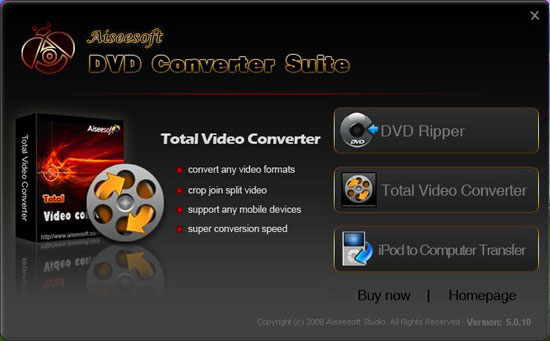
Aiseesoft DVD Converter Suite is a professional combination of Aiseesoft DVD Ripper and Aiseesoft Total Video Converter. https://www.topsevenreviews.com/image/dvd-video-suite/aiseesoft-dvd-converter-suite-icon.jpg Download this best DVD Converter Suite now. Key functions and features of this perfect DVD Converter Suite: (1)Convert DVD and any video/audio to the various video/audio formats Converter Suite software could easily convert DVD and any video to the various video/audio formats such as MP4, H.264, AVI, MP3, WMV, WMA, FLV, MKV, MPEG-1, MPEG-2, 3GP, 3GPP, VOB, DivX, Mov, RM, RMVB, M4A, AAC, WAV, etc. (2) Support almost all popular portable players Aiseesoft DVD Converter Suite software can convert DVD and video to all the popular devices: PSP, iPod Classic, iPod Touch, iPod Nano, iPhone (3G), iPhone, Zune, Zune 2, Blackberry, Nokia, Creative Zen, Sony Walkman, iRiver PMP, Archos, PS3, Apple TV, Xbox, iPAQ, Pocket PC, Mobile Phone, etc. (3) Easy and powerful editing function (Merge, Trim, Crop) Aiseesoft DVD Converter Suite software offers powerful editing functions such as merging multiple DVD chapters, titles or different videos files into one file, trimming any clip of video or DVD, cropping video size and so forth. 1:Merge multiple DVD chapters, titles or different videos files into one file. 2:Cut any clip of video. 3:Crop Video Size. (4)Capture your favorite image You can capture your favorite video image only by clicking the “SnapShot” function and the picture will be saved. (5)Support Preview (6)Fastest Conversion Speed It has a >400% conversion speed and a short while your conversion will be finished. (7)Easy to use Aiseesoft DVD Converter Suite is very user-friendly and easy to use. Only a few clicks to complete the conversion with supervising the whole process on real time. |
| Computers › Full Guide: How To Convert Any Dvd And Videos To Ipod Touch/classic/nano by crazydan01(op): 3:19am On Feb 18, 2009 |
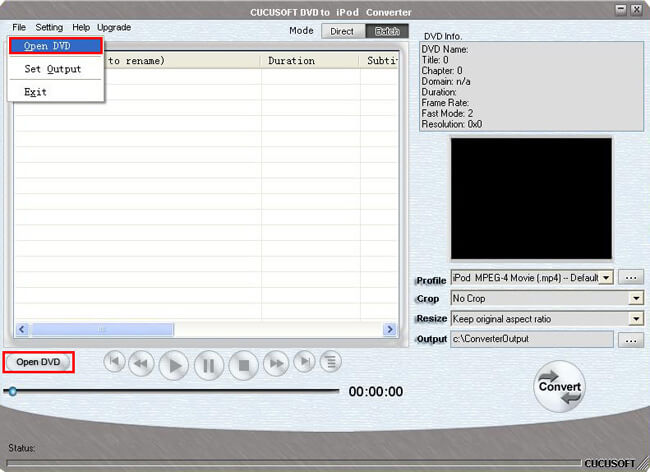
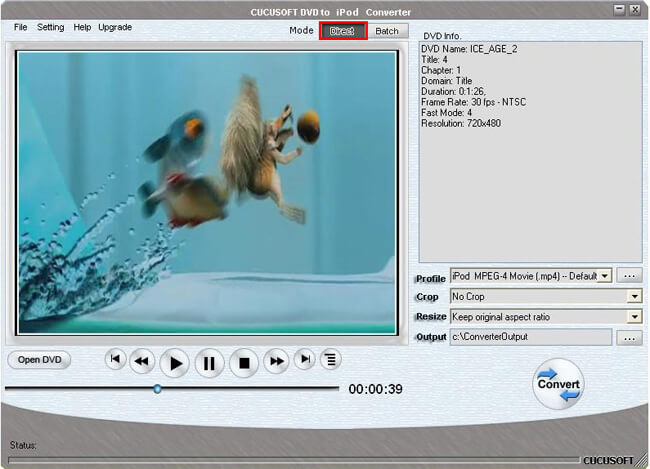
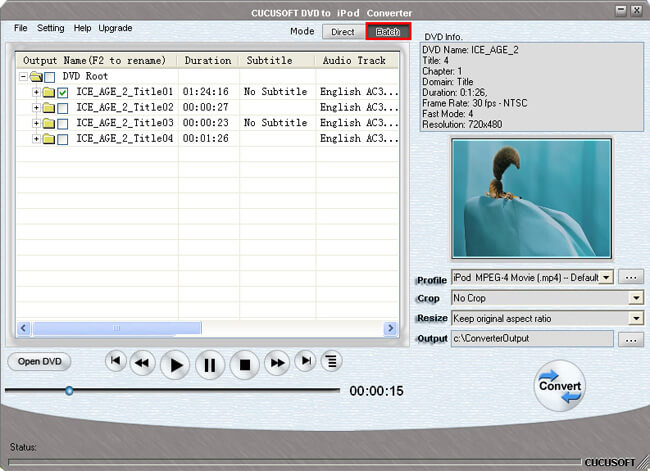
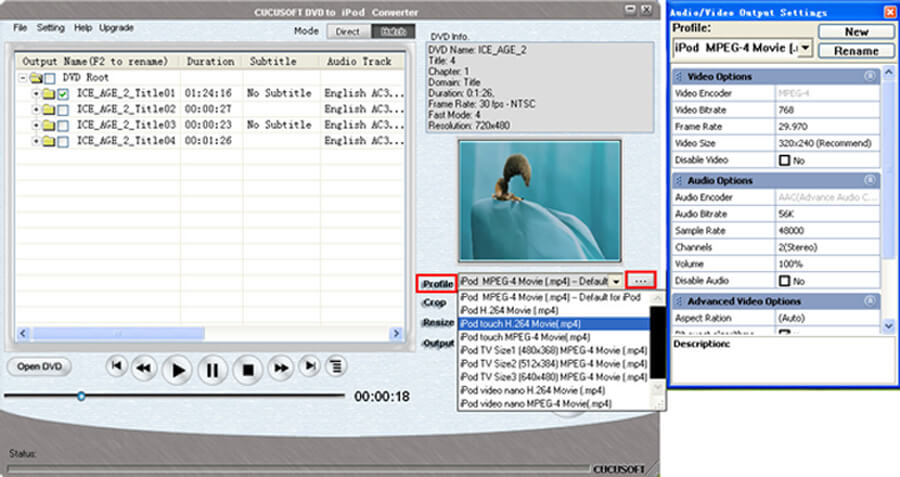
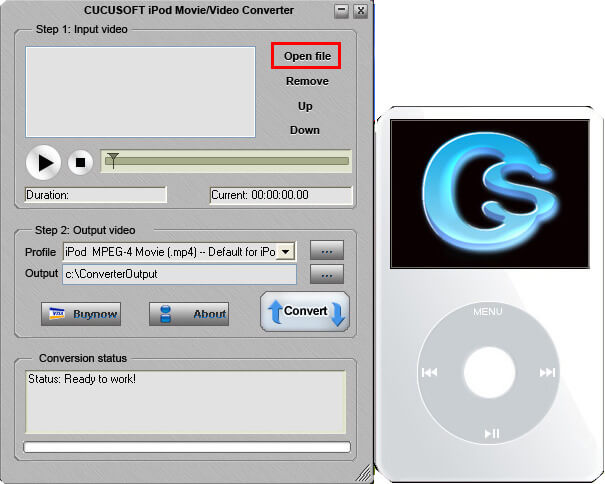
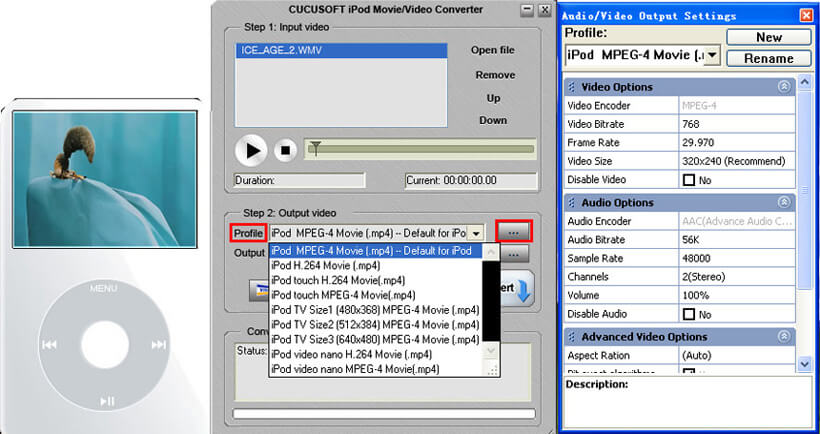
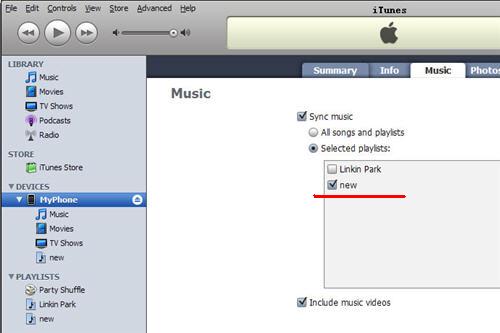
Many people now have iPods. But they often get difficulties in conversions such as: rip DVD to iPod Touch/Classic/Nano, Convert Video to iPod Touch/Classic/Nano, Convert Protected Videos/Music to iPod Touch/Classic/ Nano. In order to solve these problems I introduce three converting tools: Cucusoft DVD to iPod Converter, Cucusoft iPod Movie/Video Converter, Daniusoft Digital Media Converter. What you need are an iPod Touch/Classic/Nano and the converting tools above. You can download the softwares from following websites. 1: Cucusoft iPod Video Converter Suite (including Cucusoft DVD to iPod Converter and Cucusoft iPod Movie/Video Converter) 2: Daniusoft Digital Media Converter 3: Apple iTunes There are four parts in this guide. I hope it will be helpful for you. Part 1: How to Convert DVD to iPod Touch/Classic/Nano Part 2: How to Convert Video to iPod Touch/Classic/Nano Part 3: How to Convert Protected Videos/Music to iPod Touch/Classic/Nano 4.Part 4: Add the ready videos/music to your iPod Touch/Classic/ Nano Part 1: How to Convert DVD to iPod Touch/Classic/Nano Step 0:Install and run Cucusoft DVD to iPod Converter. Step 1: Place the DVD into your DVD drive. Step 2:Click the “open DVD” button to load DVD. https://www.topsevenreviews.com/guide/how-to-convert-dvd-video-to-ipod-touch-classic-nano/open-dvd.jpg Step 3:Select "Direct mode" or "Batch Mode" "Direct Mode" means that you can directly click the DVD Menu to select the DVD movie you want to rip. This mode is very easy for ripping a movie DVD's. https://www.topsevenreviews.com/guide/how-to-convert-dvd-video-to-ipod-touch-classic-nano/direct-mode.jpg "Batch Mode" means that you can select the DVD titles/chapters and audio track they want to rip via checkbox list. This mode is very easy for batch ripping Music DVD's, MTV DVD's and Episodic DVD's. https://www.topsevenreviews.com/guide/how-to-convert-dvd-video-to-ipod-touch-classic-nano/batch-mode.jpg Notes: In "Batch Mode", you not only can select the DVD titles/chapters and audio track, but also can adjust conversion time. So It is easy for you to convert any segment of DVD. Step 4: Select output format from the "Profile" drop-down list. https://www.topsevenreviews.com/guide/how-to-convert-dvd-video-to-ipod-touch-classic-nano/select-profile.jpg Notes: Click the "…" button at the right of the “profile” drop-down list to set the important parameters: Video Bitrate, Audio Bitrate, Frame Rate and Video Size. For a high image/sound quality you can increase the value of Video/Audio Bitirate and for a compressed file you can decrease the value. Step 5:Click the “Convert ”button to start the conversion. You can have a cup of coffee or have a walk. In a quite short time it will finish. Part 2. How to Convert videos to iPod Touch/Classic/Nano This software supports almost all kinds of video formats including MP4, Tivo, Flv, MKV, DivX, XviD, MOV, dvr-ms, rm, rmvb, MPEG, WMV, AVI , to playable video formats for iPod Touch/Classic/ Nano. Step 0: Install and run Cucusoft iPod Movie/Video Converter. Step 1: Click the “Open file” button to add the video files you want to convert. https://www.topsevenreviews.com/guide/how-to-convert-dvd-video-to-ipod-touch-classic-nano/open-video-file.jpg Step 2:Select output format from the "Profile" drop-down list. https://www.topsevenreviews.com/guide/how-to-convert-dvd-video-to-ipod-touch-classic-nano/select-video-profile.jpg Notes: Click the “…” button at the right of the “profile” drop-down list to set the important parameters: Video Bitrate, Audio Bitrate, Frame Rate and Video Size. For a high image/sound quality you can increase the value of Video/Audio Bitirate and for a compressed file you can decrease the value. Step 3:Click the “Convert” button to start the conversion .In a short while the conversion will be finished. Part 3: How to Convert Protected Videos/Music to iPod Touch/Classic/ Nano Step 1: Download and install the DRM Removal software. Step 2: Run the software and click “Add…” button to load your protected WMA, M4A, M4B, AAC, WMV, M4P, M4V or ASF files Step 3: Choose output formats. If you want to convert protected audio files, please select “Convert audio to” list; If you want to convert protected video files, please select “Convert video to” list. https://www.topsevenreviews.com/guide/how-to-convert-dvd-video-to-ipod-touch-classic-nano/daniu-media-converter.jpg Step 4 :Start remove DRM and convert your DRM protected music and videos by clicking “Start” button. Part 4: Add the ready videos/music to your iPod Touch/Classic/ Nano If you want to add video to iPod Touch/Classic/Nano with iTunes,follow these steps: 1.Open iTunes and click "File" to add your videos to iTunes library. 2.Plug in your iPod to computer, then iTunes will detect your iPod as a device. 3.Select your iPod device on the left panel of iTunes, click "Movies" tab, check the videos you want to sync and click "Apply", done. https://www.topsevenreviews.com/guide/how-to-convert-dvd-video-to-ipod-touch-classic-nano/itunes.jpg Now enjoy your high-resolutin video on your iPod Touch/Classic/Nano. Have fun! |



1 (of 1 pages)