Maccolar's Posts
Nairaland Forum › Maccolar's Profile › Maccolar's Posts
1 (of 1 pages)
 Computers › Re: How To Recover Files From A Formated Laptop by maccolar: 3:28am On Dec 17, 2013 Computers › Re: How To Recover Files From A Formated Laptop by maccolar: 3:28am On Dec 17, 2013 |
1. Stop write anything to your harddrive,otherwise you will re-write the files and permanently loose your important data. 2. Use some data recovery software like this one. My friends recommend it to me, it works pretty well. And then scan your hard drive with the program, set a destination folder (folder where recovered files will be saved) somewhere on your computer. When the scan was finished, it will return a file list, you can choose the files you want to recover. http://www.recoverdatamac.com/data-recovery.html Hope this help! |
| Computers › Re: How To Transfer Itunes Library Between Mac And Pc by maccolar(op): 4:53pm On Sep 19, 2009 |
I tested the new iPod Nano (build-in video camera) and iPod touch, this step by step guide works pretty well too. |
| Computers › Re: How To Transfer Itunes Library Between Mac And Pc by maccolar(op): 5:31pm On Jul 11, 2009 |
The iPod transfer in my guide also supports copying photos from iPod to Mac. |
| Computers › How To Transfer Itunes Library Between Mac And Pc by maccolar(op): 4:25am On Jun 04, 2009 |
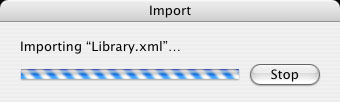
You've put a lot of time into your iTunes library, creating just the right playlists, and rating every song you've got. Now you buy a new laptop and you've decided to make the switch - from Windows to Mac (or Mac to Windows). Sadly, transferring your iTunes library along with your playlists and ratings isn't just a matter of moving the music files. Sure, the song-specific metadata like artist and album will be copied over in the files, but the data you assigned, the playlists and ratings? Those live inside iTunes' internal database files which can't be simply transfered from PC to Mac. https://www.mac-dvd.com/image/tutorial/transfer-itunes-between-mac-pc.jpg Actually, the best way to transfer iTunes library is to use iTunes's built-in backup and restore. This copies the contents of your library to CD's or DVD's, and nowhere else. However, if you've got a 60 gigabyte library and you don't have time to stand around wasting burning dozens of discs, this way's for you. The method described here lets you copy the files directly from one computer to another and take your playlists and song ratings with you. This guide would be a little complicated for new iPod user, if you want to transfer iTunes library easily, you can try this iPod Transfer for Mac (From Mac to PC) or this iPod Music Transfer(From PC to Mac), they can help you upload music to iPod and just two clicks to transfer them from iPod back to your new computer. Step1. On the source machine. To ensure that both machines keep the same folder structure, on the source library, in iTunes' Preferences pane, the Advanced tab, make sure that "Keep iTunes folder organized" and "Copy files to iTunes Music folder when adding to library" are both checked. https://www.mac-dvd.com/image/tutorial/move-itunes-library.jpg Then, from the Advanced menu, choose "Consolidate Library." The consolidation process may take some time, depending on the speed of your machine and size of your library. When that process completes, you're ready to export your library data. From iTunes' File menu, choose "Export Library, " and save the Library.xml file somewhere on the destination machine. Step2. On the destination machine. Now it's time to prepare the Mac, your destination machine. First, create a new iTunes library. (iTunes will do this automatically if it's the first time you're launching it; if you want to store your new library somewhere other than the default, hold down the Option key (Shift on Windows) when starting iTunes to create a new library.) Just like on the source machine, make sure that "Keep iTunes folder organized" and "Copy files to iTunes Music folder when adding to library" are both checked inside iTunes' Preferences. Make a note of the folder where your new library's music files will live, and quit iTunes. Now it's time to copy your music files from the source machine's music folder to the destination machine's music folder. You can do this over the network, or using an external drive. Just make sure the destination has all the same songs as the source. Step3. Convert the Library.xml file from PC to Mac format. Now, the Library.xml file that you exported on the source contains all your music playlists and ratings, but it contains file paths specific to your PC. Macs and PC's deal with file paths differently; PC's use drive letters but Mac's do not. So in order to make it importable by your Mac, we have to find and replace the Windows paths throughout the file with Mac-friendly paths. To do so, open the Library.xml file in a text editor. If you have a very large iTunes Library, like I do, this file could be several megabytes (18, in my case), so opening it might take more time than usual. If you can, use a machine with Lots of memory. Now, you'll notice that the Library.xml file from a PC will contain, along with a lot of other plain text XML markup, references to music locations in this format: file://localhost/F:/path/to/iTunes/. Using a simple find and replace, change those notations to the destination path using Mac format, for example, file://localhost/path/to/iTunes/. Here's what my find and replace looked like, from the PC's F: drive location to my Mac's external drive named "Media": https://www.mac-dvd.com/image/tutorial/transfer-itunes-library.jpg Notice the Mac path does NOT include a drive letter, but the PC does. Replace the /path/to/iTunes/ with the folder's where your new library lives. Save the edited file. (Depending on the speed of your machine and size of the Library.xml file, this may take a few minutes.). Make sure you double-check that the source path was correctly replaced with the destination path; if this part isn't exactly right, you'll be screwed later on. Step4. Import your Library. Now your new library is ready for all your hard-earned ratings and playlists. Launch iTunes on the destination machine. Even though you copied all the music to the right folder, iTunes doesn't see it. Yet. From the File menu, choose "Import, " and select the Library.xml file you exported and edited from the source - then let 'er go. It will take some time, but iTunes will suck in all the playlists, and tracks with rating information into your new library. https://www.mac-dvd.com/image/tutorial/import-itunes-library.jpg When you're done, you'll notice that you have duplicates of standard-issue iTunes playlists, like the Top 25 Most Played, Music Videos, etc. You can delete those dupes. Also, that whole Determining Gapless playback process might take awhile in your new library, too. |
| Computers › How To Transfer Itunes Library To Another Computer by maccolar(op): 5:58am On Apr 23, 2009 |
Sometime you may have this problem: You have an old computer which holds all your iTunes library including music, video, movie, tv shows, etc. And now you get a new computer, you want to transfer iTunes library from the old computer to the new one. And here is a step by step guide will provide two solutions to fix the problem; Option 1: If you have an iPod, you can sync your iTunes library to the iPod, and then copy them from iPod to the new computer; Option 2: You can sync iTunes to external hard drive and import them back to the new computer; Now, let's start the guide. Part 1. User iPod to transfer iTunes library to another computer Step1. Sync the iTunes library from computer to your iPod, I'm sure you can handle this step, so I'm not explain it here. Because iTunes prevents copying music and video from iPod to computer, you need special software to bypass the iTunes limitation. I have tried many iPod transfers, and I strongly recommend this iPod to Computer transfer. It's really easy to use. I have tested it with all series of iPod including iPod Touch, iPod Nano, iPod Classic, iPod Shuffule, iPod photo, even iPhone, they all works pretty well. Moreover, you can use it as an iTunes alternative, it's really useful when your iTunes can't recognize your iPod but you want to upload music and video to iPod. Step2. Download and install the iPod to PC transfer, here is the free download link, it's about 5.2 MB. For more information about it, you can visiting this review. Run the iPod to PC transfer, plug in your iPod to the new computer, it will detect your iPod and scan your iPod, then it will return a list of the files on your iPod. Choose the list and files you want to transfer, Click the Start Transfer button. https://www.reviewstown.com/img/tutorial/transfer-ipod-to-computer.jpg Step3. After you clicking the Start Transfer button, the following window will pop up; you can choose transferring to computer hard drive or iTunes directly. You can set the output fold at settings option before transferring. https://www.reviewstown.com/img/tutorial/transfer-ipod-to-itunes.jpg Done, If you are Mac user, you may try this Mac iPod to computer transfer, the operation steps are similar to the windows version, so I’m not repeating here. For more iPod Transfer alternatives, you can refer to this side by side iPod to Computer Transfer review. Part2. Use external hard drive to transfer iTunes library to another computer Since iPods get their music by syncing with iTunes, you'll need to either 1) tell iTunes to store music files on your portable external hard drive instead of your regular drive, or 2) import music files from your external drive into iTunes. Step1: Tell iTunes where to store music files Open iTunes and select Edit -- Preferences. Then click the Advanced tab where you'll find the iTunes Music folder location. https://www.reviewstown.com/img/tutorial/itunes-to-external-hard-drive.gif Click the Change button and choose a folder on your external hard drive (you might want to create one first if you want files to be stored in a particular folder on the new drive). If you want all of your music files to be moved over from your main drive to the external drive, then make sure the Copy files to iTunes Music folder when adding to library option is checked. Step2: Import music into iTunes from an external hard drive If you already have music video on a portable hard drive, and just want to get them into iTunes so you can sync up and get those files on your ipod, then you can just drag and drop those files onto your new computer iTunes. You can also use the File -- Add Folder to Library menu in iTunes, choose the music and video folder on your portable drive, and iTunes will add those to your library. If you uncheck the Copy files to iTunes Music folder when adding to library option, which is on this same tab shown above, then iTunes will leave the files on your external drive. In the checked state (shown above), iTunes will copy all of the music files from the folder on your external drive over to your main drive. That might not be what you want (particularly if your external drive has more files on it than the size of your main drive). |






1 (of 1 pages)