Yiinksdavid's Posts
Nairaland Forum › Yiinksdavid's Profile › Yiinksdavid's Posts
1 (of 1 pages)
 Education › Re: Fix Wifi Icon Is Greyed Out In Windows 10 by yiinksdavid(op): 10:47am On Sep 21, 2021 Education › Re: Fix Wifi Icon Is Greyed Out In Windows 10 by yiinksdavid(op): 10:47am On Sep 21, 2021 |
Do you want your OS environment and apps to respond quicker and run faster? Do you want to always get the newest security updates, patches to restrict easy access of viruses, malwares, spywares affecting your OS environment? Do you want to get critical updates to improve all app functions on your environment Do you want to have personalization settings unblocked? Do you want to have free support from MS Agent? Kindly check if your Windows OS is activated and if not, ensure you get a valid activation/license key as this will save you the stress of resolving issues on your system by paying technicians all the time for OS related issues. Genuine and Legitimate Activation/License retail keys directly from Microsoft available at a very low cost. kindly reach out via my signature for more details. Exchange Server 2016 (Standard and Enterprise Edition) Exchange Server 2019 (Standard and Enterprise Edition) Office 2013 (Professional, Standard and Ultimate version) Office 2016 (Professional, Standard and Ultimate version) Office 2019 (Professional, Standard and Ultimate version) Office 365 - Project Professional 2019 - Office Home and Business 2019 - Visio Professional 2019 - Office Professional Plus 2019 Office Home and Business 2016 for Mac Office Home and Business 2019 for Mac Office Professional Plus 2016 Office Professional Plus 2019 SharePoint Server 2016 (Standard and Enterprise) SharePoint Server 2019 (Standard and Enterprise) Visual Studio Enterprise 2017 Visual Studio Enterprise 2019 Visual Studio 2017 for Mac Visual Studio 2019 for Mac Windows 10 Pro Plus Windows 10 Enterprise Windows 10 Pron N Windows 10 Education Windows Server 2016 (Datacenter, Remote Desktop Services user connection(50) and Standard) Windows Server 2019 (Datacenter, Remote Desktop Services user connection(50) and Standard). |
| Computers › Re: Why You Need To Activate Windows 10 On Your Computer by yiinksdavid(op): 10:46am On Sep 21, 2021 |
Do you want your OS environment and apps to respond quicker and run faster? Do you want to always get the newest security updates, patches to restrict easy access of viruses, malwares, spywares affecting your OS environment? Do you want to get critical updates to improve all app functions on your environment Do you want to have personalization settings unblocked? Do you want to have free support from MS Agent? Kindly check if your Windows OS is activated and if not, ensure you get a valid activation/license key as this will save you the stress of resolving issues on your system by paying technicians all the time for OS related issues. Genuine and Legitimate Activation/License retail keys directly from Microsoft available at a very low cost. kindly reach out via my signature for more details. Exchange Server 2016 (Standard and Enterprise Edition) Exchange Server 2019 (Standard and Enterprise Edition) Office 2013 (Professional, Standard and Ultimate version) Office 2016 (Professional, Standard and Ultimate version) Office 2019 (Professional, Standard and Ultimate version) Office 365 - Project Professional 2019 - Office Home and Business 2019 - Visio Professional 2019 - Office Professional Plus 2019 Office Home and Business 2016 for Mac Office Home and Business 2019 for Mac Office Professional Plus 2016 Office Professional Plus 2019 SharePoint Server 2016 (Standard and Enterprise) SharePoint Server 2019 (Standard and Enterprise) Visual Studio Enterprise 2017 Visual Studio Enterprise 2019 Visual Studio 2017 for Mac Visual Studio 2019 for Mac Windows 10 Pro Plus Windows 10 Enterprise Windows 10 Pron N Windows 10 Education Windows Server 2016 (Datacenter, Remote Desktop Services user connection(50) and Standard) Windows Server 2019 (Datacenter, Remote Desktop Services user connection(50) and Standard). |
| Tech Jobs › Re: How To Get Free Support From Microsoft On Issues With Windows 10 OS by yiinksdavid(op): 10:44am On Sep 21, 2021 |
Do you want your OS environment and apps to respond quicker and run faster? Do you want to always get the newest security updates, patches to restrict easy access of viruses, malwares, spywares affecting your OS environment? Do you want to get critical updates to improve all app functions on your environment Do you want to have personalization settings unblocked? Do you want to have free support from MS Agent? Kindly check if your Windows OS is activated and if not, ensure you get a valid activation/license key as this will save you the stress of resolving issues on your system by paying technicians all the time for OS related issues. Genuine and Legitimate Activation/License retail keys directly from Microsoft available at a very low cost. kindly reach out via my signature for more details. Exchange Server 2016 (Standard and Enterprise Edition) Exchange Server 2019 (Standard and Enterprise Edition) Office 2013 (Professional, Standard and Ultimate version) Office 2016 (Professional, Standard and Ultimate version) Office 2019 (Professional, Standard and Ultimate version) Office 365 - Project Professional 2019 - Office Home and Business 2019 - Visio Professional 2019 - Office Professional Plus 2019 Office Home and Business 2016 for Mac Office Home and Business 2019 for Mac Office Professional Plus 2016 Office Professional Plus 2019 SharePoint Server 2016 (Standard and Enterprise) SharePoint Server 2019 (Standard and Enterprise) Visual Studio Enterprise 2017 Visual Studio Enterprise 2019 Visual Studio 2017 for Mac Visual Studio 2019 for Mac Windows 10 Pro Plus Windows 10 Enterprise Windows 10 Pron N Windows 10 Education Windows Server 2016 (Datacenter, Remote Desktop Services user connection(50) and Standard) Windows Server 2019 (Datacenter, Remote Desktop Services user connection(50) and Standard). |
| Computers › Re: Why You Need To Activate Windows 10 On Your Computer by yiinksdavid(op): 6:01pm On Sep 20, 2021 |
Genuine License/Activation Keys for the following Microsoft products are available at a very low cost . kindly reach out via my signature for more details. Exchange Server 2016 (Standard and Enterprise Edition) Exchange Server 2019 (Standard and Enterprise Edition) Office 2013 (Professional, Standard and Ultimate version) Office 2016 (Professional, Standard and Ultimate version) Office 2019 (Professional, Standard and Ultimate version) Office 365 - Project Professional 2019 - Office Home and Business 2019 - Visio Professional 2019 - Office Professional Plus 2019 Office Home and Business 2016 for Mac Office Home and Business 2019 for Mac Office Professional Plus 2016 Office Professional Plus 2019 SharePoint Server 2016 (Standard and Enterprise) SharePoint Server 2019 (Standard and Enterprise) Visual Studio Enterprise 2017 Visual Studio Enterprise 2019 Visual Studio 2017 for Mac Visual Studio 2019 for Mac Windows 10 Pro Windows 10 Enterprise Windows 10 Pron N Windows 10 Education Windows Server 2016 (Datacenter, Remote Desktop Services user connection(50) and Standard) Windows Server 2019 (Datacenter, Remote Desktop Services user connection(50) and Standard). |
| Tech Jobs › Re: How To Get Free Support From Microsoft On Issues With Windows 10 OS by yiinksdavid(op): 5:10pm On Sep 20, 2021 |
Genuine License/Activation Keys for the following Microsoft products are available at a very low cost . kindly reach out via my signature for more details. Exchange Server 2016 (Standard and Enterprise Edition) Exchange Server 2019 (Standard and Enterprise Edition) Office 2013 (Professional, Standard and Ultimate version) Office 2016 (Professional, Standard and Ultimate version) Office 2019 (Professional, Standard and Ultimate version) Office 365 - Project Professional 2019 - Office Home and Business 2019 - Visio Professional 2019 - Office Professional Plus 2019 Office Home and Business 2016 for Mac Office Home and Business 2019 for Mac Office Professional Plus 2016 Office Professional Plus 2019 SharePoint Server 2016 (Standard and Enterprise) SharePoint Server 2019 (Standard and Enterprise) Visual Studio Enterprise 2017 Visual Studio Enterprise 2019 Visual Studio 2017 for Mac Visual Studio 2019 for Mac Windows 10 Pro Windows 10 Enterprise Windows 10 Pron N Windows 10 Education Windows Server 2016 (Datacenter, Remote Desktop Services user connection(50) and Standard) Windows Server 2019 (Datacenter, Remote Desktop Services user connection(50) and Standard). |
| Education › Re: Fix Wifi Icon Is Greyed Out In Windows 10 by yiinksdavid(op): 5:09pm On Sep 20, 2021 |
Genuine License/Activation Keys for the following Microsoft products are available at a very low cost . kindly reach out via my signature for more details. Exchange Server 2016 (Standard and Enterprise Edition) Exchange Server 2019 (Standard and Enterprise Edition) Office 2013 (Professional, Standard and Ultimate version) Office 2016 (Professional, Standard and Ultimate version) Office 2019 (Professional, Standard and Ultimate version) Office 365 - Project Professional 2019 - Office Home and Business 2019 - Visio Professional 2019 - Office Professional Plus 2019 Office Home and Business 2016 for Mac Office Home and Business 2019 for Mac Office Professional Plus 2016 Office Professional Plus 2019 SharePoint Server 2016 (Standard and Enterprise) SharePoint Server 2019 (Standard and Enterprise) Visual Studio Enterprise 2017 Visual Studio Enterprise 2019 Visual Studio 2017 for Mac Visual Studio 2019 for Mac Windows 10 Pro Windows 10 Enterprise Windows 10 Pron N Windows 10 Education Windows Server 2016 (Datacenter, Remote Desktop Services user connection(50) and Standard) Windows Server 2019 (Datacenter, Remote Desktop Services user connection(50) and Standard). |
| Computers › Why You Need To Activate Windows 10 On Your Computer by yiinksdavid(op): 3:40pm On Sep 20, 2021 |
Microsoft changed a lot of things with the launch of Windows 10. Most importantly, Microsoft made it easy to install Windows without having to activate it. The idea was to reduce the rampant piracy and cracked versions of Windows that were in circulation. https://cdn.guidingtech.com/imager/assets/2019/12/250044/why-activate-windows-10_935adec67b324b146ff212ec4c69054f.jpg It turns out there are several reasons behind it, and you should buy a Windows license at the earliest. Let’s understand why and then we will see how to activate Windows 10 too. KEY FEATURES ARE MISSING One reason why you should consider activating Windows 10 is its features. Windows 10 comes with several features, many of which are only available in the licensed version. Some of my favorites are systemwide dark mode, Free Microsoft support, Windows Defender and Security, Focus Assist, and efficiency of the preinstalled apps, among others. You also can’t install and use Microsoft Office in Windows 10 unless you activate it. If you manage to install the crack or trial version, you will be greeted with a constant pop-up reminding you to activate. That’s annoying and counter-productive. What you do get is a watermark at the bottom right of the screen that reminds you that you are using the free version. These are just some of the key features that you would be missing. And the Windows dev team is constantly working on new features that you will never receive because you can’t download updates either. BUGS FIXES AND PATCHES If you thought Windows updates were just about pushing new features or updating old ones, you are wrong. Microsoft frequently pushes small updates that fix known bugs and errors. These bugs affect how you interact with Windows OS as well as Microsoft apps. The Microsoft development team are not the only people who are looking for these bugs. Independent developers and enthusiasts are also working as freelancers via the Microsoft Bug Bounty Program. If you find a bug and report it to Microsoft, you will receive a reward for your effort. These rewards can be substantial, which is why some people have made it their profession and do this for a living too. SECURITY UPDATES ARE ESSENTIAL Windows Updates also contain security fixes for malware, virus, and other cyber threats that were discovered recently. Fighting cyber criminals and hackers is like a never-ending war. You can never defeat them but only keep them at bay, and Windows updates are one way to do that. https://cdn.guidingtech.com/imager/assets/2019/12/250050/why-activate-windows-10-3_935adec67b324b146ff212ec4c69054f.jpg You can do your bit by updating your computer, which you can only do after you activate Windows 10 on your computer. You need these security updates and fixes to protect your data, identity, and for preventing hackers from taking over your system for blackmailing you. That’s called ransomware, and it’s a nightmare. 2 Likes 3 Shares |
| Computers › Re: How To Work In Safe Mode On Your Computer by yiinksdavid(op): 10:14am On Sep 20, 2021*. Modified: 6:47pm On Sep 21, 2021 |
Genuine License/Activation Keys for the following Microsoft products are available at a very low cost. kindly reach out via my signature for more details. Exchange Server 2016 (Standard and Enterprise Edition) Exchange Server 2019 (Standard and Enterprise Edition) Office 2013 (Professional, Standard and Ultimate version) Office 2016 (Professional, Standard and Ultimate version) Office 2019 (Professional, Standard and Ultimate version) Office 365 - Project Professional 2019 - Office Home and Business 2019 - Visio Professional 2019 - Office Professional Plus 2019 Office Home and Business 2016 for Mac Office Home and Business 2019 for Mac Office Professional Plus 2016 Office Professional Plus 2019 SharePoint Server 2016 (Standard and Enterprise) SharePoint Server 2019 (Standard and Enterprise) Visual Studio Enterprise 2017 Visual Studio Enterprise 2019 Visual Studio 2017 for Mac Visual Studio 2019 for Mac Windows 10 Pro Windows 10 Enterprise Windows 10 Pron N Windows 10 Education Windows Server 2016 (Datacenter, Remote Desktop Services user connection(50) and Standard) Windows Server 2019 (Datacenter, Remote Desktop Services user connection(50) and Standard). 1 Like |
| Computers › How To Work In Safe Mode On Your Computer by yiinksdavid(op): 9:32am On Sep 20, 2021*. Modified: 6:49pm On Sep 21, 2021 |
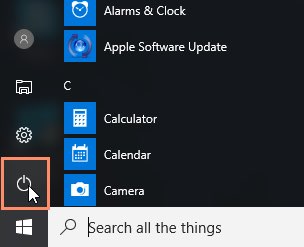
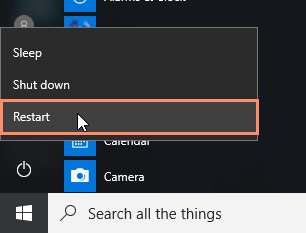
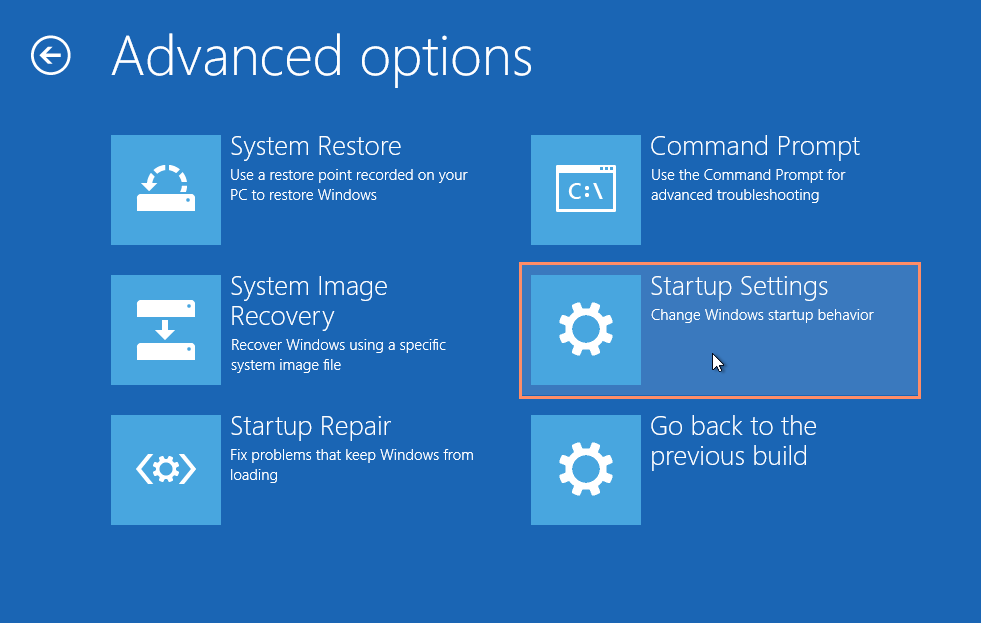
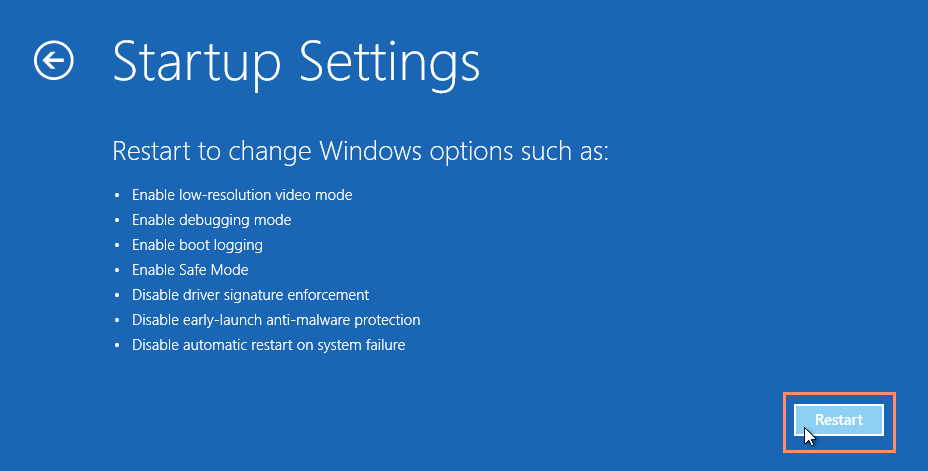
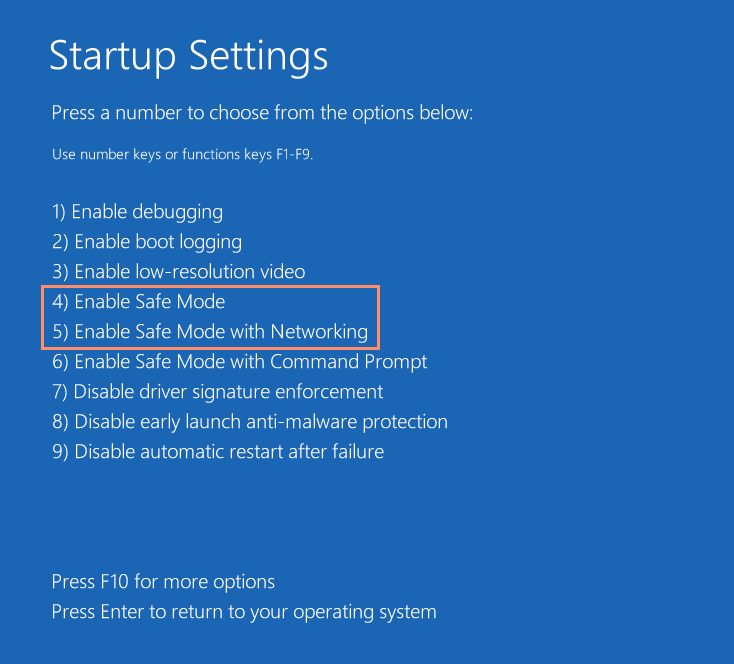
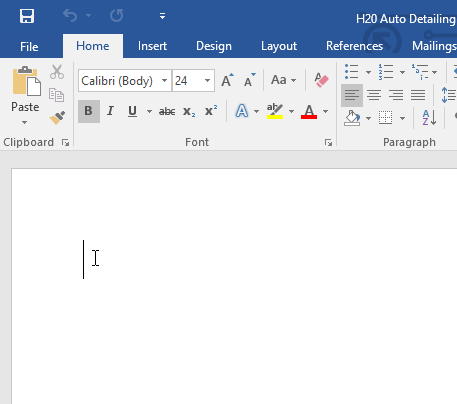
When you run a computer in safe mode, you can start it, test most of its systems, and change certain settings. Safe mode is an excellent way to diagnose — and often fix — your computer’s problems. TIP: If you can start your PC in safe mode, its basic hardware probably isn’t the cause of your problem. If you can’t start your PC in safe mode, you have a problem with basic hardware or the basic elements of Windows. If your PC starts in safe mode all by itself, some component is preventing normal startup. Why use safe mode? Let's say one day you go to use your computer and find that your OS just won't start, or maybe it keeps crashing on you. This could be due to any number of reasons, including a virus, malware, corrupt files, or something else entirely. Safe mode allows you to boot up your OS in a very basic state so you can potentially identify and fix the problem. While in safe mode, your screen resolution may look a bit off, certain applications might not work properly, or your computer may run a bit slower than usual. This is completely normal; it's just the effects of certain drivers not running. To start in safe mode (Windows 8.1 and later) 1. Click the Start button and select the Power icon. https://media.gcflearnfree.org/content/5891f6dbb0daa30e10ddb2ee_02_01_2017/newer_start.jpg 2. Hold down the Shift key and click Restart. https://media.gcflearnfree.org/content/5891f6dbb0daa30e10ddb2ee_02_01_2017/newer_restart_shift.jpg 3. A menu will appear. Select Troubleshoot > Advanced Options > Startup Settings. https://media.gcflearnfree.org/content/5891f6dbb0daa30e10ddb2ee_02_01_2017/newer_startup_settings.png 4. Click the Restart button. https://media.gcflearnfree.org/content/5891f6dbb0daa30e10ddb2ee_02_01_2017/newer_settings_restart.png 5. Your computer will reboot, presenting you with the menu shown below. Press 4 to select Enable Safe Mode (or 5 to select Enable Safe Mode with Networking if you need to use the Internet). https://media.gcflearnfree.org/content/5891f6dbb0daa30e10ddb2ee_02_01_2017/newer_enable_safe_mode.png 6. Your computer will then boot in safe mode. To start in safe mode (Windows 7 and earlier): 1. Turn on or restart your computer. While it's booting up, hold down the F8 key before the Windows logo appears. 2. A menu will appear. You can then release the F8 key. Use the arrow keys to highlight Safe Mode (or Safe Mode with Networking if you need to use the Internet to solve your problem), then press Enter. 3. Your computer will then boot in safe mode. To start in safe mode on a Mac: 1. Turn on or restart your computer. While it's booting up, hold down the Shift key before the Apple logo appears. Once the logo appears, you can release the Shift key. 2. Your computer will then boot in safe mode. What to do once you're in safe mode Certain problems can be fixed pretty easily using safe mode, while others may prove to be more of a challenge. 1. If you think it's malware that's affecting your computer, you can easily run an antivirus application to try and remove it. This task might be difficult to do while running your computer normally. 2. If you've recently installed a program and notice that your computer has been acting strange since then, you can run safe mode to uninstall it. 3. If you suspect your drivers are making your system unstable, you can use safe mode to update them. 4. If you boot up with safe mode and your computer continues to crash, this means there's probably something wrong with your hardware. If this is the case, you'll probably need to take it to a repair technician for further help. Once you think you've solved your problem, you'll need to get out of safe mode to test and see if it worked. To do this, simply restart your computer. When it boots up again, it should start Windows in its normal operating mode. https://media.gcflearnfree.org/content/568ec6e64ba91213b0054eb2_01_07_2016/text_insertion_point.png 1 Like 1 Share |
| Education › Re: Fix Wifi Icon Is Greyed Out In Windows 10 by yiinksdavid(op): 10:07am On Sep 16, 2021 |
Method 6: Turn WiFi On From Windows Mobility Center 1.Press Windows key + Q and type windows mobility center. 2.Inside Windows Mobility Center turn ON your WiFi connection. https://techcult.com/wp-content/uploads/2016/06/4.Windows-mobility-center.png 3.Restart your PC to save changes. Method 7: Enable the WLAN AutoConfig Service 1.Press Windows Key + R then type services.ms[/b]c and hit [b]Enter. https://techcult.com/wp-content/uploads/2016/08/services-windows.png 2.Find the WLAN AutoConfig Service then right-click on it and select Properties. 3.Make sure the Startup type is set to Automatic and the service is running, if not then click Start. https://techcult.com/wp-content/uploads/2017/07/Make-sure-the-Startup-type-is-set-to-Automatic-and-click-start-for-WLAN-AutoConfig-Service.png 4.Click Apply followed by OK. 5.Reboot your PC to save changes. Method 8: Registry Fix 1.Press Windows Keys + R then type regedit and hit Enter to open Registry Editor. https://techcult.com/wp-content/uploads/2016/06/Run-command-regedit.png 2.Navigate to the following registry key: Computer\HKEY_CURRENT_USER\Software\Classes\Local Settings\Software\Microsoft\Windows\CurrentVersion\TrayNotify 3.Make sure you have highlighted TrayNotify in the left window pane and then in the right window find Iconstreams and PastIconStream registry keys. 4.Once found, right-click on each of them and select Delete. 5.Reboot your PC to save changes. Method 9: Uninstall Wireless Network Adapter Drivers 1.Press Windows Key + R then type “devmgmt.msc” and hit Enter to open Device Manager. https://techcult.com/wp-content/uploads/2016/06/devmgmt.msc-device-manager.png 2.Expand Network Adapters and find your network adapter name. 3.Make sure you note down the adapter name just in case something goes wrong. 4.Right-click on your network adapter and uninstall it. https://techcult.com/wp-content/uploads/2017/05/uninstall-network-adpatrer.png 5.If ask for confirmation select Yes. 6.Restart your PC and try to reconnect to your network. 7.If you’re not able to connect to your network then it means the driver software isn’t automatically installed. 8.Now you need to visit your manufacturer’s website and download the driver from there. https://techcult.com/wp-content/uploads/2017/05/download-driver.png 9.Install the driver and reboot your PC. By reinstalling the network adapter, you can Fix WiFi icon is greyed out in Windows 10. Method 10: Update BIOS Performing BIOS update is a critical task and if something goes wrong it can seriously damage your system, therefore, an expert supervision is recommended. 1.The first step is to identify your BIOS version, to do so press Windows Key + R then type “msinfo32” (without quotes) and hit enter to open System Information. https://techcult.com/wp-content/uploads/2016/08/msinfo32.png 2.Once the System Information window opens locate BIOS Version/Date then note down the manufacturer and BIOS version. 3.Next, go to your manufacturer’s website for e.g in my case it’s Dell so I will go to Dell website and then I will enter my computer serial number or click on the auto detect option. 4.Now from the list of drivers shown I will click on BIOS and will download the recommended update. Note: Do not turn off your computer or disconnect from your power source while updating the BIOS or you may harm your computer. During the update, your computer will restart and you will briefly see a black screen. 5.Once the file is downloaded, just double click on the Exe file to run it. 6.Finally, you have updated your BIOS and this may be able to Fix WiFi icon is greyed out in Windows 10. |
| Tech Jobs › Re: How To Get Free Support From Microsoft On Issues With Windows 10 OS by yiinksdavid(op): 9:54am On Sep 16, 2021 |
Are you interested in Cloud technology? Would you like to be a Cloud technology Administrator, Engineer, or specialist? This a great chance for you as the world is evolving right now at an expeditious rate and there is a surge in demand for cloud computing services all over the world. According to Oracle’s Cloud Predictions, “80% of all enterprise (and mission-critical) workloads will move to the cloud by 2025”. The basic feature that cloud computing offers is to share and store data in the cloud that can be accessed from anywhere in the world using a decent internet connection. To pursue a career in cloud computing, all major cloud services providers offer career paths and certifications, but Microsoft Azure is a single cloud service provider that offers role-based certifications that are specifically designed according to the market requirements and the job roles. Due to the large adoption of Microsoft Azure cloud services, Microsoft Azure certified professionals are in high demand for developing cloud applications and managing cloud infrastructures. I would like to enlighten interested individuals/group in taking their first step towards Microsoft Azure which is one of the foremost cloud platform and cloud services designed to help bring new solutions to life—to solve today’s challenges and create the future. Build, run, and manage applications across multiple clouds, on-premises, and at the edge, with the tools and frameworks of your choice. What is offered Information and guidance to attend an Azure virtual training webinar which gives a free voucher for AZ 900 (Azure Fundamentals) Certification. Specific training links to understand Cloud computing and Microsoft Azure. Guide on opening an Azure account (Free $200 subscription) for practices and reproductions (Repros). Guide on specific part of Azure you want to be an expert on e.g Administrator, Solutions Architect, Securities, DevOps, Al, Data science. Provision of free dumps for any Microsoft Certification, Other IT and Management Certification 50% Discount on all other Azure certifications and dumps for practices. Access to Azure Engineers and specialist for consultations. Reasons You Should Be Microsoft Azure Certified Career flexibility and more job opportunities Higher Salaries Structured learning Progressive career development Vital asset for an organization Better security offerings Acquire and Improve DevOps skills These cloud expectations should help you feel more confident that a career in Microsoft Azure will not diminish in the future, but rather continue to rapidly grow. If you’re interested in learning more about how to become Microsoft Azure certified, kindly reach out to me via my signature. |
| Education › Re: Fix Wifi Icon Is Greyed Out In Windows 10 by yiinksdavid(op): 9:31am On Sep 16, 2021 |
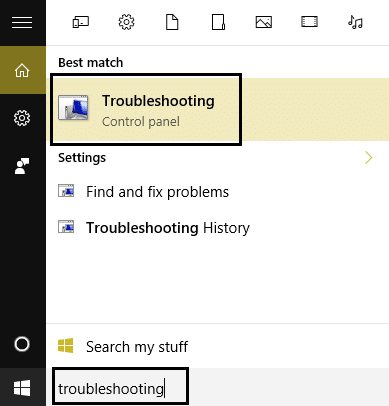
Method 1: Turn on the Physical Switch for WiFi on Keyboard You may have accidentally press the physical button to switch off WiFi or some program may have disabled it. If this is the case you can easily fix WiFi icon is greyed out with just a press of a button. Search your keyboard for the WiFi icon and press it to enable WiFi [/b]again. In most cases it’s [b]Fn(Function key) + F2. Method 2: Enable Your WiFi Connection 1.Right click on the network icon in the notification area. 2.Select Open Network and Sharing Center. https://techcult.com/wp-content/uploads/2016/06/open-network-and-sharing-center.png 3.Click Change adapter settings. https://techcult.com/wp-content/uploads/2016/06/change-adapter-settings.png 4. Again right-click on the same adapter and this time choose Enable. https://techcult.com/wp-content/uploads/2016/06/Enable-the-Wifi-to-reassign-the-ip.png 5. Again try to connect to your wireless network and see if you’re able to Fix WiFi icon is greyed out in Windows 10. Method 3: Run Network Troubleshooter 1.Right-click on the network icon and select Troubleshoot Problems. https://techcult.com/wp-content/uploads/2016/06/Troubleshoot-problems-network-icon.png 2.Follow the on-screen instructions. 3.Now press Windows key + W and type Troubleshooting hit enter. https://techcult.com/wp-content/uploads/2016/06/troubleshooting-control-panel.png 4.From there select “Network and Internet.“ https://techcult.com/wp-content/uploads/2016/06/select-Network-and-Internet-in-troubleshooting.png 5.In the next screen click on Network Adapter. https://techcult.com/wp-content/uploads/2016/06/select-Network-Adapter-from-network-and-internet.png 6.Follow the on-screen instruction to Fix WiFi icon is greyed out in Windows 10. Method 4: Turn on Wireless capability 1.Press Windows key + Q and type network and sharing center. 2.Click Change adapter settings. https://techcult.com/wp-content/uploads/2016/06/change-adapter-settings.png 3.Right-click the WiFi connection and select Properties. https://techcult.com/wp-content/uploads/2016/06/Click-on-properties-of-WiFi.png 4.Click Configure next to the wireless adapter. https://techcult.com/wp-content/uploads/2016/06/configure-wirless-network.png 5.Then click the Power Management tab. 6.Uncheck “Allow the computer to turn off this device to save power.” https://techcult.com/wp-content/uploads/2016/06/power-management.png 7.Restart your PC. Method 5: Enable WiFi from BIOS Sometimes none of above steps would be useful because the wireless adapter has been disabled from BIOS, in this case, you need to enter BIOS and set it as default, then log in again and go to “Windows Mobility Center” through Control Panel and you can turn the wireless adapter ON/OFF. https://techcult.com/wp-content/uploads/2016/06/5.Enable-wirless-support-BIOS.jpg If this doesn’t fix then Reset the BIOS to default settings. |
| Education › Fix Wifi Icon Is Greyed Out In Windows 10 by yiinksdavid(op): 9:09am On Sep 16, 2021*. Modified: 6:44pm On Sep 21, 2021 |
Fix WiFi icon is greyed out in Windows 10: If you have recently upgraded to Windows 10 then chances are you might not be able to connect to Wifi, in short, the Wifi icon is greyed out and you don’t see any available WiFi connections. This happens when the Wifi toggle switch built-in into the Windows is greyed out and no matter what you do, you can’t seem to turn on the Wifi. Few users were so frustrated with this issue that they completely reinstalled their OS but that also didn’t seem to help. https://techcult.com/wp-content/uploads/2017/07/Fix-WiFi-icon-is-greyed-out-in-Windows-10.png While running the Troubleshooter will only show you the error message “Wireless capability is turned off” which means the physical switch present on the keyboard is turned off and you need to manually turn it ON in order to fix the issue. But sometime this fix also doesn’t seem to work as WiFi is directly disabled from BIOS, hence you see there can be many issues leading to WiFi icon is greyed out. So without wasting any time let’s see how to actually Fix WiFi icon is greyed out in Windows 10 with the below-listed troubleshooting steps. https://techcult.com/wp-content/uploads/2016/06/2.Wireless-capability-is-turned-off.png Note: Make sure Airplane mode is not ON because of which you can’t access the WiFi settings. |
| Tech Jobs › How To Get Free Support From Microsoft On Issues With Windows 10 OS by yiinksdavid(op): 8:03am On Sep 16, 2021 |
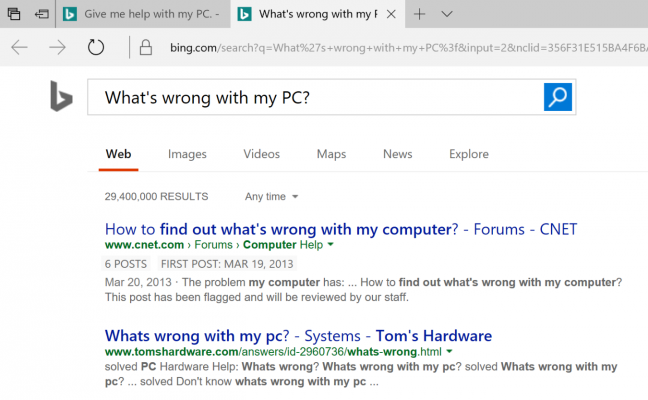
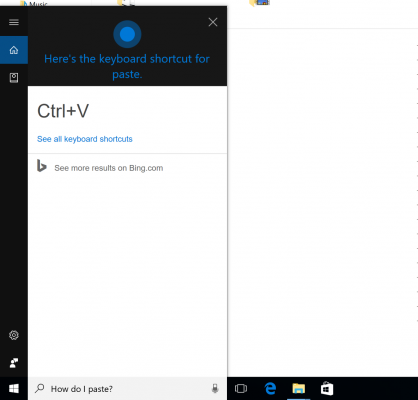
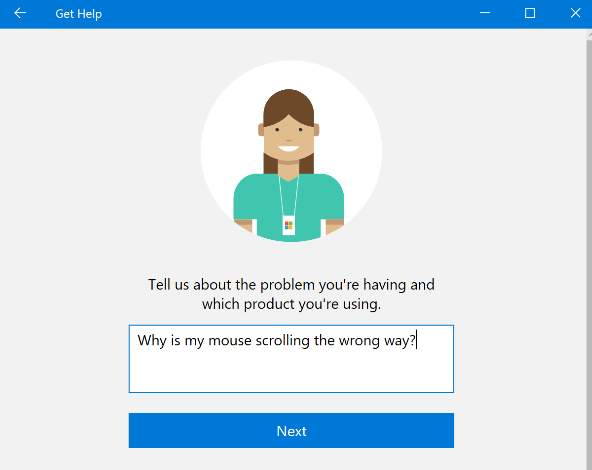
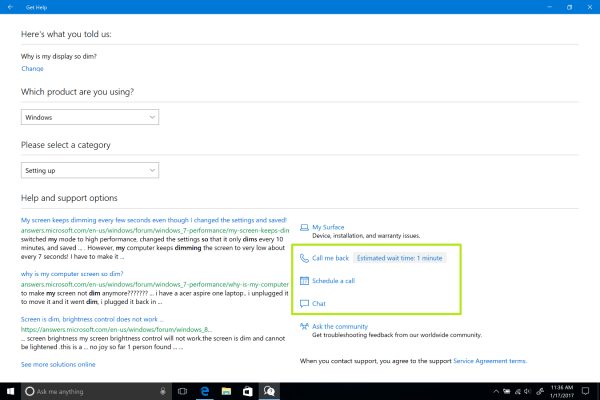
If you're having trouble with Windows 10, you probably want to get answers as quickly as possible so you can get back to work. Fortunately, Microsoft builds a number of support services into its operating system and will even help you via phone or live chat. Here are five ways to get help in Windows 10. Note: Your OS has to be activated to have access to some of this steps especially direct free support from MS Engineer. 1. Hit the F1 Key The F1 key is the original means of finding help, similar to dialing 411. Hitting F1 in an app often opens that program's help menu, but for Windows 10 itself, the button only performs a Bing search in your default browser for "get help in Windows 10, " which you could do yourself. https://cdn.mos.cms.futurecdn.net/ZfVMYXzUn3Yh4dVeWDjoRZ-970-80.png If clicking F1 doesn't bring up such assistance, you may need to enable it by holding down the Start button while you press the key. Failing that, some systems require you to disable Function Lock, which is done by clicking the dedicated Fn Lock key. 2. Ask Cortana for Help If you'd rather talk than type, you can ask Cortana for help understanding basic issues with Windows 10. The digital assistant knows about keyboard shortcuts for copy and paste and can even direct you to videos that answer other questions. https://cdn.mos.cms.futurecdn.net/3LvAFx6vDgvJBLBNuuB9Zk-970-80.png To activate Cortana, click on the microphone in the menu bar or say "Hey Cortana" if you have that option enabled. 3. Ask Microsoft Support for Help For direct interaction with a Microsoft representative, you can use a dedicated app built into your PC. Click the Start button and scroll to Contact Support, and if you don't see that, look for Get Help. https://cdn.mos.cms.futurecdn.net/vBuZQuLJjXuru5JiatdDGX-970-80.png Here, you can ask a question or search with keywords to find documentation from Microsoft that will solve your problems. 4. Call or Chat with Microsoft After searching for an answer in Contact Support or Get Help, you'll see options for further assistance at the bottom of the window. These options include arranging for Microsoft to call you now, which should include an estimate for how soon an agent will be ready. https://cdn.mos.cms.futurecdn.net/G3zUZy6HczygZsxR6aDLgY-970-80.png If that time isn't convenient, you can schedule a call for later, picking a time that better fits your schedule. Those who would prefer to type can opt for the live chat option. 5. Search for similar issues on the MS website There are more than 100 Windows 10 tips and tutorials in the MS website to help you answer your questions and become a power user. |











1 (of 1 pages)