Invigilator's Posts
Nairaland Forum › Invigilator's Profile › Invigilator's Posts
1 2 3 4 5 6 7 8 9 (of 9 pages)
 Politics › Re: Mace Theft: Don't Arrest Senator Agege - Court Tells Police, DSS by invigilator(m): 9:47pm On Apr 19, 2018 Politics › Re: Mace Theft: Don't Arrest Senator Agege - Court Tells Police, DSS by invigilator(m): 9:47pm On Apr 19, 2018 |
I am yet to hear what Mr President has to say about this abi BBC have not yet played it for him to watch? PMB is scared of provoking the youths again .. 2 Likes |
| Politics › Re: Stolen Mace: Omo-agege Fights Back, Blocks Police, DSS From Arresting Him by invigilator(m): 9:35pm On Apr 19, 2018 |
justtoodark:democracy provides a medium for the people to have a say/opinion in the government decision. Oppose or even unsit an existing leader.... It's not an excuse for certain group of humans to walk into the NA n take the mace. If they had problems, There's a better dialogue to it than committing a federal crime |
| Art, Graphics & Video › Re: Ayomide Kasali AKA Ayohrkarz Nude Body Painting Of A Lady (Photos) by invigilator(m): 9:29pm On Apr 19, 2018 |
And someone will open his mouth to say Nigerian youths are lazy |
| Career › Re: 45 Police Officers Who Arrested Evans Get Special Promotion by invigilator(m): 9:27pm On Apr 19, 2018 |
45 police officers to catch Evans and 20 other gang members.. I'm just wondering how many it will take to over power Boko Haram. 3 Likes |
| Romance › Re: Teenager Flashes Her Bum In A Revealing Ankara Outfit For Her Prom Night by invigilator(m): 8:15pm On Apr 19, 2018 |
All these people commenting alphabets as comment are using nairaland on freebasics. No access to photos ��� 2 Likes |
| Politics › Re: Stolen Mace: Omo-agege Fights Back, Blocks Police, DSS From Arresting Him by invigilator(m): 8:10pm On Apr 19, 2018 |
justtoodark:if he's innocent, why go ahead with the court order if there's nothing to hide?? |
| Politics › Re: Stolen Mace: Omo-agege Fights Back, Blocks Police, DSS From Arresting Him by invigilator(m): 7:49pm On Apr 19, 2018 |
It's a funny thing that a court will grant him such "immunity" with all these speculations about his involvement with the mace runners after videos clearly shows him leading the park. This is a thing of National Embarrassment. 4 Likes 1 Share |
| Politics › Re: Veterinary Doctor Reacts With A Cow To Buhari's Comments On Nigerian Youths by invigilator(m): 7:28pm On Apr 19, 2018 |
Buhari is a disaster to Nigerians. How can a leader say that on a live interview about the citizens of his country. Then what was his purpose as a President?? Other countries are faced with many challenges yet their leader keep it in-house. I hope our youths get their PVCs and don't feel "lazy" to vote this man out of office 2019. 30 Likes |
| Celebrities › Re: Simi Celebrates Her 30th Birthday With Stunning Photos by invigilator(m): 10:12am On Apr 19, 2018 |
Buhari has seen the result of saying our youths are not hardworking. 10 Likes
|
| Celebrities › Re: Nnenna Offodile Celebrates 23rd Birthday With Dinner Reception (Photos) by invigilator(m): 10:07am On Apr 19, 2018 |
NwaAmaIkpe rushing to FTC 1 Like
|
| Family › Re: 10 Richest Families In Nigeria 2018 By ManucheTv by invigilator(m): 6:28pm On Apr 06, 2018 |
So you just posted a YouTube link on NL without any proper excerpt or introduction.... Iffa say my mind now, it will look somehow  2 Likes |
| Phones › Re: How To Mirror & Control Your Android's Screen On Your Windows PC by invigilator(op): 5:26pm On Apr 04, 2018 |
Lalasticlala, I'm looking forward to you oh! |
| TV/Movies › Re: #bbnaija: Teddy A Evicted Barely 24hrs After Lover by invigilator(m): 9:07pm On Apr 01, 2018 |
After all the oiling in the toilet and various BJ they are both going back to their families.... Sai |
| European Football (EPL, UEFA, La Liga) › Re: Chelsea Vs Tottenham Hotspur (1 - 3) On 1st April 2018 by invigilator(m): 5:33pm On Apr 01, 2018 |
This prank is too hilarious! |
| Phones › Re: Which Android Phone Has These Specifications? Help by invigilator(m): 9:45am On Mar 31, 2018 |
Gionee A1 plus Gionee M6 Sony Xperia Z5, XA, XA1 Infinix Note 4 pro Redmi 5 plus or Kuku buy Samsung/Iphone & get the best of processors but how long the battery last, is what I dunno. You can also visit gsmarena.com, they have an input form you can select this specs and they bring out phones with the corresponding features you inputted ealier. Good luck! 2 Likes 1 Share |
| Education › Re: Top 3 Reasons To Apply For Jamb Change Of Institution In 2018 by invigilator(m): 7:16pm On Mar 30, 2018 |
Who else is tired of always scrolling past "observe the following rules" when trying to comment on a post,  1 Like |
| Politics › Re: Kaduna Govt Vows To Pursue $350 Million World Bank Loan Despite Senate Objection by invigilator(m): 7:00pm On Mar 30, 2018 |
$350million... Are they tryin' to build a nation in an existing nation  1 Like |
| Fashion › Re: See What A Lady Got After Ordering A White Trouser Online (photos) by invigilator(m): 6:57pm On Mar 30, 2018 |
First thing to ask is, did she not request for her size when making the order... Or she just jumped to order like she jumps into conclusion! ���� |
| Education › Re: University Of Lagos (UNILAG) To Establish Refineries by invigilator(m): 2:23pm On Mar 26, 2018 |
Another way of channeling money to their Swiss lagoons  5 Likes 1 Share |
| Celebrities › Re: Davido Flaunts Chioma Avril's Cleavage And Her Customized 30BG Chain by invigilator(m): 2:19pm On Mar 26, 2018 |
She should buy past questions & answers from Ladies who occupied the post she's now. |
| Health › Re: Worms Attack South African Boy For "Failing To Iron His Clothe" (Disturbing Pic) by invigilator(m): 2:17pm On Mar 26, 2018 |
Science Students, over to you!! 1 Like |
| Phones › How To Mirror & Control Your Android's Screen On Your Windows PC by invigilator(op): 11:05am On Mar 26, 2018*. Modified: 12:23pm On Mar 26, 2018 |
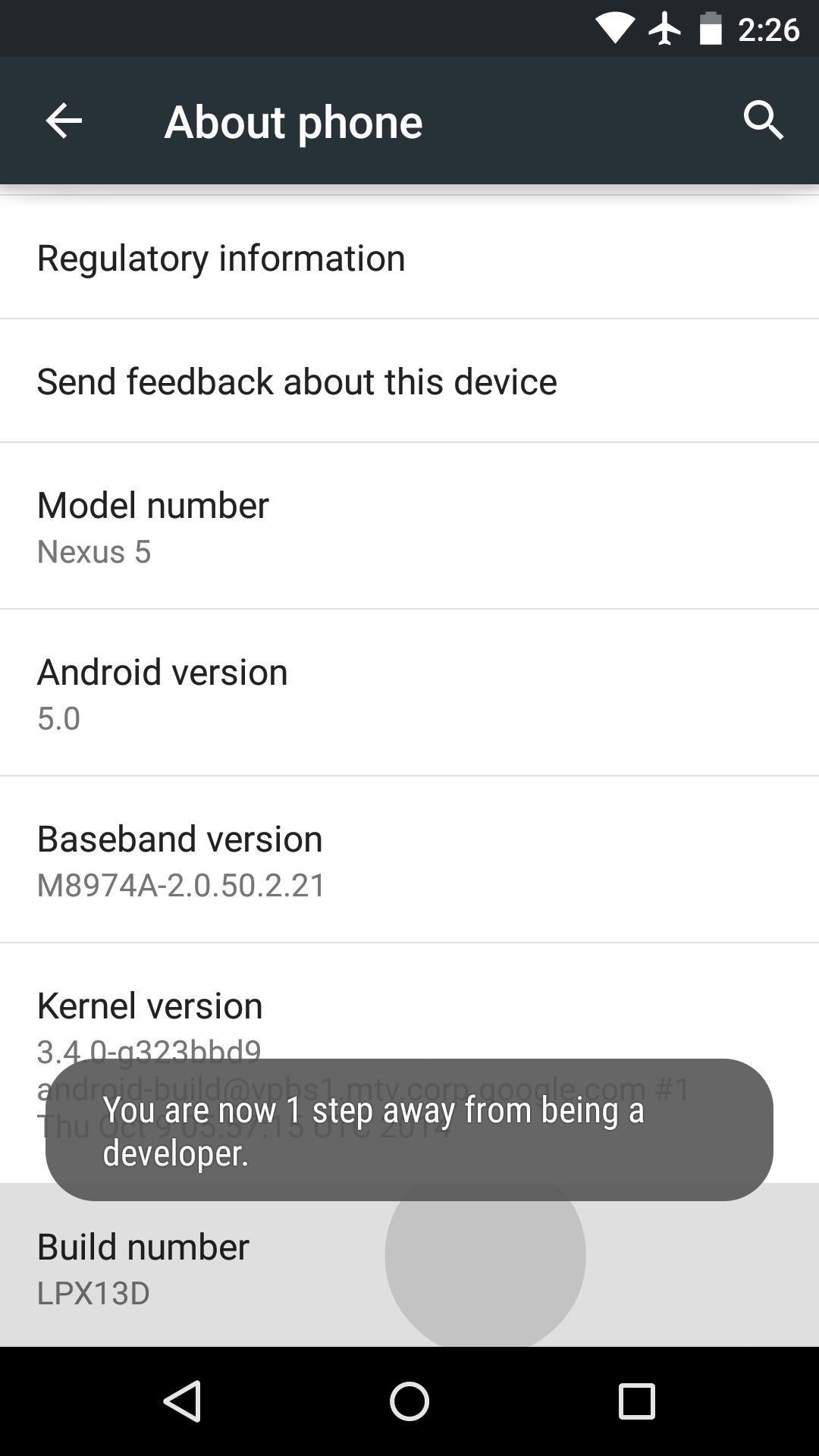
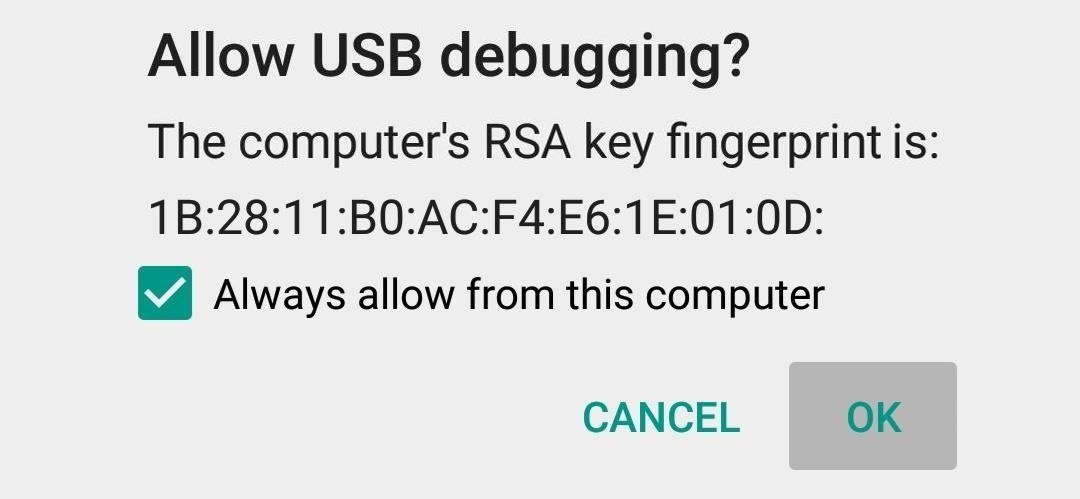
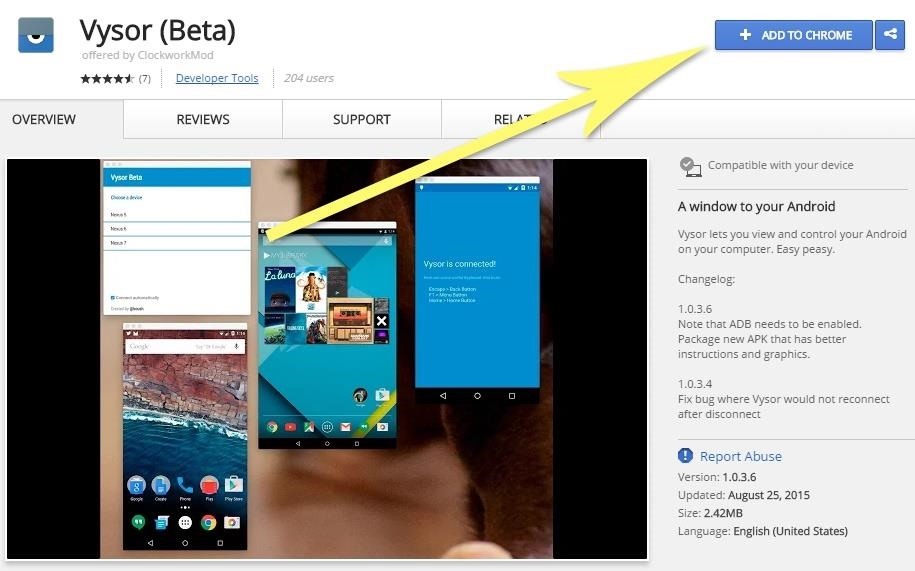
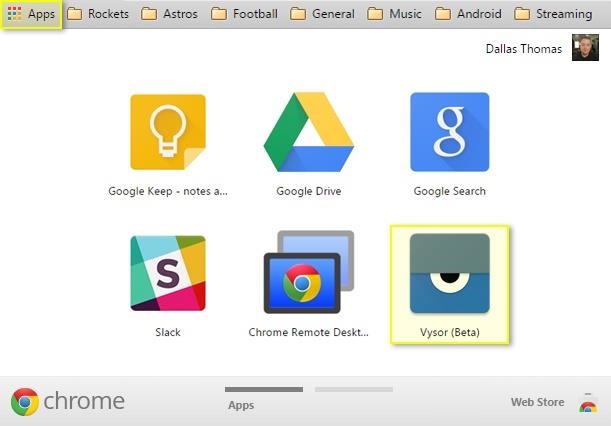
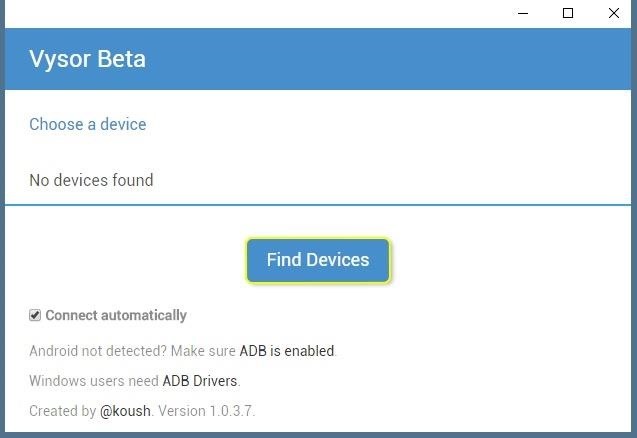
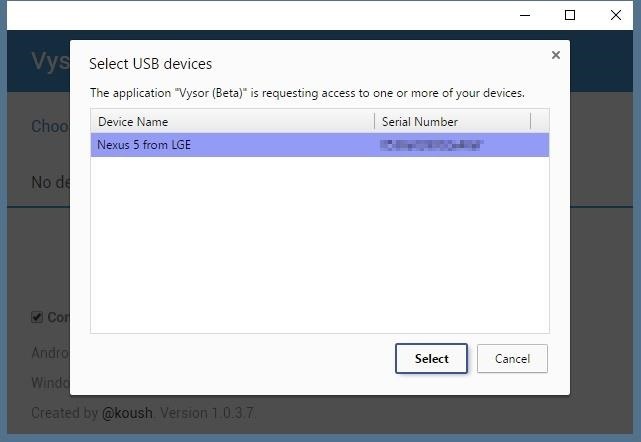
When you're sitting at your desk trying to get some work done, your Android device can be a big distraction. If a text comes in, you have to pick up your phone, unlock it, then respond with the clumsy touch screen keyboard—and by then, you've probably forgotten what you were doing on your computer. Thanks to an app from developer cafehouse, these issues are now a thing of the past. Instead of all that juggling, when you plug your phone into your Windows PC, you'll be able to control every aspect of your Android's UI with a dedicated window that mirrors your phone's display. It even accepts mouse and keyboard input, so now, your phone and computer will be more integrated than ever. And the much greater goodnews is, it doesn't require rooting. Requirements: +Windows PC +Android device running 5.0 Lollipop or higher +ADB Drivers and Vysor pluggin +USB data cable With all these intact you just need to follow the instructions carefully and also have an active data plan to download the application and ADB driver, after that, no more need for internet. Opss! except you don't have the google chrome browser on your PC then you need to download it ASAP! First Step you'll need to enable the hidden "Developer options" menu on your Android device so that you can turn on "USB debugging." You can do that by; Heading to the main Settings menu on your Android device, then scroll all the way to the bottom and select "About phone," "About tablet," or "About device." From here, scroll down towards the bottom of the list again, then tap the "Build number" entry 7 times in rapid succession.  For an Amazon Fire device, you would go to Settings -> Device options, then tap repeatedly on the "Serial number." https://img.gadgethacks.com/img/original/56/32/63567128642384/0/635671286423845632.jpg https://img.gadgethacks.com/img/original/54/07/63567128653884/0/635671286538845407.jpg At this point, you should see a toast message saying that "You are now a developer," which means you've unlocked the hidden Developer options menu. Next, back out one level to head to the main Settings menu again. Near the bottom of this screen, select the "Developer options" entry that you just unlocked.Turn ON developer options. From there, tick the box next to the "USB debugging" entry, then press "OK" on the popup. Once the drivers and software have been configured on your computer, connect your Android device to your desktop or laptop with a USB data cable. At this point, you should see a message on your Android device asking if you'd like to allow this computer to connect. Tick the box next to "Always allow from this computer" on this message, then press "OK." https://img.gadgethacks.com/img/03/28/63567129878697/0/android-basics-enable-developer-options-usb-debugging.w1456.jpg Second Step Installing ADB drivers, If you're using a Windows PC, you'll need to install the ADB drivers. So click this http://download.clockworkmod.com/test/UniversalAdbDriverSetup.msi and the driver file should begin downloading immediately. (Mac users don't need to do this, so skip to the next step.) When it's finished, go ahead and launch it, then follow the prompts for installation. Third Step Install the Vysor App for Chrome, Next up, head to this https://chrome.google.com/webstore/detail/vysor-beta/gidgenkbbabolejbgbpnhbimgjbffefm from the Google Chrome browser on your computer. From there, click the "Add to Chrome" button at the top of the screen to install the Vysor Chrome app https://img.gadgethacks.com/img/04/77/63576100261623/0/fully-control-your-android-device-from-any-computer.w1456.jpg Once Vysor's been installed, click "Launch App," or open the Chrome App Launcher from the bookmarks bar near the top of your screen, then click the Vysor icon. https://img.gadgethacks.com/img/original/21/12/63576101083529/0/635761010835292112.jpg Step Four Connecting Vysor to Your Android Device With Vysor installed and ADB set up, using your computer to view and control your Android device will be incredibly easy from now on. Start by clicking the "Find Devices" button on Vysor's main menu. https://img.gadgethacks.com/img/53/94/63576101378388/0/fully-control-your-android-device-from-any-computer.w1456.jpg From here, choose your Android device from the list, then click "Select," then your screen should start being mirrored over to your computer within seconds. If you're having trouble connecting here, revisit Step 1 of this tutorial https://img.gadgethacks.com/img/59/98/63576103076855/0/fully-control-your-android-device-from-any-computer.w1456.jpg Now that you're connected, you should see your Android device's display in a window on your computer. From here, you can use your mouse or keyboard to navigate your phone or tablet as you normally would. There are a few keyboard shortcuts that you should be aware of, though. Use the ESC key to simulate the back button, the F1 key to access Android's menu function, and the Home key to head back to your home screen quickly. On a MacBook, these keyboard shortcuts may vary or might not work at all. That's all! |