Marvel1206's Posts
Nairaland Forum › Marvel1206's Profile › Marvel1206's Posts
1 2 3 4 5 6 7 8 ... 89 90 91 92 93 94 95 96 97 (of 127 pages)
 Science/Technology › Re: HEAVY RAIN DOWNPOUR IN LAGOS: What Is The Situation Of Things In Your Area? by Marvel1206: 9:58am On Aug 28, 2016 |
Raining since yesterday here in sambisa forest Opp shekau's residence nevetsibot why are you fed up? Nobe good tin? 10 Likes |
| Education › Re: Whatsapp User Murder And Sends English To Its Early Grave (photo) by Marvel1206: 7:43am On Aug 28, 2016 |
* Whatsapp User Murder English* you just drove english to the edge of a cliff brother |
| Phones › Re: Umi Super Euro Edition Unboxing And Hands On. by Marvel1206: 7:08pm On Aug 27, 2016 |
Tallesty1:abeg antutu benchmark test and ur wallpaper why you too like the pishure? The other time u posted a screenshot, na the pix dey  |
| Phones › Re: First Touch Soccer 2017 by Marvel1206(op): 11:33pm On Aug 25, 2016 |
adewalay:Quote me next time so I can reply you quicker.. Check d size of the folder in android/obb tell me.. And check d size in that on android/data tell me |
| Phones › Re: My Itel Phone Is Over One Year Old by Marvel1206: 9:12pm On Aug 24, 2016 |
ryfoz:NA ME OF ALL PEOPLE U CUN QUOTE |
| Phones › Re: First Touch Soccer 2017 by Marvel1206(op): 5:34pm On Aug 24, 2016 |
adewalay:no don't. Check those folders if it is placed in the right place..have you deleted the zip file? |
| Phones › Re: What Is The Best Game You've Played On Phone? by Marvel1206(op): 4:18pm On Aug 24, 2016 |
Collinz2:but I've not downloaded a corrupt game from revdl so far.. What website do you recommend then? |
| Phones › Re: What Is The Best Game You've Played On Phone? by Marvel1206(op): 8:36am On Aug 24, 2016 |
Ayodele95:maybe you downloaded a corrupt one revdl games are reliable |
| Politics › Re: Fayose Bows To Kumuyi, Says I'll Soon Be At Peace.. by Marvel1206: 8:35am On Aug 24, 2016 |
Akell:same here |
| Phones › Re: First Touch Soccer 2017 by Marvel1206(op): 8:15am On Aug 24, 2016 |
adewalay:you ddn't paste the folders correctly bro if u still have the zip file uninstall it and reinstall it correctly |
| Phones › Re: What Is The Best Game You've Played On Phone? by Marvel1206(op): 10:51pm On Aug 23, 2016 |
Ayodele95:downloaded frm revdl.com you mean you've not opened the game to play atall ? |
| Phones › Re: 20 Great New Features In Android 7.0 Nougat by Marvel1206(op): 9:33pm On Aug 22, 2016 |
1 Like |
| Phones › Re: 20 Great New Features In Android 7.0 Nougat by Marvel1206(op): 9:18pm On Aug 22, 2016*. Modified: 1:07pm On Aug 23, 2016 |
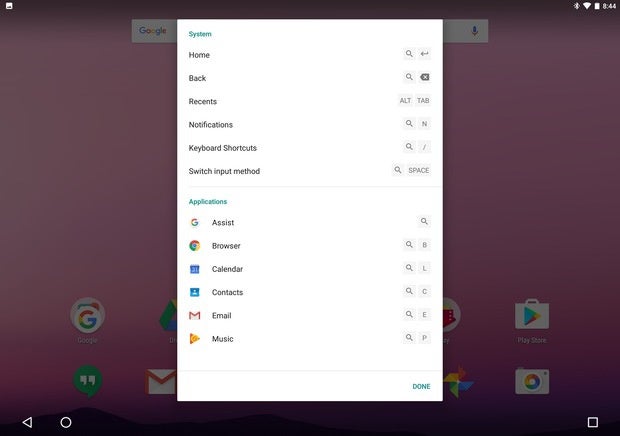
https://images.techhive.com/images/article/2016/08/android-nougat-7.0-keyboard-shortcut-helper-100676509-gallery.idge.jpg Keyboard shortcut helper Using a physical keyboard with a tablet like the Pixel C adds a level of convenience and mobile computing appeal to the tablet. However, learning and remembering each apps’ keyboard shortcuts can be a chore. With Nougat, you can press Search + / to view a list of shortcuts for the app you’re currently using. SOURCE: http://www.greenbot.com/article/3106421/android/20-new-features-in-android-7-0-nougat.html#slide21 2 Likes |
| Phones › Re: 20 Great New Features In Android 7.0 Nougat by Marvel1206(op): 9:16pm On Aug 22, 2016 |
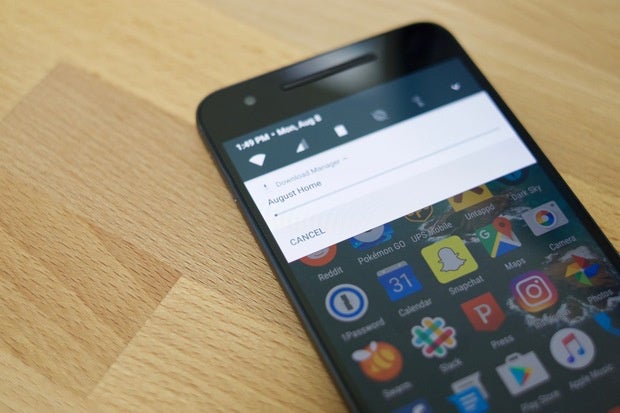
https://images.techhive.com/images/article/2016/08/android-nougat-7.0-cancel-app-downloads-or-updates-100676501-gallery.idge.jpg Cancel button for app downloads Ever start to update or download apps from the Play Store, only to remember you’re on a cellular connection or your battery is about to die? You can now cancel downloads directly from the download notification, instead of having to tap through each item in the Play Store. Slide down the notification, tap cancel and your data bucket is safe. |
| Phones › Re: 20 Great New Features In Android 7.0 Nougat by Marvel1206(op): 9:14pm On Aug 22, 2016 |
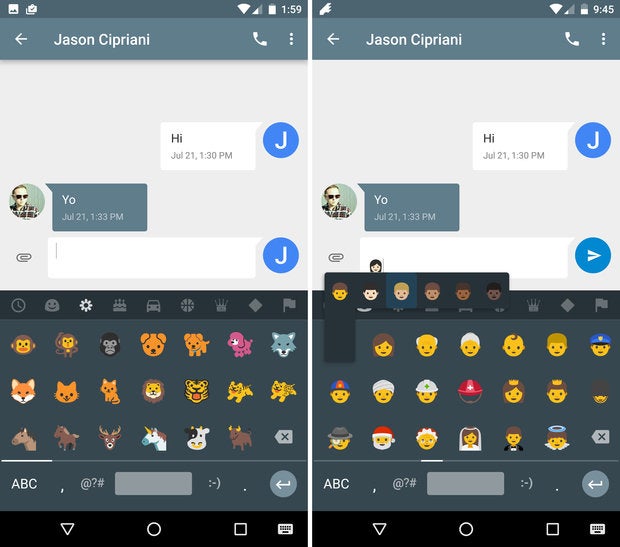
https://images.techhive.com/images/article/2016/08/android-nougat-7.0-new-emojis-100676511-gallery.idge.jpeg New Emojis Android Nougat includes the latest and greatest Emoji approved by the powers that be, including bacon! Beyond the latest and greatest emoji baked right in to Android, you’ll also notice Google has reworked most of the emoji included on its mobile devices. Smiley faces now have a more human look and feel to them. |
| Phones › Re: 20 Great New Features In Android 7.0 Nougat by Marvel1206(op): 9:13pm On Aug 22, 2016 |
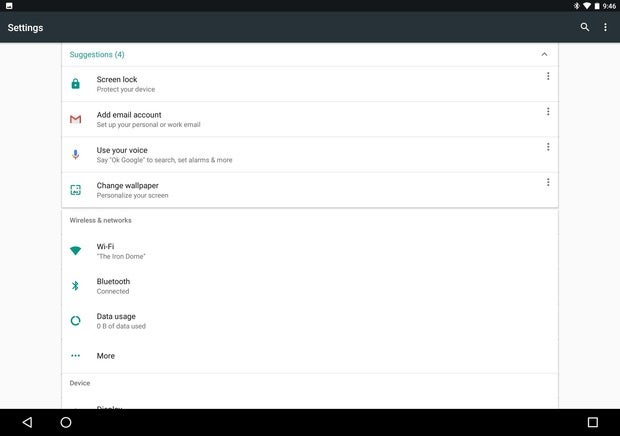
https://images.techhive.com/images/article/2016/08/android-nougat-7.0-settings-suggestions-100676516-gallery.idge.jpg Suggested settings When you open the Settings app your device will offer some recommendations for various settings and features you should set up. For example, upon initial setup Settings recommended I set up Screen lock, add en email account, set up “OK Google” commands, and change the wallpaper. Tapping on a suggestion will open the proper settings pane or app. Alternatively, you can tap on the overflow menu to hide an item from the list. |
| Phones › Re: 20 Great New Features In Android 7.0 Nougat by Marvel1206(op): 9:10pm On Aug 22, 2016 |
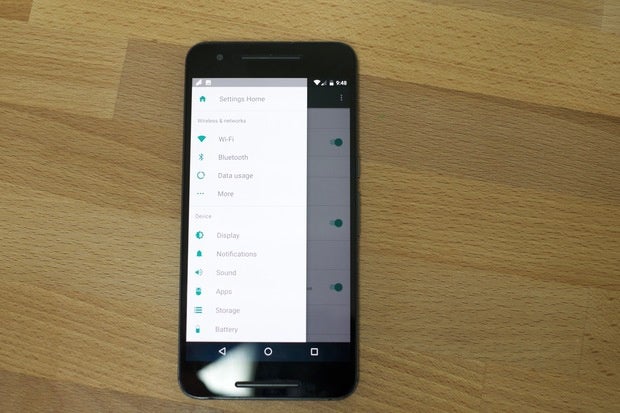
https://images.techhive.com/images/article/2016/08/android-nougat-7.0-settings-menu-100676521-gallery.idge.jpg Easier Settings app navigation When navigating through the Settings app, now you can quickly hop between various sections using the hamburger menu on the left side of your screen (or by dragging in from the left edge). Settings are broken down into the same categories as the main list, but using the slide-out menu eliminates the need to tap the back button, scroll, then select another setting category. |
| Phones › Re: 20 Great New Features In Android 7.0 Nougat by Marvel1206(op): 9:09pm On Aug 22, 2016 |
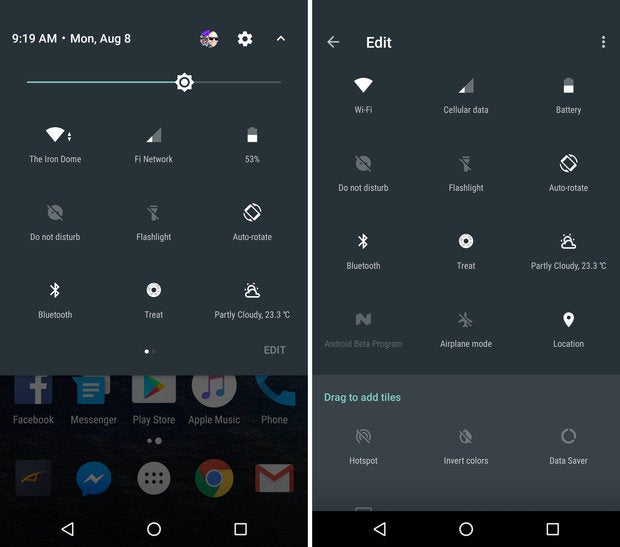
https://images.techhive.com/images/article/2016/08/android-nougat-7.0-quick-settings-tiles-100676517-gallery.idge.jpeg Tiles are so in right now You can now add multiple Quick Setting options to your device by viewing your Quick Settings panel and tapping Edit. You can still tap on tiles to edit a setting or interact with it. Alternatively, you can still long-press on a tile to disable or enable a feature if applicable. Third-party developers now create apps that live only within a Quick Settings tile. |
| Phones › Re: 20 Great New Features In Android 7.0 Nougat by Marvel1206(op): 9:08pm On Aug 22, 2016 |
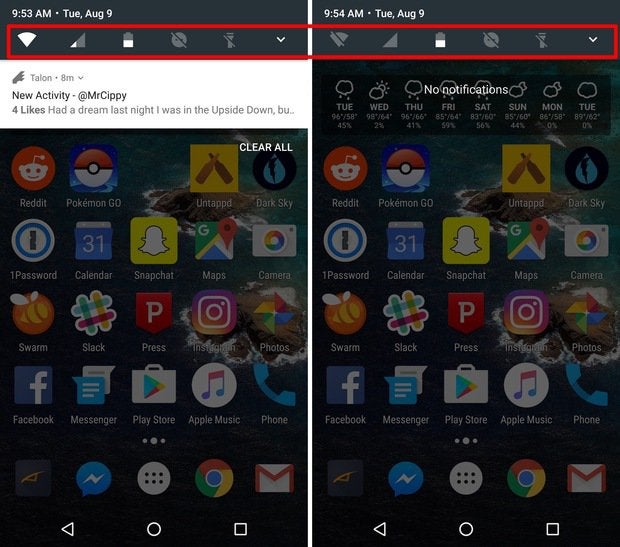
https://images.techhive.com/images/article/2016/08/android-nougat-7.0-quick-quick-settings-100676512-gallery.idge.jpg Quicker quick settings When swiping from the top of the screen with one finger, you will see a row of quick setting shortcuts just above any pending notifications. Tap on an icon to enable or disable features such as Wi-Fi, open Battery settings, or turn on the Flashlight. It displays the first 5 items in your quick settings, so if you reorder those, you'll change what appears here. |
| Phones › Re: 20 Great New Features In Android 7.0 Nougat by Marvel1206(op): 9:07pm On Aug 22, 2016 |
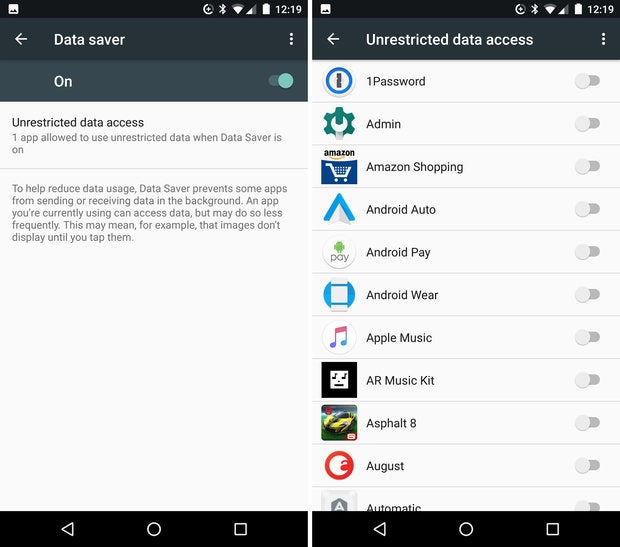
https://images.techhive.com/images/article/2016/08/android-nougat-7.0-data-saver-settings-100676503-gallery.idge.jpeg Data saver Tired of paying for data overages? When using an Android Nougat device, you can enable Data Saver to restrict specific apps from using data in the background. Under the Data Usage menu, open Data Saver and turn it on. You can then go through a list of apps installed on your device, and enable background data for each one you want. Otherwise, apps will only gain access to a cellular data connection when you’re actively using it. |
| Phones › Re: 20 Great New Features In Android 7.0 Nougat by Marvel1206(op): 9:05pm On Aug 22, 2016 |
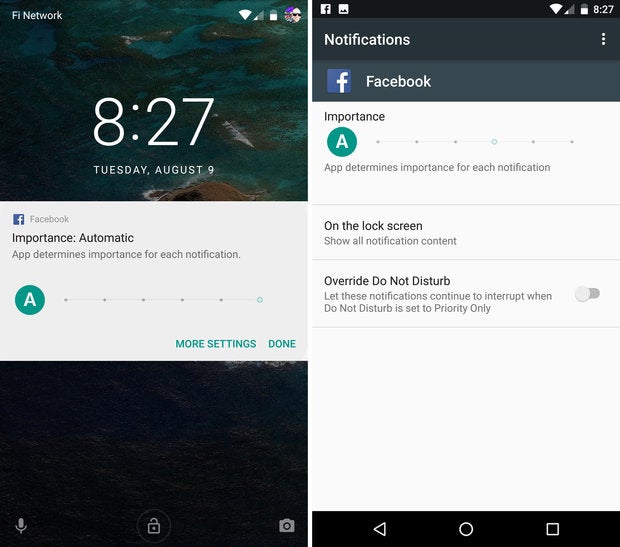
https://images.techhive.com/images/article/2016/08/android-nougat-7.0-notification-importance-100676513-gallery.idge.jpeg Notification importance setting You can now set the importance level of an app’s notifications to fit your specific use of that app, including allowing an app to ignore your DND settings. With a long-press on a notification, you can view the current importance level. Tap on More Settings where you can turn off the default automatic setting, and adjust its interruption level. As you move the slider, a brief explanation will detail each alert type. |
| Phones › Re: 20 Great New Features In Android 7.0 Nougat by Marvel1206(op): 9:03pm On Aug 22, 2016 |
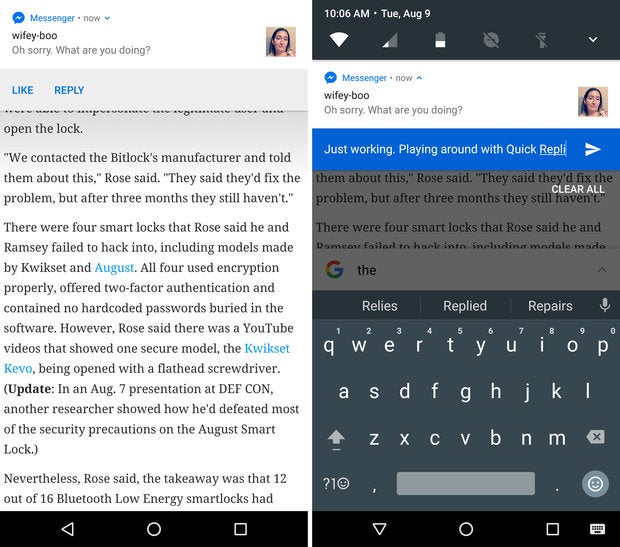
https://images.techhive.com/images/article/2016/08/android-nougat-7.0-quick-reply-100676514-gallery.idge.jpeg Reply with speed You can now reply to messages from apps like Facebook Messenger, Hangouts, or Messenger directly from the notification. Of course, this means you can hold a conversation without having to bounce between a messaging app and another app. It’s important to note, this isn’t limited to messaging apps. Twitter apps, for example, could add the ability to reply to mentions. |
| Phones › Re: 20 Great New Features In Android 7.0 Nougat by Marvel1206(op): 9:01pm On Aug 22, 2016 |
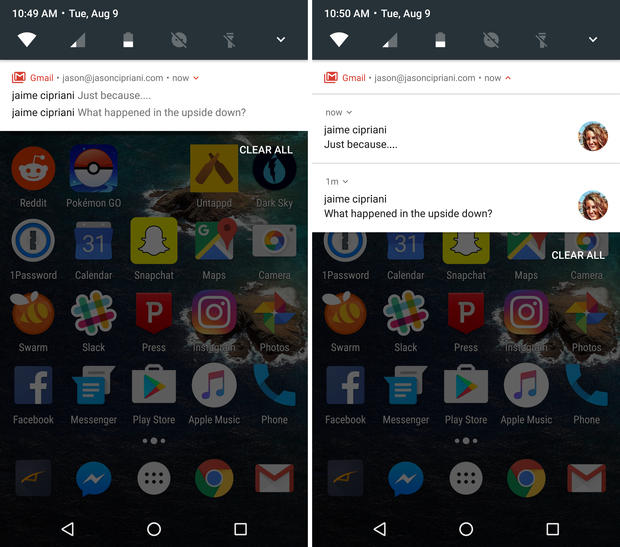
https://images.techhive.com/images/article/2016/08/android-nougat-7.0-bundled-notifications-100676502-gallery.idge.jpeg Bundled notifications Have you ever posted something on Facebook, only to have your notification tray blown up with alerts of likes and comments? Me neither, but for those who have you’re going to love bundled notifications. Once an app updates for Android Nougat, it can opt to have all of its notifications bundled into one alert. Slide down on the respective notification to reveal the rest of your alerts for that particular app. |
| Phones › Re: 20 Great New Features In Android 7.0 Nougat by Marvel1206(op): 8:58pm On Aug 22, 2016 |
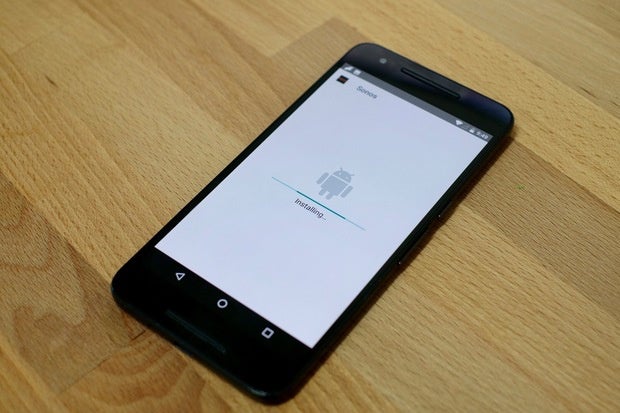
https://images.techhive.com/images/article/2016/08/android-nougat-7.0-app-installer-animation-100676500-gallery.idge.jpg New installer animation Speaking of installing applications outside of the Play Store, you’ll find a fancy new installer animation when sideloading an APK. It’s a subtle change that won’t have a dramatic impact on your day-to-day use, but it’s not a bad looking change either. Who doesn’t like seeing the Android bot whenever possible? |
| Phones › Re: 20 Great New Features In Android 7.0 Nougat by Marvel1206(op): 8:57pm On Aug 22, 2016 |
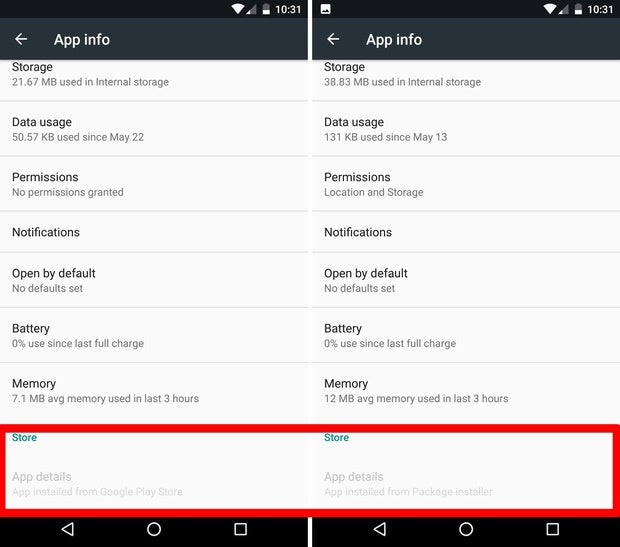
https://images.techhive.com/images/article/2016/08/android-nougat-7.0-apk-installation-source-100676499-gallery.idge.jpg Where did that APK come from? Android Nougat will now keep track of where an app was installed from. Open Settings then Apps and tap on any listed application. Scroll to the bottom of the page, where you’ll see the source of the app’s installation. For example, if it was installed from the Play Store it will say as much. If it’s something you side loaded, it will state something along the lines of “Installed from Package Installer.” |
| Phones › Re: 20 Great New Features In Android 7.0 Nougat by Marvel1206(op): 8:55pm On Aug 22, 2016 |
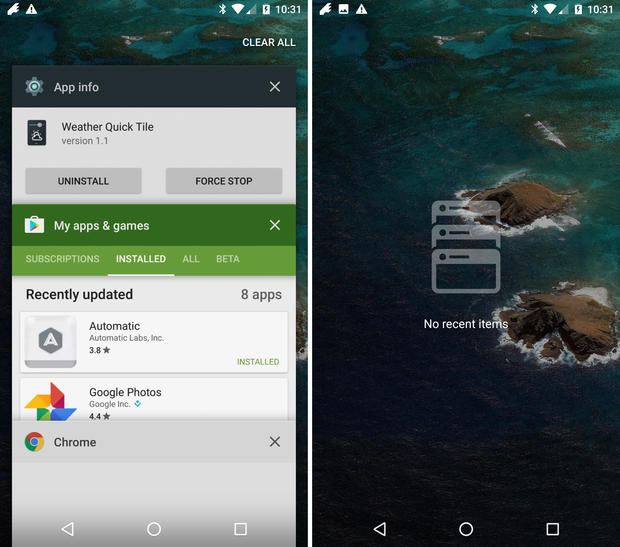
https://images.techhive.com/images/article/2016/08/android-nougat-7.0-clear-all-recent-apps-100676508-gallery.idge.jpeg Clear all recent apps Google added a Clear All button to the recent apps list, only it’s a bit hidden. Instead of placing it at the bottom of your screen when viewing your recent apps, you need to scroll to the top of the list where you’ll find the handy Clear All text. Tap on it, and all apps are closed out. When you’ve closed all your recent apps, a new icon is displayed letting you know there are no recent items. |
| Phones › Re: 20 Great New Features In Android 7.0 Nougat by Marvel1206(op): 8:50pm On Aug 22, 2016 |
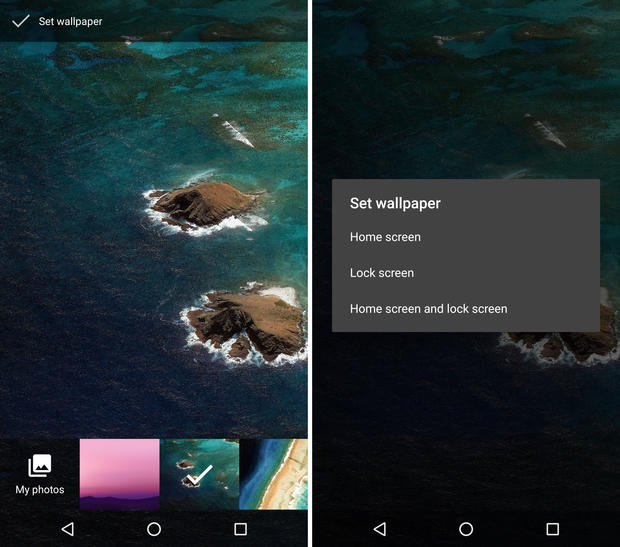
https://images.techhive.com/images/article/2016/08/android-nougat-7.0-home-screen-and-lock-screen-wallpaper-100676506-gallery.idge.jpeg Finally, the lock screen gets a wallpaper of its own It only took way too many years, but the day has finally come: You can now set a wallpaper specific to your home screen, and a different one for your lock screen. The process to accomplish the once unthinkable feat hasn’t changed much—after selecting an image to set as a wallpaper, you’re shown a new prompt to select where the image will live. |
| Phones › Re: 20 Great New Features In Android 7.0 Nougat by Marvel1206(op): 8:49pm On Aug 22, 2016 |
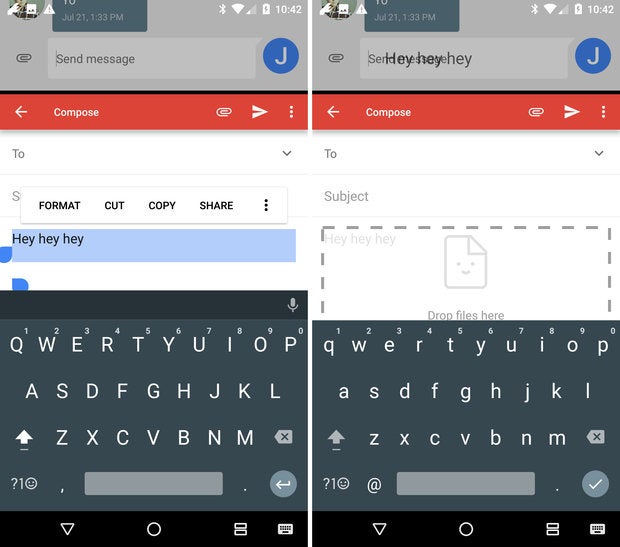
https://images.techhive.com/images/article/2016/08/android-nougat-7.0-drag-drop-multiwindow-100676505-gallery.idge.jpeg Drag and drop text, images when in multi-window mode When using two apps at the same time, you can drag-and-drop text between the two windows. Highlight the text, then long-press on it until the text begins to float. Drag it to a text field in another window, and let go. The same goes for sharing images between two apps, assuming they’ve been updated for the latest of Google’s wares. Magical, right? |
| Phones › Re: 20 Great New Features In Android 7.0 Nougat by Marvel1206(op): 8:46pm On Aug 22, 2016 |
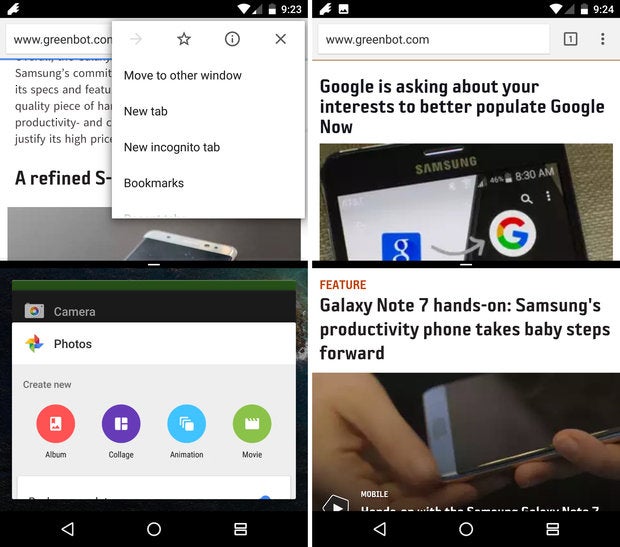
https://images.techhive.com/images/article/2016/08/android-nougat-7.0-split-screen-chrome-tabs-100676518-gallery.idge.jpeg View two Chrome tabs It took Apple an entire year to introduce split-screen tab viewing in Safari for iPad users, but Google did it at the same time it introduced multi-window to Android. When using Chrome in multi-window mode, tap on the Menu button and select they super handy option of “Move to other window.” It’s fully acceptable to point and laugh at iOS users if you feel the need. |
| Phones › Re: 20 Great New Features In Android 7.0 Nougat by Marvel1206(op): 8:44pm On Aug 22, 2016 |
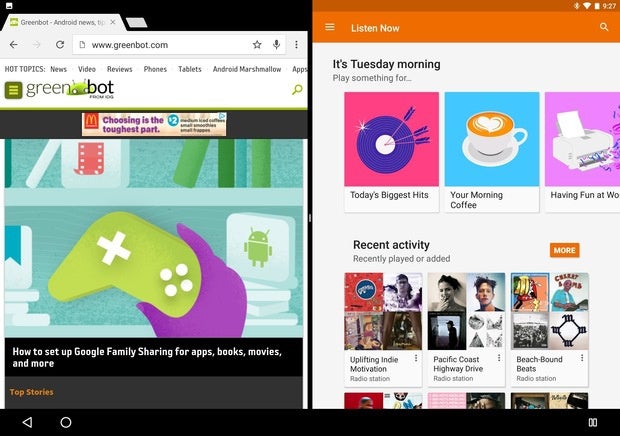
https://images.techhive.com/images/article/2016/08/android-nougat-7.0-multi-window-100676510-gallery.idge.jpg Use two apps at same time Samsung users have long had access to using apps in a split-screen mode. With Nougat, Google is officially adding support for multi-window support to all Android devices running Android 7.0. To activate multi-window mode, long-press on the recent apps button. Whichever app you’re currently using will go to the top of the screen (on a phone, or to the left on a tablet), with a list of recent apps shown along the bottom. Select the second app you want to use from the list. Drag the divider to resize the app windows, or to maximize either of the active apps. |


1 2 3 4 5 6 7 8 ... 89 90 91 92 93 94 95 96 97 (of 127 pages)