Tunisbaba's Posts
Nairaland Forum › Tunisbaba's Profile › Tunisbaba's Posts
 Computers › Re: How To Know That Your Pc Has Been Hacked by tunisbaba(m): 6:01pm On Aug 03, 2017 Computers › Re: How To Know That Your Pc Has Been Hacked by tunisbaba(m): 6:01pm On Aug 03, 2017 |
Cutezt:I published this post on (https://howtotechnaija.com/what-to-do-if-computer-has-been-hacked/); you have only succeeded in replacing less than 20 words with their synonyms, and you can even link back to the blog. Stealing someone else's intellectual property without giving a proper citation and credit wouldn't help your blogging career. |
| Phones › Re: This Company Wants You To Use You Pen*s As Password (instead Of Fingerprint) by tunisbaba(op): 7:40am On Jul 17, 2017 |
ritababe:Abi oo. Na end time tech company. |
| Phones › This Company Wants You To Use You Pen*s As Password (instead Of Fingerprint) by tunisbaba(op): 7:55am On Jul 16, 2017 |
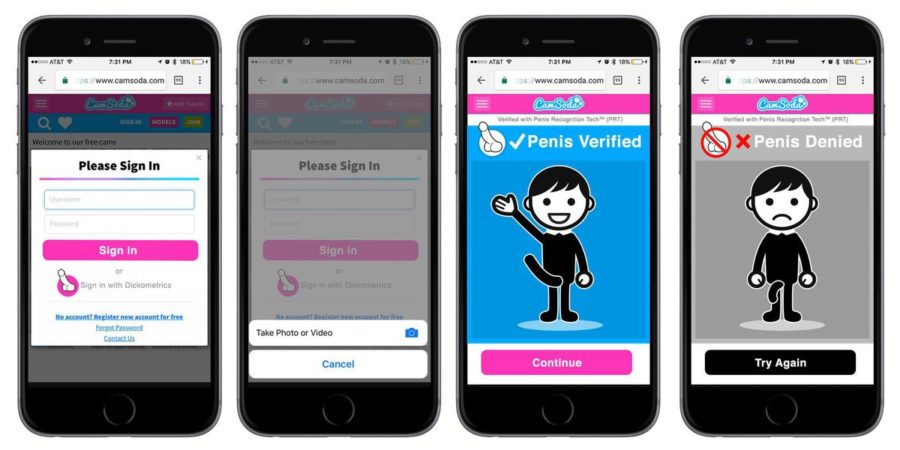
Dick-ometrics – that’s what the company called it. A biometrics that uses neither your finger nor your eye ball. Instead, it requires your d*ck to verify that you are the owner of a device (for now, a phone). So you use your penisprint, in place of your fingerprint, to unlock your phone. CamSoda, the webcam platform bringing this innovation, says the reason behind it is to add some extra layers of security to digital properties through another form of biometric data (penisprint). And to make this idea fascinate you, here is a message from CamSoda’s VP, Darren Press, on why you should choose penisprint over fingerprint and eyeball scan: “Like a fingerprint and an eyeball, which are two of most commonly used body parts in biometric technologies, the penis has many, many differentiating factors like size, colour, and vein protrusion. However, unlike fingerprints and eyeballs, joysticks are not exposed to the public a lot of the time and mostly kept under clothing and shared with loved ones – presumably who are trusted.” Are you now fascinated? Well, this is how the technology works How CamSoda’s Penisprint Technology Works To use the CamSoda’s penisprint technology, you will need to register your guy (d*ck) with the company. This involves giving your details and supplying a very high-quality picture of your guy. After your dick-ometrics has been captured, the next time you need to login to your phone, just zip down your trouser, bring out your guy and show it to the front camera of your phone. Then, CamSoda would use it proprietary Penis Recognition Tech to match your guy with the picture you supplied while registering for your dick-ometric. But and but your guy must be hard to make the penisprint technology work very well. If your guy is not hard and you need to enter your phone, you are on your own. https://www.techrabytes.com/wp-content/uploads/2017/07/Penisprint.jpg And CamSoda isn’t biased; they also have the female folks in mind. This technology wouldn’t end with only the provision for men. Darren Press also said they are working on developing the same technology for women. Well, as for me, I don't know the terminology they planned to call that and how that will work. Perhaps you will help … but do you think this is really a good idea? Source: https://www.techrabytes.com/camsoda-penisprint-dickometrics/
|
| Phones › Meet The World First Battery-free Phone (or Battery-less Phone) by tunisbaba(op): 11:44am On Jul 12, 2017 |
The invention of the mobile phone is one of the biggest blessings to our world, but always having to charge our phone's battery is also one of the biggest challenges we all face. If you are living in a developed country, the challenge isn't a big deal as there is always constant power supply; however, if you are living in a developing country, with erratic power supply, the challenge is a real big deal. But there is a good news if you are living in a country with erratic power supply: you may not need to charge your future phones. Some brilliant guys are already developing a battery-less phone. A phone that doesn't require the use of a battery to work. Instead, the battery-less phone (actually called battery-free phone by the maker) would generate its own power by extracting microwatts of power from ambient radio signals and/or light. Speaking to Digital Trends about the phone, Vamsi Talla (a former UW electrical engineering doctoral student and Allen School research associate leading the development of the phone) said the reason they chose to build a battery-free phone was to solve the problem whereby people experience having a dead phone at the wrong time when they need to make important calls. While explaining how the battery-less phone works, Talla said the phone uses analog voice encoding, which consumes less energy, as opposed to the widely used digital voice encoding, which consumes more energy. And to make the phone able to extract energy from ambient radio signals and light, it has a tiny solar panel called photodiodes inside. At present, the phone is still at the prototype, printed circuit board stage, but Talla said he and his team are thinking about two directions to take the prototype to. They would either turn the prototype into a sort of bare-bone phones, which people that live in areas without good power supply can buy and use. Or they would sell the technology to big smartphone makers (like iPhone and Samsung), who can then integrate the technology in their phones. https://www.youtube.com/watch?v=5f5JJTmbO4U He concluded that they are also planning to build on the prototype of the battery-less phone, and their goal, in the end, is to make a full functional battery-less smartphone, which would use low-power display technology used in Kindle e-readers and low-power cameras. Source: https://www.techrabytes.com/world-first-battery-free-phone-battery-less-phone/
|
| Phones › How To Get Android O Pixel Launcher For Marshmallow On Your Phone by tunisbaba(op): 1:56pm On Jun 19, 2017 |
While the users of Google Nexus and Pixel are already enjoying the Android O preview, other Android phone users are still waiting to have a taste of the next big thing in the Android world. However, while you wait, you can have a feel of the Android O experience by installing the Android O Pixel launcher for Marshmallow. If you really want to try out the launcher, this post will guide you through on how to get the launcher and install it on your Non-Pixel Android phone. How to Get Android O Pixel Launcher for Marshmallow Before taking you through how to get the Pixel launcher for Marshmallow, I like to give credit to the brain behind this creation. All credits go to the ever brilliant guys at XDA forum, for porting the Pixel launcher. The only requirement to get the Android O Pixel launcher is to ensure your phone currently runs on Android 6.0.1 or later. Also ensure that your phone is set to install applications from Unknown Source. To ensure this, go to your Settings, then Security; under Device administration, tap on Unknown source. You may see a warning message – just tap on OK. When that is set, follow https://cdn.sergiocastell.com/Pixel/PixelLauncher-7.1.2--O-3952143.apk to download the Android O Pixel launcher for Marshmallow. After downloading the APK, install and tap on your home button and make the Pixel launcher your default launcher. The guy that ported the Pixel launcher for Marshmallow called it Backport, and the link above gets you the version 2, in which some of the bugs in the version 1 is fixed. Cool Screenshots of The Pixel Launcher for Marshmallow https://www.techrabytes.com/wp-content/uploads/2017/06/Pixel-launcher-for-Marshmallow-1.jpg https://www.techrabytes.com/wp-content/uploads/2017/06/Pixel-launcher-for-Marshmallow-2.jpg https://www.techrabytes.com/wp-content/uploads/2017/06/Pixel-launcher-for-Marshmallow-3.jpg Source: https://www.techrabytes.com/android-o-pixel-launcher-for-marshmallow/ |
| Phones › 6 Things To Do When Your Phone Overheats While Charging by tunisbaba(op): 1:27pm On May 27, 2017 |
It is normal for a phone to get slightly hot during usage, but a phone overheating while charging is not normal. Therefore when your phone is overheating, you must take proactive actions to cool it or else risk your battery melting or exploding. Overheating can also damage the touchscreen as the heat can be conveyed to screen and burn it. I know you don’t want these damages to your phone, so anytime you discover that your phone is overheating, try the following recommended fixes to cool it off. 1. Stop charge-and-use Charge-and-use is common to most smartphone owners, and this is not really a good habit. As I have earlier said, it is expected of a phone to be slightly hot while in use, because heat is liberated from the energy used in running the phone. Now when you couple that heat with the heat liberated as a result of the flow of charges during charging, you will only succeed in making your phone hotter. Thus the first fix to a phone overheating while charging is to stop using the phone and only allow it to charge. If the phone is still getting hot after some minutes, then go for the next fix. 2. Close battery-draining applications Some applications, especially social media apps that are always connected and requesting for updates over the Internet, are notorious for draining battery, causing the phone to heat up. If you discover that your phone is overheating while charging and any of your social media apps are running, end the apps. With that you phone ought to cool off; if it doesn’t, try the next fix. 3. Turn off the phone or charge in Aeroplane Mode Actually, the best way to charge a phone is to turn it off during the charging process. Aside the fact that this helps prevent overheating during charging, it also makes charging faster. Since the phone is offline and not processing any data, no heat would be generated, aside the slight warmth of the battery resulted from charging. Putting the phone to aeroplane mode will also reduce overheating while charging. When a phone is in that mode, it neither send nor receive Internet data and local signal, which contribute to heating the phone. If your phone is till overheating after this, try the next fix. 4. Try another cable As a rule of thumb, only charge your phone will follow-come charger. Charging with substandard or non-recommended charger head and cable can lead to your phone overheating while charging. If the charger you are using is follow-come but your phone is getting hot, you may want to try changing your cable. Get an original cable from friends or family and test it with your charger head. If the phone is still overheating, try the next fix. 5. Try using regular charger in place of Quick Charger Nowadays OEMs boast of shipping their phones with Quick Charger, which makes charging a phone faster than the regular chargers. There are even some Quick Chargers that can take a 4000mAh battery to 50%, from 0%, within 30minutes. That is cool, I think. But sometimes fast chargers can cause phone overheating while charging. This is because the rate of energy flow is faster than normal in Quick Chargers, and the faster the energy flow, the more heat is liberated. Therefore, if your smartphone comes with a Quick Charger and you discover that the phone is overheating while charging, it is best to switch to a recommended regular charger, within is period. That will surely make the phone charge slower but less hot, and you are not at the risk of exploding your battery. If doing that doesn’t solve the problem, try the last fix below. 6. Make sure your battery and charger are original It is not unusual for a phone's follow-come battery and charger to develop faults, but when they develop faults, ensure you replace with original, to avoid problems. Besides, fake charger and battery will do your phone no good than causing overheating, which can lead to burning of the phone’s charging port, board and even touchscreen. If you have walked through the recommended fixes here, your phone should charge normally again, at ambient temperature. Source: https://www.techrabytes.com/phone-overheating-while-charging-solutions/ 2 Likes
|
| Jobs/Vacancies › Re: How To Subscribe To Mobile SMS Jobs Alert For Free In 2017 by tunisbaba(m): 9:08pm On May 25, 2017 |
This is innovative. |
| Jobs/Vacancies › Re: Blog Administrators Wanted by tunisbaba(m): 8:44pm On May 20, 2017 |
Blog Admin or content writer? |
| Computers › Re: HP Laptops Released Within 2015 - 2017 Steal Passwords: Here Is How To Stop It by tunisbaba(op): 8:26pm On May 20, 2017 |
Flexherbal:Thank you. |
| Computers › HP Laptops Released Within 2015 - 2017 Steal Passwords: Here Is How To Stop It by tunisbaba(op): 9:12pm On May 18, 2017 |
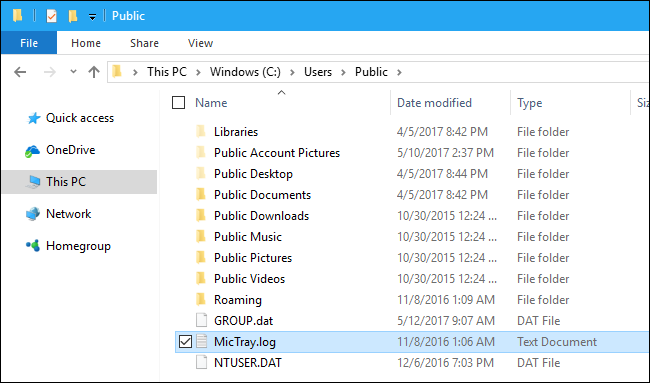
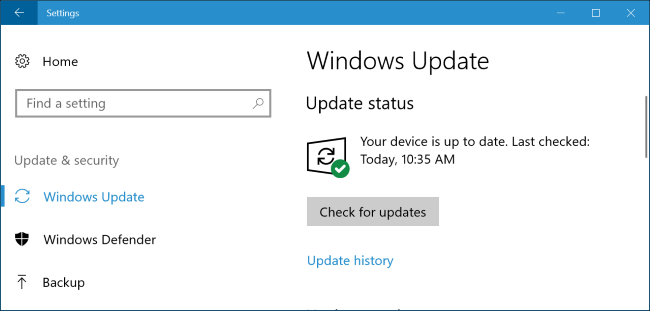
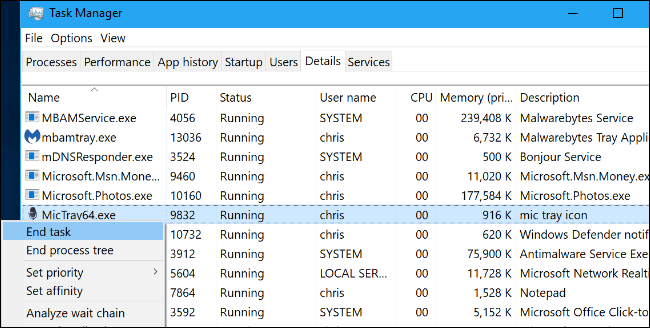
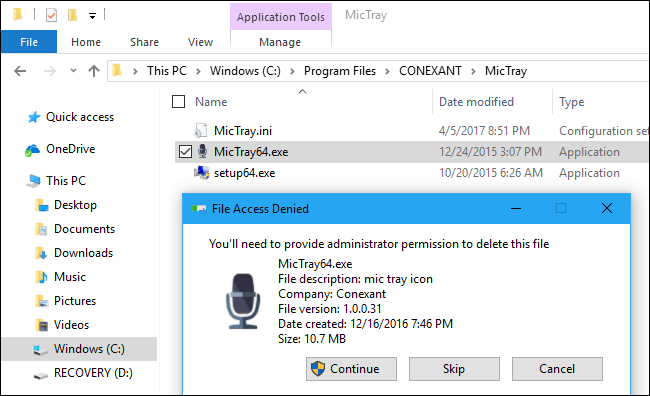
Just about the time WannaCry ransomware is hijacking people’s computer all over the world and making them cry over having to pay a ransom before getting their files back, the story of invading keylogger shouldn't have been the next news laptop owners want to hear. However, it is already in the news: majority of the HP laptops shipped from December 2015 to this month, May 2017, come with a keystroke logger, now called Conexant Keylogger. And by this news, if you bought an HP laptop within the period, the keylogger is likely to be on your laptop. The aim of this post is to help you know how to check if you have the keylogger installed, and how to remove it, if you it is on your laptop. But before that, it will be good for you to really understand what a keylogger is. What is A Keylogger? Simply put, a keylogger is a software or hardware that records (i.e. keeps logs) all the keys a computer user presses on his or her keyboard and delivers it to a location. Most of the time, keyloggers are installed on a computer, by hackers, to spy on the passwords of unsuspecting victims. That said, let me make it blatantly clear that the Conexant Keylogger on HP laptops wasn't installed by hackers, and also HP didn't intentionally install it to spy on its customers - - why will HP want to do that? The keylogger results from a mistake from Conexant, the vendor supplying the audio chip for HP laptops. Conexant had developed a sound driver called MicTray, to run the audio chip, and implemented some commands that allow keyboard shortcuts to activate functions on the audio chip; however, in the process, the developers added some lines of codes that make the sound driver records all keystrokes pressed on the keyboard of laptops in which the driver is installed. That turns the driver to a keylogger. How To Check If Conexant Keylogger is In Your HP Laptop As earlier stated, the possibility of having the keylogger on an HP laptop is high in HP laptops shipped between December 2015 to May 2017. If you bought a new HP laptop within this period, you need to proceed to the directory C:\Users\Public\ and check if you have a file named MicTray.log. https://www.techrabytes.com/wp-content/uploads/2017/05/Conexant-Keylogger-mictray-fix.png If the file is in that directory, it means the keylogger is on your system, and what you want to do next is open the file and see its content. It was reported that the content in the MicTray.log is usually deleted after restarting affected laptop, so you may not see anything in the file. But to ensure that your keystrokes aren't stored anywhere on your laptop, delete the file and empty your recycle bin. This will help prevent malwares from stealing the keg-logs. Also if you do backup your hard drive to external hard drive or cloud, you should also go the directory in the external drive and cloud and delete the file. Aside the MicTray.log file, the Conexant Keylogger also prints keystrokes via Windows OutputDebugString API, from which the keystrokes could also be hijacked; and for this reason, the executable file of the keylogger must be removed. How To Remove Conexant Keylogger Executable File Immediately the Conexant Keylogger was made public, Microsoft has responded with a patch, by sending Windows Update. Therefore the most reliable way to remove Conexant Keylogger executable file is by running a Windows Update on your HP laptop. To do that, go to Settings, then Update & security and then click on Windows Update, to check and run the latest update for your laptop. https://www.techrabytes.com/wp-content/uploads/2017/05/Conexant-Keylogger-mctray-2fix.png If for any reason you can't update your Windows now, you can disable the executable file manually. Press Control Alt Delete, to start the Task Manager; click on More Details, to expand the manager; and then click on the Detail tab. On the Detail tab, locate MicTray64.exe, right click on it and select End task. If you run 32bits operating system, the file's name will be MicTray.exe. https://www.techrabytes.com/wp-content/uploads/2017/05/Conexant-Keylogger-mictray-fix3.png After ending the task, to finish the final removal of the Conexant Keylogger executable file, go to the directory C:\Windows\system32\ and find MicTray.exe or MicTray64.exe and delete it. If you don’t find the file in that location, you should see it in the directory C:\Program Files\CONEXANT\MicTray\. https://www.techrabytes.com/wp-content/uploads/2017/05/Conexant-Keylogger-mictray-fix4.png The only issue with the manual removal of the file is that the keyboard shortcut of your audio wouldn't work again. You will need to do all commands manually. When you have time to perform Windows Update, do it and everything will be fine -- that's the audio shortcut will work again and the Conexant Keylogger will be fixed. Source: https://www.techrabytes.com/conexant-keylogger-mictray-hp-laptop-fix/ 1 Like |
| Computers › 10 Smart Ways To Speed Up Your Computer by tunisbaba(op): 8:21am On May 13, 2017 |
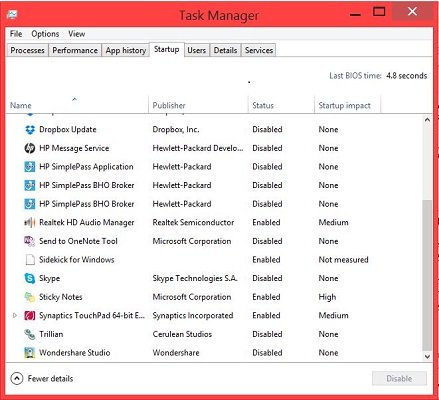
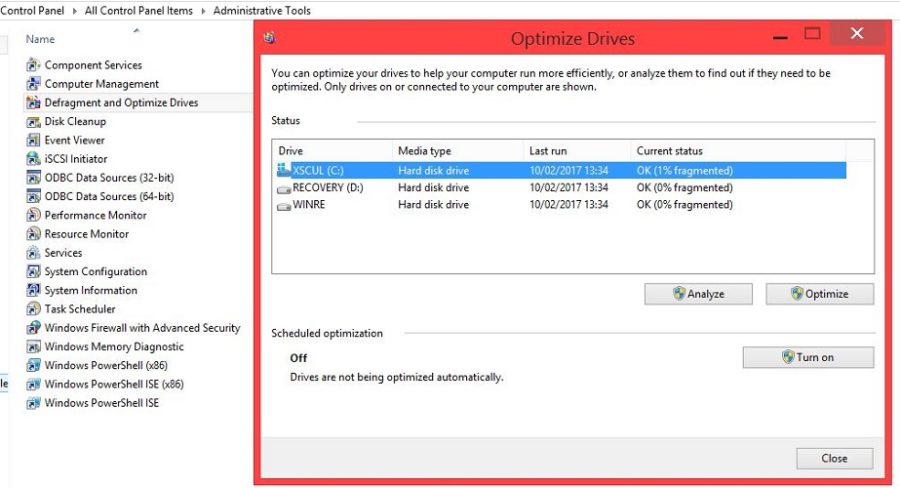
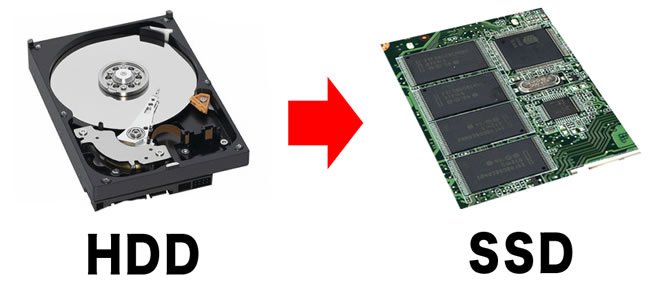
A slow laptop or desktop computer is a nightmare. It is frustrating and can make you miss deadline for your tasks. Most of the times, the problem is as a result of stored logs of data in the computer, making the computer to struggle with data processing. At the other times, it can be as a result of hardware wears. Whatever the reasons may be, nobody wants a slow computer. I don’t want it, and you don’t want it, too. So how do you speed up your computer and enable it to always fire on all cylinder? Walk with me and let me show you the smart ways I use to speed up my personal computer and that of my clients. How To Speed Up Your Computer 1. Remove Needless Start-up Programs: By default, and through installation of apps, some apps find their way into the computer's start-up folder; by this, the apps force themselves to start immediately a laptop or desktop computer logins to the desktop. They end up slowing down the the start-up process and also cause lagging, while running the launched apps and functions on the computer. So to speed up your computer, you need to disable, or delete, these apps in the Start-up folder. To disable the apps on your Windows 7, click on the Start Button, and type msconfig. Launch the msconfig and select the Startup tab. All the apps starting with your Windows 7 OS will be listed; click on the apps you don't want to start with your Windows and select disable. If you are on Windows 8, 8.1, or 10, press Control Alt Delete to start the Task Manger, then click on the Startup tab, to remove the unwanted apps. https://www.techrabytes.com/wp-content/uploads/2017/05/how-to-speed-up-your-computer1.jpg Note: Don't disable your pointing device and antivirus, in the name of wanting to speed up your computer. Only disable the other apps you don't want to start with your computer. 2. Uninstall Apps You Hardly Use: Many of us have apps we regularly use and the ones we hardly use. The question is, why do you want to continue keeping an application you haven't launched in the past 6 months? The application is just lying on your computer, eating your hard drive space and hindering the speed of your computer. Some of these apps may not have shortcut on your desktop -- therefore you may not even know they are installed. Go to your Control Panel, and click on Uninstall a program to see the list of installed applications on your computer. Scroll down the list and remove the ones you hardly use; and see how that will speed up your computer and increase its memory space. Important: Keep safe the set-up files of valuable programs, before uninstalling them. 3. Switch To Google Chrome: In the world of browsers today, Mozilla Firefox and Chrome share the largest percentage of internet users on computer. Mozilla is awesome and has a lot of advantage over Chrome, in term of plugins that can enhance its functionality, but Mozilla is heavier and uses more system resources than Chrome. If you check the memory usage of Mozilla in Task Manager after opening 3 tabs, it might be running to 200MB already, while Chrome wouldn't be more than 70MB for 3 tabs. This is because Chrome is able to push some of its data processing into background. Any application, including browsers that eat up much RAM space wouldn't help to speed up your computer. For this reason, you need to consider switching to Chrome, as it is lighter and faster. 4. Clean Browser History and Cache: The more you use a browser, the more the history of pages it stores. These page histories, even though small in size, can later add up to the size of the browser and slow down the browser and your PC. So to boost your browser's speed, and in essence your computer's speed, you need to regularly clean your browser's history. Aside the fact that this helps to boost your browser’s and computer’s speed, it also helps to protect your privacy, especially if the computer you use is shared with other people – the other users wouldn't be able to see the histories of websites you visited, if they are tempted to snoop on your browsing habit. You can manually clean the history or use a third party application like CC Cleaner. 5. Empty Your Recycle Bin: You might be thinking that how does recycle bin concern the way to speed up your computer; but of course, it does. Recycle bin is like a waste bin in your house, and if not emptied, it can constitute nuisances to the house, through bad odour or by inviting rodents. Sure, your system bin wouldn't call in the computer rodents (the viruses and the malwares), but because the files stored in the bin are still virtually stored on your hard drive, they are still eating the memory space, which your computer might have used to breath and run more efficiently. In fact, emptying of recycle bin is one of the basic things those software that claim to help boost computer speed do. The software simply scan your computer for junk files, of which most of them are in the recycle bin, and trash them; and by that, you will be believe the software have done wonders, to speeding up your computer. 6. Scan For Virus & Malware: Viruses, malwares and spywares are the greatest problem of laptop and desktop computers, when it comes software issue; therefore, any tip on boosting the speed of a computer wouldn't be complete without mentioning them. To counter these bad guys, install a strong antivirus and a strong anti-Malware, and update them regularly. Note that I didn't stop at installing only antivirus -- I mentioned installing antimalware, too. Anti-malwares and antivirus are two different things. Most antiviruses can't handle malware, and most antimalware can't handle viruses. So install the two, to complement each other; but don't install two different antiviruses or two different antimalwares, at the same time! That will negate speeding up your computer and can cause great software conflict. 7. Defrag Your Hard drive: As your computer crunches data upon data, some of the files are fragmented, leading to slow loading of the files, when trying to access them. By defraging your hard drive, you are sure to speed up your computer and boost its performance. The process of defragging a hard drive in Windows 7, 8, 8.1, and 10 is the same. Just go the Control Panel and change view from Categories to Small icons. Then click on Administrative Tool, and then on Defragment and Optimize Drives, to start the defragmentation process. https://www.techrabytes.com/wp-content/uploads/2017/05/how-to-speed-up-your-computer2.jpg 8. Restart Your Computer Frequently: There are some people that, to them, hibernating a computer equals to shutting down the computer. This isn't correct – perhaps this was the reason Microsoft hid the hibernate option in Window 8 and above, in order to force users to always shutdown their computer, properly. Hibernating a computer forces it to keep logs of previously processed data, without giving it room to clear its memory. In the long run, if the computer wasn't restarted or shut down for weeks, it can reduce the speed of the computer and send it into hanging mode. Therefore to ensure that your computer work at the optimum speed and performance, always shut down properly, when you are not using the computer; restart it once in a while, and above all, never use the power-on button to forcefully shutdown your laptop. Doing that kills the hard drive, and that either wouldn't help to speed up your computer, but crashes it. 9. Invest in RAM & SSD: Hard drive, because of its spinning disc and reader-head mechanism, is slower at reading data compared to SSD. By installing SSD on your computer, in place of HDD, you will speed up your computer and boost its efficiency. https://www.techrabytes.com/wp-content/uploads/2017/05/how-to-speed-up-your-computer-SSD-HDD.jpg Also you can double the RAM. If your computer comes with 4GB RAM, you can pomp it to 8GB; but don't over pomp your RAM. Processor speed and the RAM size work at a ratio that allows RAM to be doubled, at maxim. 10. Format The Computer: This is the last resort and should only be adopted if the other options aren't giving you the speed you wanted in your system. When you do a clean format of your computer, all the logs of files, including viruses and malwares, slowing down the computer with go, and the computer will be given a rebirth that improves its speed and performance. However, before formatting, ensure you backup your important files, including program setups, drivers, and personal documents. Those are the tips I have used to speed up my computer and that of my clients. You should see improvements in your computer, too, by following the tips. Source: https://www.techrabytes.com/how-to-speed-up-your-computer/
|
| Webmasters › Re: Help, My Alexa Ranking Is Dropping Very Fast by tunisbaba(m): 1:52pm On May 08, 2017 |
Benjom:Perhaps the domain you bought has been previously registered and used. If not, that is a miracle. You may want to use WHOIS.NET to check the domain's age and history. |
| Phones › How To Spot A Fake Memory Card by tunisbaba(op): 6:30pm On May 06, 2017 |
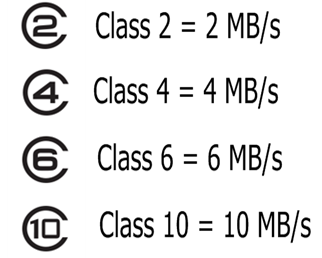
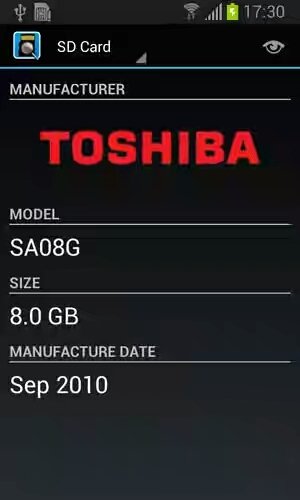
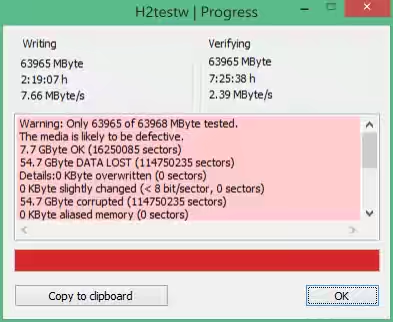
Identifying a fake product from the original is never an easy task -- you must have eyes for details and be equipped with the requisite knowledge about the product. And when you think of buying an external storage device for your gadgets, you need to know how to spot a fake MicroSD card, from the original, or you risk losing all vital data stored in the fake card when it crashes. And of course, fake memory cards easily crash. So how do you avoid being a victim of scam, who purchases a fake SanDisk card, or a fake Samsung card, or a fake MicroSD card of any other manufacturers? It is easy; all you need is to know some naming conventions of MicroSDs, to know the speed classes of MicroSDs, and to know some tools (SD card testing tools); and you will be able to spot a fake MicroSD card. How to Spot a fake MicroSD using SD Card Naming Conventions (Types of SD Cards) Like all products, there are some naming conventions established by the international regulatory body of the product or by the manufacturer; if you can understand and decode the naming conventions, you wouldn't have problems spotting a fake. In the case of MicroSD cards, there are 4 naming conventions (types of MicroSD cards), based on memory capacity; but only three are currently widely available in the market, and the three are as follow: 1. SDSC or SD standing for Secured Digital Standard Capacity. This is the category of memory cards with the storage capacity between 1MB to 2GB, at most 4GB. Whether it is a Samsung or a SanDisk or any other card, letter S and D designed into a logo, like the image below, must be on any memory card claiming that range of storage capacity. https://www.techrabytes.com/wp-content/uploads/2017/05/How-to-spot-a-fake-MicroSD-card-SDSC-Logo.png The manufacturer can use any colour it want for the logo, but the design must be like this image 2. SDHC standing for Secured Digital High-Capacity. All memory cards with the storage capacity between 4GB to 32GB fall here. The logo below must be on the card. https://www.techrabytes.com/wp-content/uploads/2017/05/How-to-spot-a-fake-MicroSD-card-SDHC-Logo.png 3. SDXC standing for Secured Digital eXtended Capacity. MicroSD cards greater than 32GB to 2TB fall here. https://www.techrabytes.com/wp-content/uploads/2017/05/How-to-spot-a-fake-MicroSD-card-SDXC-logo.png In other words, to sport a fake MicroSD card, check the card type logo against the capacity written on it. For example, if you are buying a SanDisk 64GB card and on checking the SD logo on it, you see the logo of SDHC, it means the card is mislabelled - - the correct SD logo should be that of SDXC, for the card is greater than 32GB. Mislabelling is one the easiest ways to spot a fake product; authentic manufacturers hardly mislabel their products. How to Spot a fake MicroSD using Classes of SD Cards MicroSD cards come in speed classes, and aside the fact that speed classes help to spot fake cards, they also help to determine the right card for a particular gadget. Generally there are 6 classes in MicroSDs, but 4 are common; and like the types of cards, they also have logos (or better still marks), which must be displayed on the card. The first of the class is called Class 2, which writes data at the rate of 2MP per second; the second is called Class 4, which writes data at the rate of 4MP per second; the third is called Class 6, which writes data at the rate of 6MP per second; and the fourth is called Class 10, which writes data at the rate of 10MP per second. Curiously there is no Class 8. The other two classes are very expensive and not that common. https://www.techrabytes.com/wp-content/uploads/2017/05/How-to-spot-a-fake-MicroSD-card-speed-class-e1494086453766.png When you are buying a memory card, ensure that the mark of the speed class of the MicroSD card is on it. That will help you spot a fake card, as a MicroSD card without a speed class mark is telling you that the manufacturer doesn't care about the speed of the card; and why should you care to buy? https://www.techrabytes.com/wp-content/uploads/2017/05/how-to-spot-a-fake-MicroSD-card-samsung-class-10.jpg A well-branded and well-labelled Samsung class 10 MicroSD card How to Spot a fake MicroSD using SD Card Testing Tools The two ways of spotting a fake memory card above are through the physical look on the body of the card and its packaging materials. However the fake card maker can still take their time and perfect the labelling of the card. For this reason an SD card testing tool will be useful to check the originality of the card. Normally when you plug in a MicroSD card into a phone or a computer, the capacity will show and you may not know the card is fake, until you use the capacity to a certain level and discover that the card is writing your data with errors and the data not being able to be read back. This is because the fake card has been programmed to display false information. The fake card manufacturers do this by manipulating the microcontroller in the card and programming it to display a false memory capacity, different from the actual storage capacity of the chip inside the card. As an example, a card with the label 64GB may actually be 8GB, by putting a storage chip of 8GB in the card and configuring the microcontroller to display 64 GB. And since a phone or a computer will only ask the microcontroller - - not the chip - - about the size of the card, the displayed capacity will be what the microcontroller tells the device. But when the device starts writing on the chip, it will encounter an error when the data pass the 8GB chip capacity. So to check if a card is original, an SD card testing tool is used. If you use an Android phone, go to Play Store and download SD Insight. SD Insight is an SD card tester for Android phones, which helps to check the originality of a MicroSD card. After launching and running a scan on a memory card, it will display the name of the card manufacturer, the model number, the actual storage capacity, and the manufacture date of the card, if the card is original. https://www.techrabytes.com/wp-content/uploads/2017/05/how-to-spot-a-fake-MicroSD-card-SD-insight.jpg A fake card will supply none or part of the information, and most importantly, a fake card will never tell you the name of its manufacturer. To check for a fake MicroSD card on a Windows computer, download h2testw, install, and run a scan on the card. https://www.techrabytes.com/wp-content/uploads/2017/05/fake-memory-card2.png In the image above, only 7.7GB of the available 63.97GB is OK - - 54.7GB is bad, corrupt and will only result in a data lose, if written on; that’s what will happen when a card with actual 8GB chip is tweaked to 64GB. As you have seen, spotting a fake MicroSD (whether SanDisk or Samsung or Toshiba or ADATA or any other) requires checking, very well, the labels on the body of the card and matching it with the established types and classes of SD card. Misbranding, no branding, and mislabelling are pointers to being fake, and you also want to check out that all branding and labelling on the memory card are perfect written, not with blurry text or logo or mark. If the labelling and branding are perfect, but you are still in doubt, then SD card testers will be handy. Most of the times, to spot a fake MicroSD card, you only need to hear the price and be reasonable - - cheap memory cards are cheap articles that could cost you your most important data, and there will be no way to bring it back. Source: https://www.techrabytes.com/how-to-spot-a-fake-microsd-card-sandisk/ 2 Likes |
| Phones › Re: The New Nokia 3310 Has A Fake! Here Is How To Identify It by tunisbaba(op): 7:50pm On May 03, 2017 |
daamazing:Copycats everywhere. Chinese guys can copy any thing. |
| Phones › The New Nokia 3310 Has A Fake! Here Is How To Identify It by tunisbaba(op): 10:32am On May 03, 2017 |
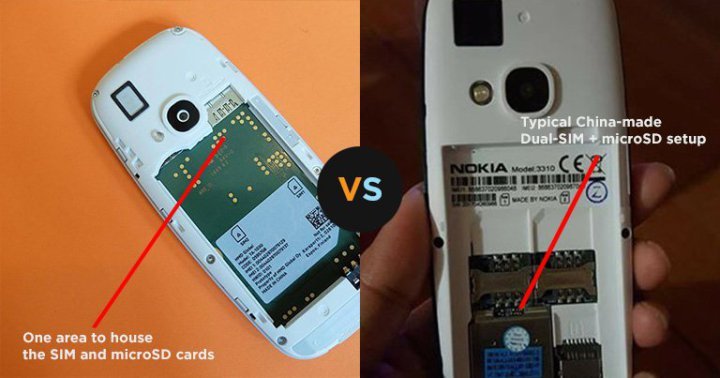
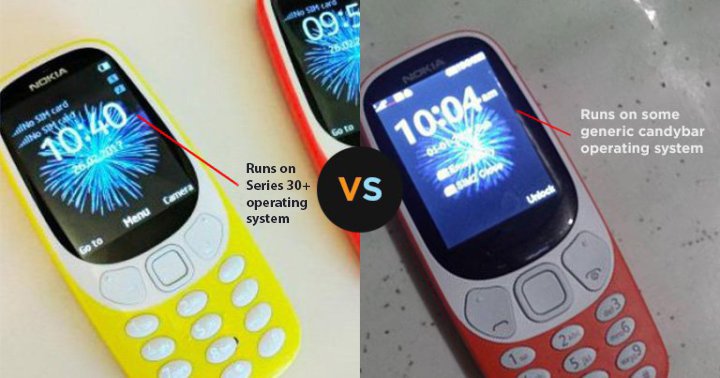
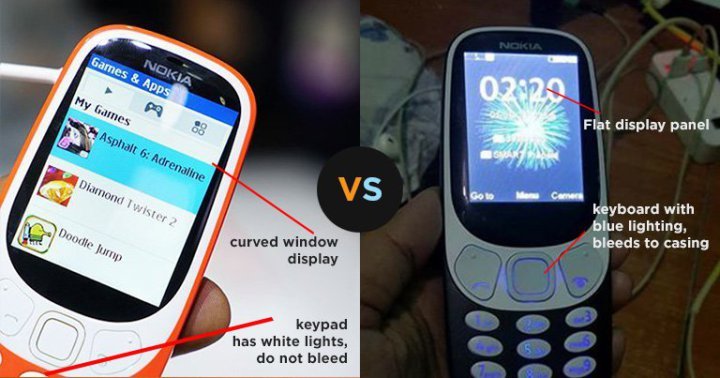
While HMD Global has put up a lot of resources together to reincarnate the legendary Nokia 3310 and the world is waiting for its arrival, in a new modern form, some dudes are already selling the clones. In the earliest fake Nokia 3310 (2017) that surfaced and was sold online, it was easy to tell that the product was fake as the phone has contrast design from original 3310 (2017) and also carries a different manufacturer's name. https://www.techrabytes.com/wp-content/uploads/2017/05/fake-Nokia-3310.jpg Earliest fake design carries S-Mobile as its manufacturer's name But as for the new one currently being sold, it is very hard to know the phone is fake as the fake closely resembles the original. If you don't want to fall for scams, below are the ways to identify fake a Nokia3310 (2017): How To Identify A Fake Nokia 3310 (2017) The first pointer to spotting a fake Nokia 3310 (2017) is to look, very well, at the white outer lining that frames the screen and the three big keys (the navigation key, the option keys, and the call keys), below the screen. In the original 3310 (2017), the outer lining is elegant and radiant in colour white, while on the fake, the lining is off-white, in a dirty white colour. Still on the lining, the white lining of the original phone doesn't occupy the whole side space beside the screen: the main colour of the phone, which runs from the back of the phone to the interspace between the alpha-numeric keypads, lines the outer edge of the white lining. https://www.techrabytes.com/wp-content/uploads/2017/05/how-to-identify-fake-Nokia-3310-2017-1.jpg When the removable battery of the original Nokia 3310 (2017) is removed, the electronic circuit board, in colour green, of the phone is directly visible; its SIM slots and memory card slot are tucked in[/b]so that when the SIMs and the memory are inserted, only a small part of the memory card is visible, with the SIMs totally invisible, totally covered. As for the fake model of the new 3310, the green electronic circuit board isn't visible from the back; it is covered by a layer of plastic, which doubles as the seat of the dual SIMs. The SIM slots are open and visible, not tucked in, and the memory card slot is on a slightly raised level above the SIM slots. This isn't only a way to identify a fake Nokia 3310 (2017), [b]it is a way to identify Chinese scrap phones. Another way to identify a fake Nokia 3310 (2017) is through the LED flashlight of the phone. In the original, the flashlight is small but its light is bright when power on; in the fake the flashlight is unnecessarily big. The shape of the speaker of the 3310 (2017) is rectangular - - that of the fake is put into a perfect square, and that's a perfect way to identify the original from the fake. https://www.techrabytes.com/wp-content/uploads/2017/05/how-to-identify-fake-Nokia-3310-2017-2.jpg Screen display on the original phone is curvy, while it is flat on the fake, and aside being flat, the fake phone also has a sort of protective glass covering its screen. A closer look at the screen display of the original and the fake phones gives more information that will help to identify a fake Nokia 3310 (2017). For example on the original 3310 (2017), the battery icon (which shows the battery level) lies horizontally alone in the topmost right corner of the screen. The network signal bars and the names of the dual SIMs are displayed at the top left corner, SIM 1 signal bar and name lying above SIM 2 signal bar and name. https://www.techrabytes.com/wp-content/uploads/2017/05/how-to-identify-fake-Nokia-3310-2017-4b.jpg In the fake, the battery icon and the network signal bars of the two SIMs are all aligned in a single row at the top of the screen. Curiously, the fake phone maker put the SIMs names in the middle of the phone's screen. On the keypads of the original Nokia 3310 (2017) phone, the keypads, except the three big ones in the white lining, are flat at almost at the same level as the phone's front surface. But on the fake, all the keypads are vividly raised above the surface of the phone. https://www.techrabytes.com/wp-content/uploads/2017/05/how-to-identify-fake-Nokia-3310-2017-3.jpg To add to that, the back light of the keypads of the original 3310 (2017) is in colour white and perfectly lit all the keypads. A look at the fake model shows the back light comes in colour blue and lights beyond the keypads, spilling the light to the spaces in-between the keypads. The final way to identify a fake Nokia 3310 (2017) is through the operating system. Nokia 3310 (2017) runs on Series 30+, while the fake model runs on a funny generic OS. With these clear comparisons of the features of the original Nokia 3310 (2017) against the fake, I believe you should be able to identify a fake Nokia 3310 (2017), when you meet one. The phone will arrive in June for a starting price of USD 61. Source: https://www.techrabytes.com/how-to-identify-a-fake-nokia-3310-2017/ 2 Likes |
| Phones › Instagram Shadowban May Be Affecting You. Here Is How To Detect And Fix It by tunisbaba(op): 9:23am On May 02, 2017 |
When it comes to slapping sanctions on properties in the World Wide Web, Google is the known disciplinarian. It cudgel has come as Panda, Penguin, Hummingbird etc,. But currently it appears Instagram is starting out to discipline its users, using a new sanction called Instagram ShadowBan. This sanction has been reported to have affected a lot of users, with majority not even knowing, but the people that know are now looking for the Instagram ShadowBan fix to their accounts. If you are among the people that don't know what Instagram ShadowBan is about, this post will explain the ban, show you how to know if you have been shadow banned, and also show you how to remove Instagram ShadowBan from your Instagram account. If you already know what the term means, just scroll down to the section on Instagram ShadowBan fix. Now What is Instagram ShadowBan? Instagram ShadowBan is an assumed ban by Instagram, leading to a state whereby the posts from an account are invisible to other users. It is manifested when a picture is tagged to a hashtag but the picture didn't show up among the other pictures tagged to the hashtag. https://www.techrabytes.com/wp-content/uploads/2017/05/Instagram-ShadowBan-fix.jpg ShadowBan is regarded as an assumed ban because Instagram has neither confirmed not denied the ban, but the glitches of posted pictures being invisible are obvious and have been reported by a lot of Instagram users. When an account is shadow banned, the current followers would still see the pictures posted by the account, but the non-followers of the account wouldn't see the pictures, when they search the hashtag of the picture. How Do You Know if You Are Hit By Instagram ShadowBan? Before taking you through Instagram ShadowBan fix, It is important you know if the ban has hit your account. There are two different ways to knowing, but it's best to combine the two ways for optimum result. The ways are as follow: • Instgram ShadowBan Tester: An online tool called Instagram ShadowBan tester has been launched. The tool helps to test an account or a particular picture or video for ShadowBan. Go to http://shadowban.azurewebsites.net/ to access the tool, and when you land on the page, input your username or media URL and click GET TESTED! button to run a scan. https://www.techrabytes.com/wp-content/uploads/2017/05/Instagram-Shadowban-fix.png • Manual Checking: You can manually check if your account has been shadow banned; just post a picture with a hashtag and asked at least three people not following you to find the hashtag and look to see if your picture appears among the other pictures with the hashtag. If all or majority of the people you asked said they didn't see the picture, it means you might have already been a victim of Instagram ShadowBan. As I have earlier stated, before thinking of ShadowBan fix, combine the manual checking with the ShadowBan testing tool result. If the result from the tool stated that you are ban and through manual confirmation, your pictures are invisible, then you are indeed shadow banned. What is The Reason for Being ShadowBan? Since Instagram has been mute on ShadowBan, Instagram experts have suggested the likely reasons an account may be shadow banned, and they are as follow: • Using Bots To Grow Your Followers: If you are one of the people that grow their accounts by using the service of self-acclaimed follower growers or you are buying followers, you are at the mercy of ShadowBan. What such service providers do is to design bots that follow your account; this is against the Terms and Condition of Instagram and your account wouldn't go unpunished. Aside growing your account using bots, using some auto-scheduler with your Instagram account can also bring the wrath of ShadowBan. • Breaking Instagram Daily or Hour Usage Limit: Like all other social media, there is limit to actions you can do in an hour and in a day. On Instagram, you can't exceed 150 likes, 60 follow/unfollow and 60 comments in an hours, but by using some applications you can break this limit. Instagram wouldn't be happy with that and can result in a ban. • Using Abused Hashtag: Some hashtags have been classified as spamming; these hashtags are the ones with pictures related to nudity and other inappropriate or offensive contents. If you keep using these hashtags as part of the other hashtags used with your post, your picture is likely to be shadow banned. • When Your Account is Reported to Instagram: If you infringe the copyright of other people's content or being spamming on Instagram and someone reported you to Instagram, on confirmation of the claim, Instagram may place your account in the line and shadow banned it. How to Apply Instagram ShadowBan Fix If you have combined the ShadowBan testing tool result with the manually testing and believe your Instagram account has been shadow banned, here are the Instagram shadowban fix: • Stop using and revoke access from auto-scheduler and other automation services: When you sign up for auto-scheduler and the other services that grow your account with bots, they installed scripts into the API of your Instagram account and perform the automation service through it. The first Instagram shadowban fix to apply is to revoke access from the automation services, from accessing your API. To revoke this access, login into your Instagram account on a computer, and click on the human icon. Then click on Edit Profile, and then on Authorized Applications. On the Authorized Applications tab the names and summaries of authorized programs on your Instagram account will be displayed. Just find the ones of the auto-scheduler and the follower grower and click on Revoke Access to prevent them for accessing your account. https://www.techrabytes.com/wp-content/uploads/2017/05/Instagram-Shadowban-fix2.png • Allow your account to rest for a couple of days: Completely log out your Instagram account from everywhere it is logged in and don't post any thing for 2 or 3 days. This brings a kind of reset effect on the account, and when you login again after the couple of days rest, start using Instagram manually, without those automation systems. • Stop using Instagram 30-hashtag trick, if you are before: Instagram 30-hashtag trick is a popular way of massively reaching a lot of people with your pictures. People do it by adding 30 hashtags to a comment, and after some time, they go back to the comment, edit it and add another 30 hashtags, making 60 hashtags in the comment. Doing this might be the reason your account has been shadow banned in the first instance; and if you are looking for an Instagram ShadowBan fix, it is best to desist from such act from now onward. • Report to Instagram: This is the last resort. If you have applied the above ShadowBan fixes and still your images are still invisible, it is the right time to contact the Instagram team and report the situation. However when reporting the situation don't tell them you have been shadow banned -- just tell them you observe that your pictures aren't appearing in the hashtags you use with them, and hopefully they will help you to reset your account. Removing Instagram ShadowBan requires a lot of patient and following strict rules lay down by Instagram. It is best not to be a victim, but if you ever fall a victim, applying the suggested ShadowBan fixes above can help to resolve the problem. Source: https://www.techrabytes.com/instagram-shadowban-fix/ |
| Politics › Re: "I Have Had One Wristwatch In 17 Years" - Peter Obi Lies Again (photos) by tunisbaba(m): 6:33pm On May 01, 2017 |
Nawa oo |
| Phones › Re: Guides On How To Secure Your Android Phone From Hackers by tunisbaba(op): 2:47pm On Apr 30, 2017 |
ellagabs:Installing custom ROM has its advantages, but when speaking of security of the Android OS, it is at great disadvantage. |
| Phones › Guides On How To Secure Your Android Phone From Hackers by tunisbaba(op): 10:23am On Apr 30, 2017 |
Because the Android OS is open source, its security isn't as strong as that of iOS and Windows OS. For this reason the security of your Android phone mustn't be taken with levity; the bad boys are everywhere and are always ready to take advantage of your slack. And in order not to slack, you need to know how to secure your Android phone from hackers. When I say hackers, I'm not only talking about the bad boys wearing geeky glasses, sitting in front of a computer and trying to break into your Android phone, from a remote location; I'm also talking about physical hackers, the people that invade your phone and try to snoop your messages and other personal data. There is no limit to what these two types of hackers can do to your data, if they break into your Android phone; so how do you secure your Android phone from these hackers? This is exactly what I will be talking about in the post: I will be talking about how to secure your Android phone from online hackers, the geeky guys in remote location, and offline hackers. How to Secure Your Android Phone From Offline Hackers • Use Screen lock: Nowadays Android phones come with default screen-lock security, in form of PIN, password and pattern. It is foolproof to use either of the screen-lock method to secure your Android phone, so that if your phone mistakenly gets into a wrong hand, the wrong hand would be rendered useless as your screen is locked. Now that fingerprint scanner also comes with middle-range and high-end Android phones, if your phone has this feature, please use it. It is faster and more secured than PIN, password and pattern. The only downside of using screen lock is that your will need to unlock your phone every time the screen light goes off. This isn't really a big problem for most people, but if it is to you, the automatic unlock feature of the Android OS can help you automatically unlock your phone at pre-set conditions. With the automatic unlock feature you can set your phone to automatically unlock on detection of your body, on hearing your voice, when in a place (like in your office or home), and when near a device. Using the automatic unlock rule with the screen lock feature will help to secure your android phone from hackers and spies. The automatic unlock feature is under Security Settings in your Android phone. To use it, you have to enable Trust Agents on your Android phone and set the Smart Lock, which commands the phone to automatically unlock using pre-set rules. Auto-unlock only works on Android 5.0 and above. • Encrypt Your Phone Data: With data encryption, your Android phone and its data are secured, even if stolen. Encryption helps to turn data into an unreadable form for someone that doesn't have the encryption key. If you have confidential information in your email, note, message and gallery, encrypting them is a wise decision; if you are the very security-conscious type, you can even go ahead and encrypt the whole of your Android phone, but try as much as possible not to forget your encryption key because if you forget the key, all the data in the phone are gone for life. • Be Wary of Applications From Third-Party Stores: Google Play is the home of Android applications, and it is safe to get all your Android games and applications from the store. Some OEMs also have follow-come app store, and it is as well safe to download from it. But when you are downloading from a site or a third-party app store, to secure your Android phone from hackers, make sure the app is verified before installation. To do this just make sure the Verify Apps feature, under Device Administrator on your phone is ticked. By that, all applications you are installing on your phone will be scanned and you will be notified if there are suspicious contents in the app code, and all you must do is not install the application again. • Don't Root Your Phone, Unless You Know What You Are Doing: Yes, it is true, you aren't the owner of your Android phone until you root it! Rooting your phone gives you unrestricted access to it, but this access can make you damage the phone, especially if you are not an experienced user with Android root. When I got my first Android phone Tecno N3 some years ago, I rooted it in order to access the root and use part of the memory card to boost its 512RAM. In the process, I fiddled with the phone’s launcher, and the phone never launched to home screen again. I was inexperienced with Android root then, but thanks to the folks at Tecno calcare, who helped fix it. Aside the fact that root can make you do bad fiddling to your Android phone, it also makes your phone 100% insecure. If your phone is unrooted and you mistakenly install a malware, the malware will only cause as little damage as possible; but If the phone is rooted, there is no limit to the damage the malware can cause. A rooted Andriod phone plus apps from untrusted third party store are a NO NO, if you want to secure your Android phone from hackers. How to Secure Your Android Phone From Online Hackers • Enable two-step authentication for your Google account: Your Google account is the key to all the Google products you use, including your phone. To ensure the security of your Android phone and other Google products you access through your phone, enable two-step authentication for your Google account. Two-step authentication adds extra layer of security to your account. After entering your username and password, while trying to login, a code will be sent to your phone to verify you are the owner of the account. The hackers will need to steal your phone to get the code, and since stealing hardware isn’t a hacker speciality, your online account is safe -- hackers only steal electronic data. • Be careful with clicking Ads and Links: Nowadays, Ads are like MTN -- we see them everywhere we go, online. Generally Ads by Google, Facebook, Twitter and the other social media are safe, but when you see an ad that comes as a pop-up banner or an ad that automatically opens new windows or tab on your browser, that's a red flag. Another most common hacking attempt on Android phone is a page claiming your phone is infected and asking you to perform an action. When you see such page, ignoring the message and closing the page is the way to secure your Android phone from the hacking attempt. In truth, it is the page itself that is trying to infect you. As for emails, never click on any email sent to you by someone you don’t know. • Use VPN: The importance of VPN in securing your Android phone from hackers and spies can't be overemphasized. VPN helps to tunnel browsers through a different location other than the default location and IP of the ISP, and then securing the connection. With the prevalence of free public WiFi in Nigeria, you have to be conscious of the free WiFi you are connecting to. Free public WiFi providers could manipulate your device and collect confidential data from your phone; so connecting through a strong VPN will help shield you. As a rule of thumb, never do online bank transfer and online payment with free public WiFi. There are lot of VPNs in PlayStore, download a good one and enable it to secure your connection. Securing your Android phone from offline and online hackers may be tasking and requiring extra care and attention to what you do on your phone, but in the long run and in the end, you will always have a peace of mind that your digital property is secured. Source: https://www.techrabytes.com/how-secure-your-android-phone-hackers/
|
| Webmasters › Re: Youtube Has A Secret ‘dark Mode’ You Didn’t Know Existed - See How To Activate by tunisbaba(m): 7:18pm On Apr 15, 2017 |
Skateboard:This is a good move from YouTube, but I would make more sense if it can be activated through settings and not going through developer mode. |
| Webmasters › Re: 7 Best Tools For Bloggers To Correct Grammatical Mistakes by tunisbaba(m): 1:08pm On Mar 26, 2017 |
Grammar tools are good, but without developing yourself to understand the basics of the English language grammar, you will get more confused with their suggested corrections. |
| Phones › Re: 14 Silicon Valley Slangs You Must Know If You Use Tech Products by tunisbaba(op): 8:18am On Mar 24, 2017 |
Techm8:That is in compilation.  |
| Foreign Affairs › Joe Biden, Former Vice President Of The US, Meets Dog Named Biden by tunisbaba(op): 8:46pm On Mar 23, 2017 |
Joe Biden, the former Vice President of the US, yesterday met a dog named Biden and he was happy to receive the dog and its owner.
|
| Phones › Re: 14 Silicon Valley Slangs You Must Know If You Use Tech Products by tunisbaba(op): 3:55pm On Mar 23, 2017 |
| Phones › Word First Smart Condom Will Measure The Energy You Burn In A Round Of Sex by tunisbaba(op): 10:08pm On Mar 22, 2017 |
When the world started thinking of wearable technology, one of the last things we expected was a Smart condom. We have seen smartphones, smart TVs, smart homes, smart shoes and other smart things, but Smart condom is just kind of strange. According to i.Con, the maker of the world first Smart condom, the condom will provider users with answers to sex-performance related questions that always pop up in the mind of men. On taking a close look at this condom, it was discovered that what i.Con did was adding of a special ring over a regular condom. Definitely the ring isn’t just a normal; it has nano-chips and sensors inside it and allows it to track and collect data about sex. A fascinating claim from the maker of the condom is that it can detect diseases such as chlamydia and syphilis (I think detecting HIV/AIDS and gonorrhoea would have been better and make it sell more than pure water). https://howtotechnaija.com/wp-content/uploads/2017/03/icon-smart-condom.jpg?x44376 Aside detecting these diseases, the smart condom can also calculate thrust speed and velocity during sex, energy burned in a round, the number of time you have sex, and so on. If you like you can share the collected sex data with your friend or share it anonymously with the world. You may be thinking how you will access the data collected be i.Con Smart Condom. The Smart condom can pair with smartphones via Bluetooth, and through a software designed for the condom, you will see your sex data. Charging of the battery of the ring of the condom, which can last up to 8 hours of usage, is through a Micro-USB on the small body of the ring. i.Con Smart Condom price is £59.99 in the UK, and available for pre-order on British Condoms. Source: http://howtotechnaija.com/word-first-smart-condom-price/ |
| Phones › 14 Silicon Valley Slangs You Must Know If You Use Tech Products by tunisbaba(op): 2:35pm On Mar 22, 2017 |
Every profession has its speaks, jargons, slangs and terminologies, but people outside the profession may not give a shit about the professional language. But when it comes to the tech slangs of the folks in the Silicon Valley (the home of Google, Apple and Facebook), we need to know some of their slangs as we can't do without their products. Silicon Valley slangs, also called technobabble, geek speak or Valley lingo, have made up a language on their own, and there is even an online dictionary that explains the meaning of the slangs. In this post, we aren't aiming to give you the meaning of all Silicon Valley slangs; instead we are presenting to you some of the tech slangs used in referring to the everyday event in the life of tech-product users. Silicon Valley Slangs You Must Know 1. Zombie Mode: This a state whereby a phone user, commuting to work in the morning, actively engages her phone throughout the journey and looking up only once in awhile to see if she has gotten to her destination. If you are one of the people that do this, now you know the name of being in this state. 2. Digital Detox: This Silicon Valley slang means snubbing (or not using) emails, social networks or anything digital for a few days. When you deliberately stay away from anything that has a screen for a number of days, you are digital detoxing for the number of days. 3. Email Bankruptcy: In the standard English dictionary, bankruptcy means to be in a state of insolvency, but Email Bankruptcy, as a Silicon Valley slang, means when you have thousands of unread emails in your inbox; and you dare not even try to start reading them, and your best option is to delete them all. Personally my YahooMail has been in a state of email bankruptcy, even since a switched to GMail a couple of years ago. 4. Troll: A troll is a person that is always spreading negative and hate comments on the Internet. He is always on Twitter ranting, on Facebook throwing jabs, and on Nairaland spreading hatred with his comments. 5. Phubbing: All phone users are guilty of this Silicon Valley slang. At a point in time, we have all been in a verbal conversation with someone, but instead of paying attention and maintaining eye contact, our attention is on our phone and we hardly take our eye away from it. Phubbing was coined from the merging of phone and snubbing. The next time you talk to someone and she busies herself with her phone, just tell her to stop phubbing; but make sure you don't pronounce the word as fumbling. 6. Procrastatweeting: When you keep on tweeting and tweeting and tweeting when you ought to be doing other task, you are procrastatweeting --meaning you are procrastinating as a result of using Twitter. Whenever you find yourself doing this, the Silicon Valley dudes suggested you use the hashtag: #ProcrastaTweeting. 7. Nomophobia: Nomophobia, coined by British researchers, is an abbreviation of no-mobile-phone-phobia. It is a syndrome in which one experiences an irrational fear of being out of a cell phone. 8. Phone Sleep: Phone Sleep is a Silicon Valley slang referring to the period of time you spend in checking your phone, on bed, before you finally sleep. 9. Brain Rape: Brain Rape is a Silicon Valley slang meaning an immoral act whereby a big company disguises as wanting to buy a startup but only to steal and replicate the intellectually property of the startup, after showing it the secret. A form of brain raping is the replication of Snapchat stories on Facebook Messenger, Whatsapp, and Instagram. Read about about Facebook's missions against Snapchat here. 10. Worder: A worder is anyone who does nothing other than typing in words on his computer, thereby reducing his computer to an advance typewriter. 11. Microserf: If you are so loyal to a particular operating system, either on your phone or on your computer, you are a microserf. Most Nigerians don't want to try out another OS aside Microsoft Windows and Android; in the Silicon Valley all of us that don't want to try out an alternative OS are called microserf. 12. Fingertip Like: Have you ever mistakenly liked a Facebook post or an Instragam post or even a tweet before? If yes what you did has a name in Silicon Valley slang -- it's called fingertip like. Just make sure you don't fingertip like your exe's post. 13. Sticker LovePeddler: You would have met sticker whores before; they are the people that stick dozens of logos of popular high-tech brand to their computer. They do so to show off how techie they are. 14. Twitter Ghosting: Twitter Ghosting means creating a fan Twitter account for a celeb and promoting the account to generate followers. That's it, you now know the 14 Silicon Valley slangs applied to everyday life of tech-product users. Source: http://howtotechnaija.com/silicon-valley-slangs-tech-slangs/ CC: Lalasticlala 2 Shares
|
| Jobs/Vacancies › Re: Lassaco Interview by tunisbaba(m): 6:54pm On Mar 15, 2017 |
If you didn't study insurance and the name of the position you are imterviewing doesn't relate to insurance, be sure that you are going for an insurance marketing interview. If you are interest in marketing, then give it a trial |
| Celebrities › Re: Olamide Celebrates His 28th Birthday Today by tunisbaba(m): 8:05am On Mar 15, 2017 |
Happy birthday to the Oga of Pepper Dem Gangs. 2 Likes 1 Share |
| Jobs/Vacancies › Re: Social Media Manager Needed!!! by tunisbaba(m): 8:59pm On Mar 14, 2017 |
Are you looking for an intern or a real manager? |
| Phones › What Next After Facebook Messenger Day? A Facebook Spectacles? by tunisbaba(op): 10:01am On Mar 11, 2017 |
With the rolling out of Messenger Day on Facebook Messenger standalone application, the members of the Facebook team can clap for themselves and say mission accomplished, for they have successfully made all Facebook-owned applications (Messenger, Whatsapp, and Instagram) be able to tell Stories. Before September 2011 only the trio of Evan Spiegel, Bobby Murphy, and Reggie Brown were the guys thinking and coding an application that will allow users take a selfie that will auto-delete itself after 24hours. After launching and relauching Snapchat is at where it is today with its main features being the ability to capture ephemeral pictures and videos, and add effects, captions and drawings to them . Also Snapchat boasts of its Geofilters and Lens features. As a result of the high reception of Snapchat by the public, Snap Inc. (the parent company of Snapchat) introduced Snapchat Spectacles in September 2016. Since the release of the Spectacles, Snapchat users have been queueing endlessly in front of SnapBot to get one, until the Spectacles were made available to be ordered online. While Snapchat was breaking the ground with its innovations, nobody knew Facebook was eyeing its success, until it made an official proposal to buy Snapchat in 2013. Snap declined to sell Snapchat to Facebook, and three years later Facebook started rolling out updates copying Snapchat core functionality on all its owned social applications. The first attempt to copy-paste a Snapchat feature dated back in summer of 2016 when Facebook added filters to Messenger camera; then it introduced Instagram Stories in August 2016; lenses, stickers, drawings and more filter were added to Messenger in December 2016; and just this week Instragam got Geostickers and Messenger got Messenger Day. Now if you ask what other things Snap Inc. does the Facebook hasn’t replicated, it is the Snapchat Spectacles. And only time will tell if we wouldn’t be getting a Facebook Spectacle, soon. For the meantime, we should keep watching the next Facebook mission against Snapchat. But will you rock a Facebook Spectacles, if introduced into the market? Source: http://howtotechnaija.com/what-next-facebook-messenger-day/
|