Yinksdavid's Posts
Nairaland Forum › Yinksdavid's Profile › Yinksdavid's Posts
1 2 3 4 5 6 7 8 ... 13 14 15 16 17 18 19 (of 19 pages)
 Computers › Re: Post Your Computer (PC) Troubles Here. by Yinksdavid(m): 11:53am On Sep 06, 2021 Computers › Re: Post Your Computer (PC) Troubles Here. by Yinksdavid(m): 11:53am On Sep 06, 2021 |
Sankabson:You are welcome. Unfortunately, I don't have or know any (good) IT Engineer in Ibadan but issues can be solved virtually now which is an alternative. |
| Computers › Re: Post Your Computer (PC) Troubles Here. by Yinksdavid(m): 10:04am On Sep 06, 2021 |
Sankabson:There could be multiple reasons but since you have been notified to change the battery in the past, then that would likely be the source of the issue. Furthermore, Clearer and detailed symptoms of the issue is required to be able to drill down and confirm what the actual issue could be. |
| Computers › Re: How To Control Windows 10 With Your Voice by Yinksdavid(op): 9:44am On Sep 06, 2021 |
Good Morning All, If you are having issues with installing or updating your Windows 10 OS, you experience any issue after installation, need to know how best to utilize your Windows 10 or you are curious for knowledge purposes about Windows 10 OS, Kindly reach out to me via yinks.azure@gmail.com or the whatsapp number below on my signature and I would be glad to assist. Thanks This also applies to other Microsoft Applications such as Office, Office365, Outlook2019, Sharepoint2019, Dynamics CRM, Exchange Server, Windows Server. |
| Technology Market › Re: Brand New Apresys Hi Tech Binoculars For Sale by Yinksdavid(op): 9:44am On Sep 06, 2021 |
Good Morning All, If you are having issues with installing or updating your Windows 10 OS, you experience any issue after installation, need to know how best to utilize your Windows 10 or you are curious for knowledge purposes about Windows 10 OS, Kindly reach out to me via yinks.azure@gmail.com or the whatsapp number below on my signature and I would be glad to assist. Thanks This also applies to other Microsoft Applications such as Office, Office365, Outlook2019, Sharepoint2019, Dynamics CRM, Exchange Server, Windows Server. |
| Career › Re: Learn Microsoft Azure by Yinksdavid(op): 9:40am On Sep 06, 2021 |
Good Morning All, If you are having issues with installing or updating your Windows 10 OS, you experience any issue after installation, need to know how best to utilize your Windows 10 or you are curious for knowledge purposes about Windows 10 OS, Kindly reach out to me via yinks.azure@gmail.com or the whatsapp number below on my signature and I would be glad to assist. Thanks This also applies to other Microsoft Applications such as Office, Office365, Outlook2019, Sharepoint2019, Dynamics CRM, Exchange Server, Windows Server. |
| Computers › Re: These Windows 10 Keyboard Shortcuts Will Save You Clicks by Yinksdavid(op): 9:40am On Sep 06, 2021 |
Good Morning All, If you are having issues with installing or updating your Windows 10 OS, you experience any issue after installation, need to know how best to utilize your Windows 10 or you are curious for knowledge purposes about Windows 10 OS, Kindly reach out to me via yinks.azure@gmail.com or the whatsapp number below on my signature and I would be glad to assist. Thanks This also applies to other Microsoft Applications such as Office, Office365, Outlook2019, Sharepoint2019, Dynamics CRM, Exchange Server, Windows Server. |
| Computers › Re: How To Sync Your Iphone With Windows 10 by Yinksdavid(op): 9:40am On Sep 06, 2021 |
Good Morning All, If you are having issues with installing or updating your Windows 10 OS, you experience any issue after installation, need to know how best to utilize your Windows 10 or you are curious for knowledge purposes about Windows 10 OS, Kindly reach out to me via yinks.azure@gmail.com or the whatsapp number below on my signature and I would be glad to assist. Thanks This also applies to other Microsoft Applications such as Office, Office365, Outlook2019, Sharepoint2019, Dynamics CRM, Exchange Server, Windows Server. |
| Technology Market › Re: Genuine Microsoft Windows/office/exchange Activation/license Keys Available by Yinksdavid(op): 9:39am On Sep 06, 2021 |
Good Morning All, If you are having issues with installing or updating your Windows 10 OS, you experience any issue after installation, need to know how best to utilize your Windows 10 or you are curious for knowledge purposes about Windows 10 OS, Kindly reach out to me via yinks.azure@gmail.com or the whatsapp number below on my signature and I would be glad to assist. Thanks This also applies to other Microsoft Applications such as Office, Office365, Outlook2019, Sharepoint2019, Dynamics CRM, Exchange Server, Windows Server. |
| Computers › Re: How To Set Up And Use Icloud On Windows by Yinksdavid(op): 9:38am On Sep 06, 2021 |
Good Morning All, If you are having issues with installing or updating your Windows 10 OS, you experience any issue after installation, need to know how best to utilize your Windows 10 or you are curious for knowledge purposes about Windows 10 OS, Kindly reach out to me via yinks.azure@gmail.com or the whatsapp number below on my signature and I would be glad to assist. Thanks This also applies to other Microsoft Applications such as Office, Office365, Outlook2019, Sharepoint2019, Dynamics CRM, Exchange Server, Windows Server. |
| Computers › Re: Windows 10 Problems And Solutions (official Microsoft Windows 10 links added) by Yinksdavid(m): 9:37am On Sep 06, 2021 |
Good Morning All, If you are having issues with installing or updating your Windows 10 OS, you experience any issue after installation, need to know how best to utilize your Windows 10 or you are curious for knowledge purposes about Windows 10 OS, Kindly reach out to me via yinks.azure@gmail.com or the whatsapp number below on my signature and I would be glad to assist. Thanks This also applies to other Microsoft Applications such as Office, Office365, Outlook2019, Sharepoint2019, Dynamics CRM, Exchange Server, Windows Server. |
| Computers › Re: Post Your Computer (PC) Troubles Here. by Yinksdavid(m): 9:35am On Sep 06, 2021 |
Good Morning All, If you are having issues with installing or updating your Windows 10 OS, you experience any issue after installation, need to know how best to utilize your Windows 10 or you are curious for knowledge purposes about Windows 10 OS, Kindly reach out to me via yinks.azure@gmail.com or the whatsapp number below on my signature and I would be glad to assist. Thanks This also applies to other Microsoft Applications such as Office, Office365, Outlook2019, Sharepoint2019, Dynamics CRM, Exchange Server, Windows Server. |
| Computers › How To Control Windows 10 With Your Voice by Yinksdavid(op): 9:23am On Sep 06, 2021*. Modified: 9:43am On Sep 06, 2021 |
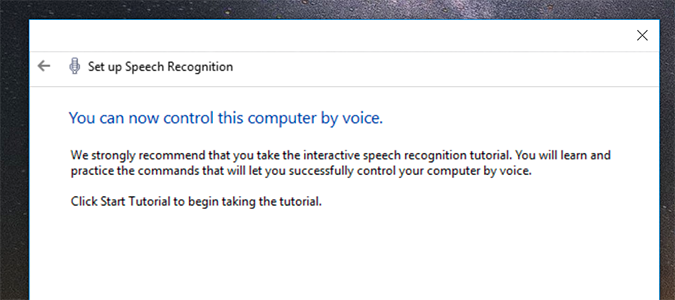
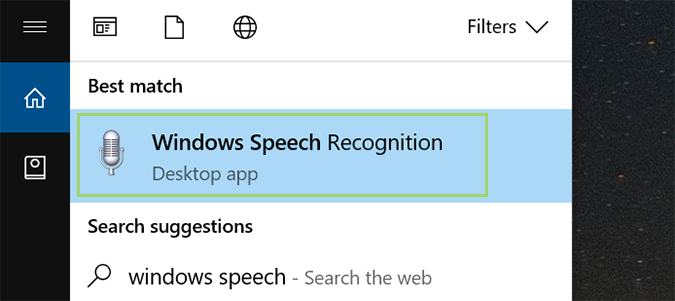
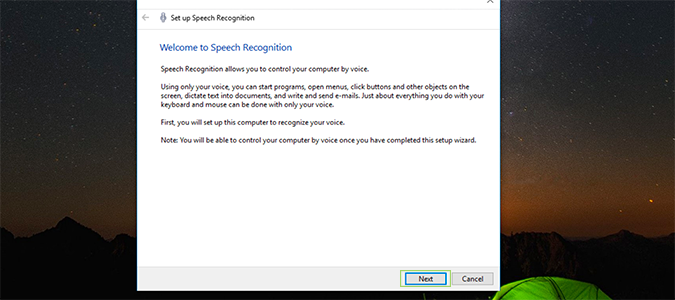
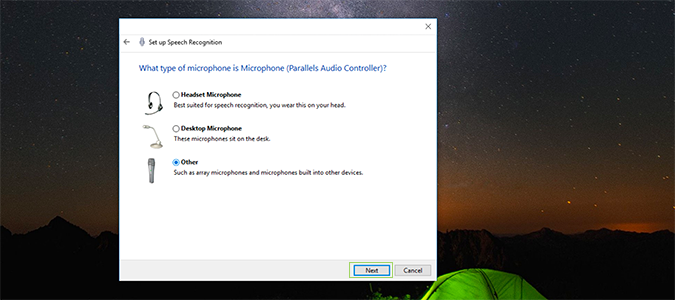
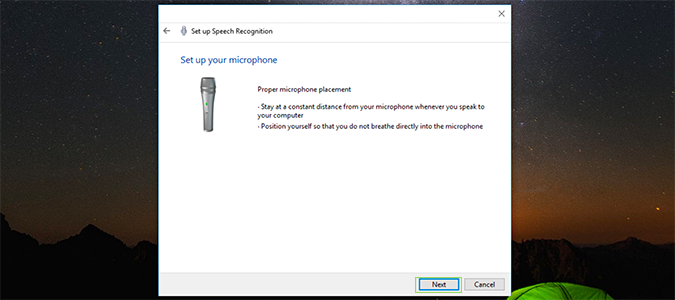
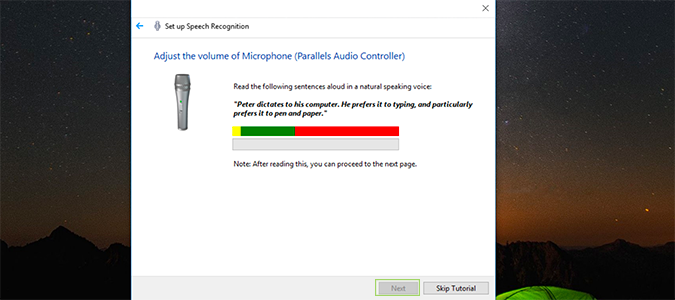
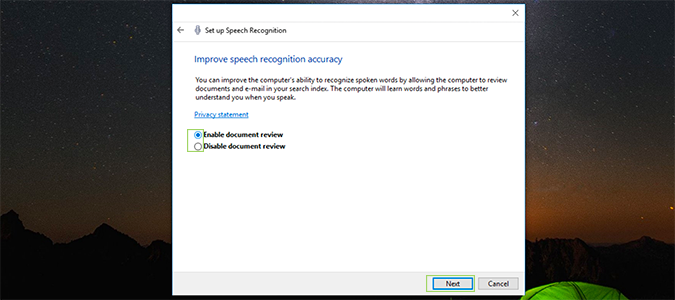
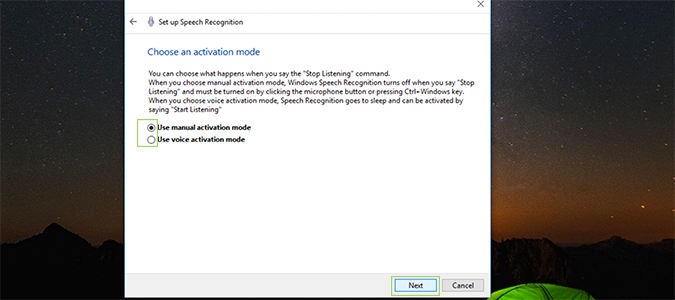
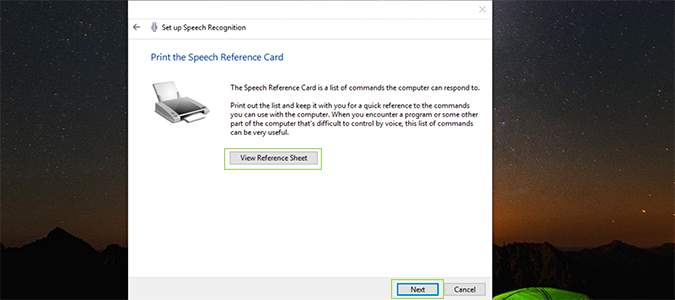
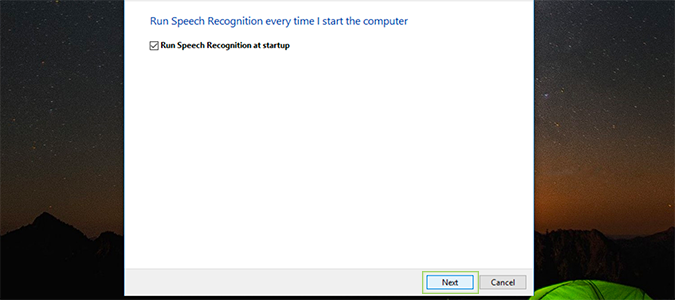
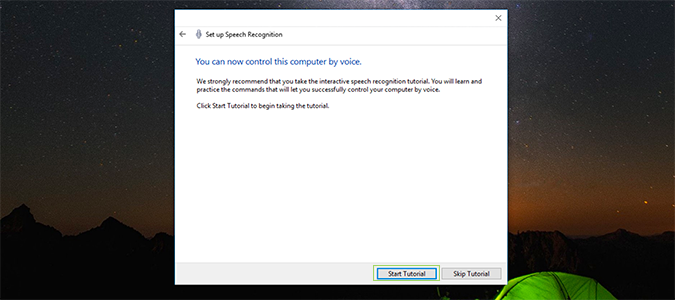
Voice control is hit-or-miss, but it’s a handy way to conquer tasks quickly when it’s working well. Windows 10 has built-in voice controls for some of its most popular features already, including Cortana, which makes quick searches for apps or answers to questions a breeze. https://cdn.mos.cms.futurecdn.net/qrjMkQ4iNPiNFvK9Um3wk3-970-80.png we’re going to get Windows Speech Recognition set up, and expand the limits of what Cortana alone can do. 1. Type Windows Speech into the Cortana search bar, and tap Windows Speech Recognition to open it. https://cdn.mos.cms.futurecdn.net/yjJVGV6MHRakRPZN27MfDn-970-80.png 2. Click Next in the pop-up window to get started. https://cdn.mos.cms.futurecdn.net/7LQyCfphHfRBzkjM2waU4n-970-80.png 3. Select your microphone and press Next. If you’re wanting the best results, a headset or other standalone microphone is a solid bet. For laptop users, or those with built-in mics, these will work just fine. https://cdn.mos.cms.futurecdn.net/MyeBcTQwpz2a9Qo95LEABg-970-80.png 4. Follow the on-screen instructions for microphone placement, and press Next once you’re ready. https://cdn.mos.cms.futurecdn.net/E99G3JJbMMHnCPbLZZzFF7-970-80.png 5. Read the on-screen prompt to calibrate the microphone and press Next. https://cdn.mos.cms.futurecdn.net/cuDHoMFRH9FqJ6Cx7bEYzU-970-80.png 6. Choose whether to allow your computer to review documents and e-mail to better understand you when you speak. https://cdn.mos.cms.futurecdn.net/eG7DKqG8gBi7dbBUkberJg-970-80.png 7. Select an activation mode. Windows Speech Recognition can turn off when you say “Stop Listening” with voice activation mode, or you can choose to use a key combination (CTRL + Windows) to activate and de-activate the service. https://cdn.mos.cms.futurecdn.net/BVA45rs2E24Kjm84kqAGPP-970-80.png 8. Print the speech recognition card for easy access to the commands Windows understands, or you can just save this link for later viewing. https://cdn.mos.cms.futurecdn.net/kA335jJC9UWUGnuJXmz48U-970-80.png 9. Choose to run Speech Recognition at startup, or you’ll have to manually enable it through the control panel. https://cdn.mos.cms.futurecdn.net/P8WnZ9Qxm3hRfCDdih6Mgd-970-80.png 10. Finish the setup by watching the tutorial to learn more about Speech Recognition’s capabilities. https://cdn.mos.cms.futurecdn.net/wF5QNM4g4Yofp9SZaF8wsH-970-80.png Now Windows speech function has been set up and ready to fully utilize( Trust me, it will make your tasks easier). |
| Computers › Re: Post Your Computer (PC) Troubles Here. by Yinksdavid(m): 10:39pm On Sep 05, 2021 |
honcdm01:Kindly follow the information in the link below and let me know if it provides the solution. https://macpaw.com/how-to/fix-macbook-not-charging?campaign=cmmx_search_dsa_ww_en&ci=10142253788&adgroupid=123618308558&adpos=&ck=&targetid=aud-300364119343:dsa-1390613810769&match=b&gnetwork=g&creative=535317479176&placement=&placecat=&accname=cmm&gclid=Cj0KCQjw1dGJBhD4ARIsANb6OdmX3XcpAz0BNYi39L46ZNNGYBrYsKluFLNHyUxQ9Sy2pCgZKyr6mhYaAgLxEALw_wcB |
| Computers › Re: How To Set Up And Use Icloud On Windows by Yinksdavid(op): 3:16pm On Sep 05, 2021 |
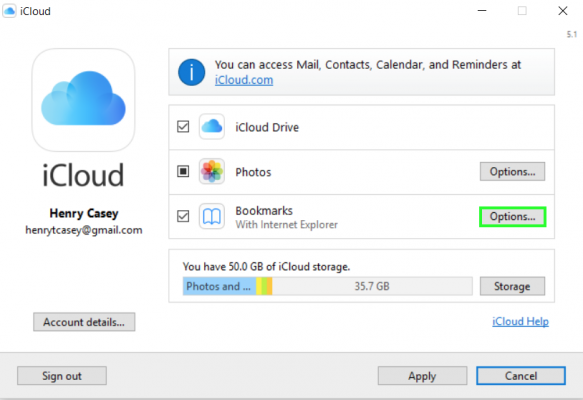
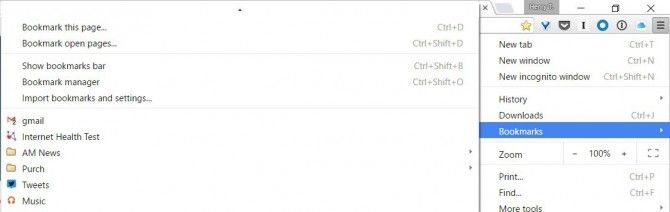
Next is accessing your bookmarks from your icloud browser to windows e.g if you want to access certain links/websites you have bookmarked(saved) on your Icloud brower directly on your windows browser, then below are the steps to take which is very similar to the photos shared earlier How To Configure Bookmarks in iCloud on Windows 1. Click on Change button next to Bookmarks, unless you use Internet Explorer. https://cdn.mos.cms.futurecdn.net/EVbiWqUwJjzzE6ztXMcL6h-970-80.png 2. Select the PC browser you want to sync bookmarks with your iPhone. If you select Chrome, follow the instructions for setting up the iCloud Bookmarks extension. [img]https://www.laptopmag.com/articles/set-up-icloud-for-windows[/img] Chrome will now share the bookmarks you used on your previous Mac and your iPhone. https://cdn.mos.cms.futurecdn.net/ybjHt4NWAbEMHShFf5VpTb-970-80.jpg |
| Computers › Re: How To Set Up And Use Icloud On Windows by Yinksdavid(op): 3:10pm On Sep 05, 2021 |
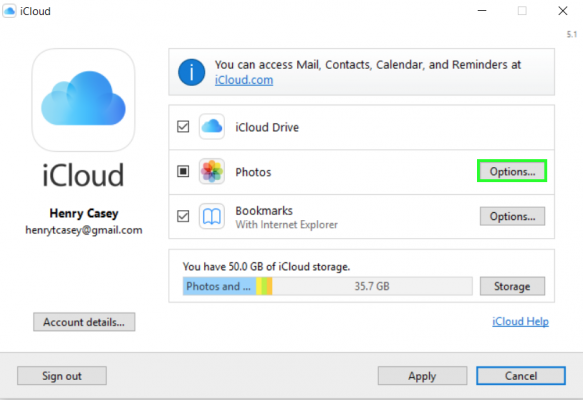
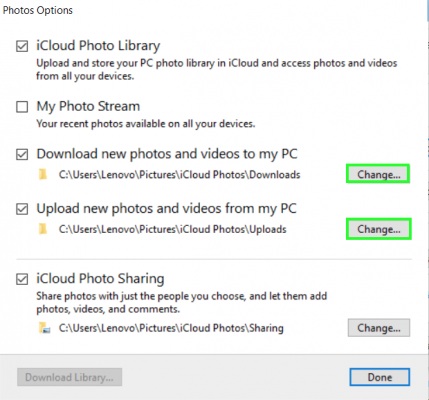
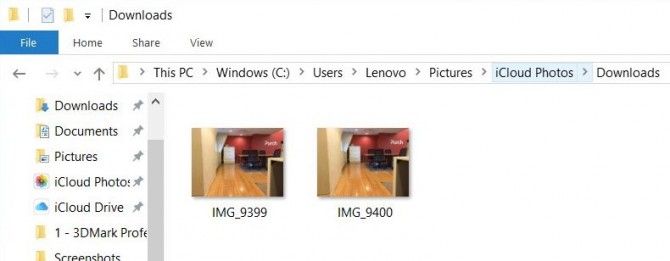
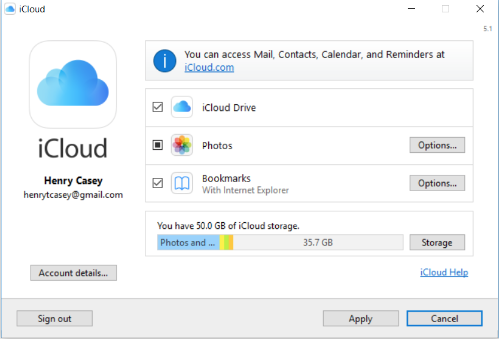
Now we have setup our icloud on our windows environment so below is configuring our icloud photos to windows so we can access the images on our MAC OS station(Iphone, Ipad, etc) directly from our windows OS workstation. How To Configure iCloud Photos on Windows 1. Select Options next to Photos to check your photo settings https://cdn.mos.cms.futurecdn.net/sevWbBHLGoBSmBDt7uXZo6-970-80.png https://cdn.mos.cms.futurecdn.net/odiVUtT2PQSjzpxYdqPSc4-970-80.png 2. You’ll find the photos you take on your iPhone in the folder you selected under "Download new photos..." https://cdn.mos.cms.futurecdn.net/qsKn2y44t6waNr5WqdAyUG-970-80.jpg |
| Computers › Re: How To Set Up And Use Icloud On Windows by Yinksdavid(op): 3:02pm On Sep 05, 2021 |
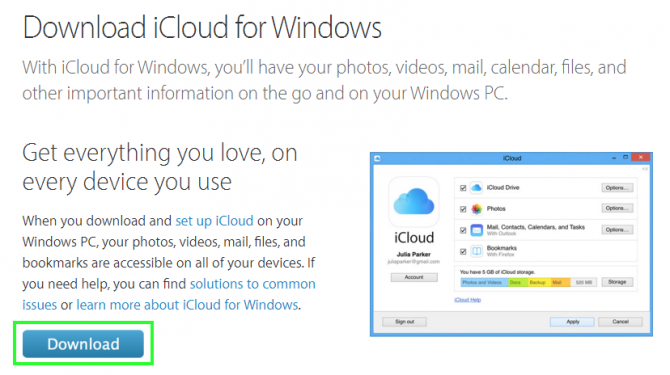
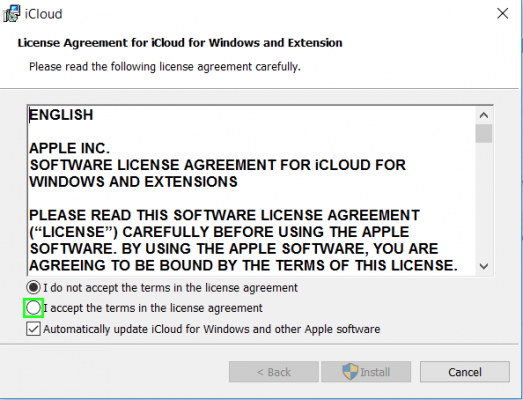
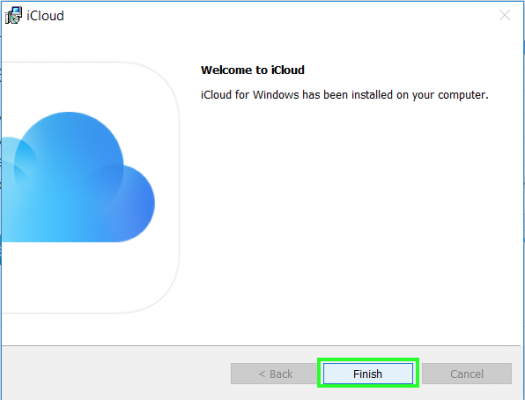
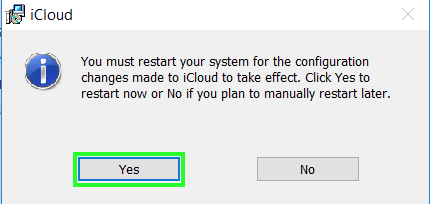
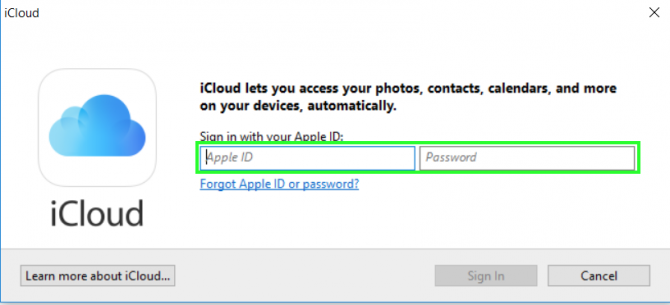
How to Set Up and Use iCloud on Windows 1. Navigate to the iCloud for Windows page and click Download. https://cdn.mos.cms.futurecdn.net/8iXdDGaArB4kGAdVdw9FeQ-970-80.png 2. Open icloudsetup.exe. https://cdn.mos.cms.futurecdn.net/ZcASnrkhFCrAJFGr3kF6n-970-80.png 3. Accept the terms of the license agreement. https://cdn.mos.cms.futurecdn.net/WDFfTqf3ZueB8zTG2U4JwN-970-80.png 4. Select Install. https://cdn.mos.cms.futurecdn.net/tEbyoXZpCshQVWi8CqCuGk-970-80.png 5. Select Finish. https://cdn.mos.cms.futurecdn.net/K5dufieEA8No5LLPYVHou-970-80.png 6. Click Yes to restart. https://cdn.mos.cms.futurecdn.net/Mh9ct79J4hbUGcDUiAEsXh-970-80.png https://cdn.mos.cms.futurecdn.net/VQ6GmUec3KhSsZS8svQzgG-970-80.png Your PC has been signed into iCloud on Windows! https://cdn.mos.cms.futurecdn.net/vYBmHc3VF8PYhxR5ybtgye-970-80.png |
| Computers › How To Set Up And Use Icloud On Windows by Yinksdavid(op): 2:53pm On Sep 05, 2021 |
Even if you've decided to leave your Mac for a PC, you don't necessarily need to leave behind Apple's iCloud. Apple made an app for its users to access their iCloud drive and sync their precious photos and bookmarks with any PCs they may own. https://cdn.mos.cms.futurecdn.net/vYBmHc3VF8PYhxR5ybtgye-970-80.png The iCloud for Windows utility helps PC users with iPhones stay with Apple's cloud service, so your cloud files are still accessible on your new computer. This way, you can set up folders to upload and download images from your iPhone, have one consistent set of bookmarks that syncs between Mobile Safari and the Windows browser your use (as long as you use Firefox, Internet Explorer or Chrome). So if you haven't decided to make the leap to a new cloud service that matches your new PC (OneDrive, Google Drive and Dropbox all come to mind), here are instructions for setting up and using iCloud on Windows. |
| Jobs/Vacancies › Re: Some Fun While Job Hunting by Yinksdavid(m): 2:39pm On Sep 05, 2021 |
This is a Test |
| Computers › Re: Post Your Computer (PC) Troubles Here. by Yinksdavid(m): 2:30pm On Sep 05, 2021 |
Klington:You’ll need to use a different web browser (like Safari) to download Chrome for Mac first: Open Safari (or other web browser) then navigate to google.com/chrome Hit Download Chrome for Mac A new window will appear asking you to agree to the Terms of Use. If you agree, click on Accept and Install. When the Chrome for Mac download is finished, open the file called googlechrome.dmg and go through the installation process Drag the Chrome icon to the Applications folder when asked — the last step before you finally have Chrome on Mac Launch Google Chrome from Applications or straight from your Dock Remove the Google Chrome download for Mac from the Downloads folder by dragging it to the Trash. NOTE: The same applies to other browser you want to down load on Mac. Now that you know how to download Google Chrome, you might want to make Chrome default browser on Mac. To do this, simply open it and click the three dots in the top-right corner, followed by Settings, then in the Default Browser section click Make Default. |
| Computers › Re: Post Your Computer (PC) Troubles Here. by Yinksdavid(m): 1:30pm On Sep 05, 2021 |
Klington:You can download the following Chrome. Camino. iCab. OmniWeb. Opera. |
| Technology Market › Re: Genuine Microsoft Windows/office/exchange Activation/license Keys Available by Yinksdavid(op): 1:26pm On Sep 05, 2021 |
chekz169:. Please reach out to me via email on yinks.azure@gmail.com or thru the whatsapp number on my signature |
| Computers › Re: How To Sync Your Iphone With Windows 10 by Yinksdavid(op): 9:26am On Sep 05, 2021 |
Copying From an iPhone This is where things get tricky. In an attempt to avoid piracy, syncing from an iPhone isn’t as easy and sending data to it. Luckily, there are some workarounds. Music and Movies: This keeps you stuck in Apple’s wheelhouse. Though you can move non-iTunes media files to your phone from your PC, you can't send them from the handset to the computer. However if you buy media from iTunes on your iPhone, you can get it on your desktop via the cloud. As long as you maintain one Apple ID, you’ll be able to download all your songs and movies again from iTunes on your PC at no extra cost. Photos: To learn how to import photos from an iPhone to Windows 10, I will be sharing that in a new topic because the steps are quite much(About 22 actions to be performed but will be simplified). How to Set Up and Use iCloud on Windows: This will also be shared in a new topic. Files: The cloud is your friend for syncing files. While I personally use Dropbox, you can also use iCloud. If you’re a Dropbox user, you can use the iPhone app and desktop app to view files or photos on either device. If you’re a Google user, you can use Sheets, Slides and Docs. |
| Computers › How To Sync Your Iphone With Windows 10 by Yinksdavid(op): 9:12am On Sep 05, 2021 |
Just because iPhones play better with MacBooks doesn’t meant that they can’t work with Windows 10 laptops. Syncing your data requires a little more know-how on Windows 10 (as opposed to macOS’ plug-and-play syncing, or how you can just drag and drop files with Android on Windows 10), but with a couple clicks and a little patience, you’ll have everything up to date. Copying to an iPhone Syncing music, photos, movies and TV shows means getting comfortable with iTunes. If you’re already using it, you’re good to go. If you’re not, you can download that here(https://www.apple.com/itunes/?irgwc=1&aosid=p239&cid=aos-us-aff-ir&irchannel=13631&irpid=221109&clickid=wHMWAl08sxyIUlVxIw0gnRHAUkBTOyTWxQd40Y0&ircid=7613) and import your music by going to File > Add Folder to Library to move your current music into iTunes. Once you’re ready to sync, follow these steps. 1. Connect your iPhone to your laptop with a Lightning cable. 2. Click Continue when asked if the computer can have access to the phone. 3. Click the phone icon in the top bar. 4. Click Sync. This should sync the two devices. If it doesn’t, go to the sidebar and enable the Sync checkboxes under Music, Apps, Movies, TV Shows and Photos and click Sync again. Depending on how much data you’re syncing, this may take awhile. Get a drink or a snack and come back later. 5. Check your photos, music, apps and videos to confirm that they arrived on the phone from Windows 10.
|
| Computers › Re: Post Your Computer (PC) Troubles Here. by Yinksdavid(m): 8:56am On Sep 05, 2021 |
sabbiboi:I have not received any email message from you. My email is yinks.azure@gmail.com |
| Computers › Re: Post Your Computer (PC) Troubles Here. by Yinksdavid(m): 8:49am On Sep 05, 2021 |
sabbiboi:Alright, I will check and revert to you. |
| Technology Market › Genuine Microsoft Windows/office/exchange Activation/license Keys Available by Yinksdavid(op): 8:43am On Sep 05, 2021 |
I have Genuine License/Activation Keys for the following Microsoft products and more at a very low cost and will appreciate if you can reshare to your contacts if there are people who might be interested. Thanks Exchange Server 2016 (Standard and Enterprise Edition) Exchange Server 2019 (Standard and Enterprise Edition) Office 2013 (Professional, Standard and Ultimate version) Office 2016 (Professional, Standard and Ultimate version) Office 2019 (Professional, Standard and Ultimate version) Office 365 - Project Professional 2019 - Office Home and Business 2019 - Visio Professional 2019 - Office Professional Plus 2019 Office Home and Business 2016 for Mac Office Home and Business 2019 for Mac Office Professional Plus 2016 Office Professional Plus 2019 SharePoint Server 2016 (Standard and Enterprise) SharePoint Server 2019 (Standard and Enterprise) Visual Studio Enterprise 2017 Visual Studio Enterprise 2019 Visual Studio 2017 for Mac Visual Studio 2019 for Mac Windows 10 Pro Windows 10 Enterprise Windows 10 Pron N Windows 10 Education Windows Server 2016 (Datacenter, Remote Desktop Services user connection(50) and Standard) Windows Server 2019 (Datacenter, Remote Desktop Services user connection(50) and Standard). The product will be sent via ESD (Electronic software Distribution). Multiple activation key according to a number of Pcs to be used is also available. kindly reach out for more details. |
| Computers › These Windows 10 Keyboard Shortcuts Will Save You Clicks by Yinksdavid(op): 8:21am On Sep 05, 2021 |
Morning All, Any time you can hit a key combination instead of rolling your mouse pointer across the screen, you save a lot of time. Windows 10 has a long list of keyboard shortcuts that help you launch new features such as Cortana, navigate around the OS or organize your desktop layout with ease. While you might know some of the traditional Windows keyboard shortcuts, you will be surprised to find some new tricks below. Cortana Shortcuts Windows + Q: Opens Cortana's Home View, enables search by speech or keyboard input. Windows + C: Opens Cortana's speech prompt New in Windows 10 Windows Key + A: Opens Windows 10 notifications Windows Key + I: Opens Windows 10 settings Windows Key + Ctrl + D: Creates new virtual desktop Windows Key + Ctrl + F4: Closes current virtual desktop Windows Key + Ctrl + Left or Right: Switches between virtual desktops Windows Key + F1: Opens Edge and Searches "How do I get help in Windows 10" with Bing (formerly opens Help) Windows Key + Print Screen Key: Creates a screenshot of the whole screen in the Photos app. More screenshot key commands can be found here.... https://www.laptopmag.com/articles/capture-screenshots-windows-10 Windows Standards Windows Key: Shows the Windows 10 Start Menu Windows Key + L: Locks your Windows 10 device Windows Key + Tab: Launches Windows 10 Task View Windows Key + Enter: Opens Narrator, a program that reads text for you and shows you tips. Desktop Commands Windows Key + X: Opens Start button context menu Windows Key + Left, Right, Up or Down: Moves the active window around on your screen. Left and Right snap the window to either side so it takes up half of the screen, Up and Down shrink the window to a quarter-size and move it to that corner. Once you have used Windows Key + Up to place it in the top corner, pressing that command again makes the window take up your whole screen. If you have hit Windows Key + Down to place a window in the bottom corner, hitting that command again minimizes the window. Windows Key + D: Show Windows desktop (also available with Windows Key + M) Windows Key + ,: Temporarily show desktop Connecting and Sharing Windows Key + H: Share content (if supported by current app) Windows Key + K: Connect to wireless displays and audio devices Windows Key + E: Open Windows Explorer Traditional Keyboard Shortcuts Windows Key + Space: Switch keyboard input language (if you have added at least a second one) Windows Key + Shift + Left or Right: Move current Window from one monitor to another (when using a multiple monitor setup) Windows Key + 1, 2, 3 and so on: Open programs that are pinned to task bar Windows Key + R: Run a command Windows Key + P: Project a screen Alt + Tab: Switch to previous window Windows Key + T = Cycle through screenshots of open apps Alt + F4: Close current window, but if you perform this combination when viewing the desktop, you open Power dialogue to shut down or restart Windows, put your device in sleep mode, sign out or switch the current user. 2 Likes 2 Shares
|
| Computers › Re: Windows 10 Problems And Solutions (official Microsoft Windows 10 links added) by Yinksdavid(m): 7:27am On Sep 05, 2021 |
seankafor:It is possible the upgrade was not done well. I will share probable solutions for you to try and let me know the outcome and if unsuccessful, you might need to do a proper windows 10 installation and activation again. How to fix a USB not recognized If your desktop computer or laptop doesn’t recognize your USB devices, don’t be alarmed. While inconvenient, it shouldn’t be a permanent problem. It’s also one of the easier problems to fix so you can get back to work in no time. Option 1: Computer restart Let’s face it. There’s some truth to the old IT adage that many computer glitches can be fixed by turning your computer off and on again. An unrecognized USB device can sometimes be the result of an error that the computer will resolve upon restart. Be sure you safely close out of all programs and use the Start Menu to restart your PC. This may resolve your USB recognition error. Option 2: Try a different port Is your computer getting older? Do you frequently use the same USB port out of convenience? Try to use the USB device in another port. If you don't have the same issues, it's probably a physical defect in your favorite port. You can choose to have it fixed or start relying on the new location for plugging in accessories. Option 3: Try a different computer and device There’s a small chance that your USB device is damaged and not your PC. Try inserting the device into another computer. Is there still an error message? It’s possible that your device has physical damage and isn’t usable. Option 4: Update Windows A much-needed Windows update could fix this problem because many updates include drivers as well. See that you have the latest Microsoft updates by following these steps: • Open your Settings • Choose Updates and Security • Select Windows Update • Then click Check for Updates Your computer will let you know if it needs to update and will ask for permission to install and restart. Option 5: Update drivers Drivers seem to be the root of many computer problems, and USB device errors are no exception. In Windows 10, you can attempt to solve driver errors by updating your device driver. To do this, follow these steps: • Push the Windows + R keys • Type devmgmt.msc in the box to prompt the device manager to open • Go down the list until you see Universal Serial Bus Controller and click the plus icon to expand • Find the USB device (It may have a yellow exclamation mark next to it) • Select Update driver software, then choose Browse my computer for driver software and Let me pick from a list of available drivers on my computer • Choose Generic USB Hub, then click Next Windows should start the update on its own and let you know when it's finished. Try using your USB device again to see if it works. Option 6: Change Root Hub settings If you’re still not getting the desired result, changing a small setting could help: • Push the Windows + R keys • Type devmgmt.msc in the box to prompt the device manager to open • Go down the list and find Universal Serial Bus Controller, then click to expand • Find the USB Root Hub and right-click it • Select Properties to open a new window • In this new window, choose the Power Management tab • Uncheck Allow the computer to turn off this device to save power • Click OK to save your changes, and repeat this for all Root Hubs You may need to restart your computer for this to take effect. Option 7: Disable Fast Startup While it’s not entirely clear why Fast Startup in Windows 10 can cause errors, disabling this feature has created a positive outcome for many users with USB issues. • Type Control Panel into the Startup Menu search field, or ask Cortana to open it for you • Access the Hardware and Sound category • Select Power Options • Find Choose what the power button does on the left-hand side • Click Change settings that are currently unavailable • There will be a box next to Turn on fast startup. Make sure that is unchecked • Click Save to keep your changes and close out the window Try your USB device again. How to prevent future errors While this is a common problem that will likely happen again in the future, there are a few steps you can take to limit the potential. • First, always use the Eject function to remove a USB device • Do this by right-clicking on the USB icon in the lower right icon tray on your desktop and selecting Eject to tell your computer that you want it to disconnect from the device • After you’ve been given the all clear - typically a message that it’s safe to remove the device - you can physically pull the USB product out from your laptop or desktop port 1 Like |
| Computers › Re: Post Your Computer (PC) Troubles Here. by Yinksdavid(m): 7:18am On Sep 05, 2021 |
sabbiboi:Good Morning, I do sell genuine Activation Keys for Windows 10 Pro, Pro N, Enterprise and Education. There is no way to activate except you use a valid activation/license key and please be careful of pirated versions as those could crash and stop working anytime. 1 Like |
| Computers › Re: Windows 10 Problems And Solutions (official Microsoft Windows 10 links added) by Yinksdavid(m): 7:00am On Sep 05, 2021 |
seankafor:Good Morning Bro. I would like to ask you a question. Did you upgrade your OS to windows 10 recently? Was it working before or this was the first time trying to sync your phone to your workstation? Once i get your response to both questions then I can provide possible reasons/solution to the issue. |
| Computers › Re: Windows 10 Problems And Solutions (official Microsoft Windows 10 links added) by Yinksdavid(m): 3:16pm On Sep 04, 2021 |
Almaigaa:Sorry for the typo. Its yinks.azure@gmail.com |
| Computers › Re: Windows 10 Problems And Solutions (official Microsoft Windows 10 links added) by Yinksdavid(m): 1:45pm On Sep 04, 2021 |
Almaigaa:I will send you an email on here or you send me an email to yinks.azure.com 1 Like |