Yinksdavid's Posts
Nairaland Forum › Yinksdavid's Profile › Yinksdavid's Posts
1 2 3 4 5 6 7 8 9 10 11 12 13 14 (of 19 pages)
 Education › Re: Windows 11 Full Review by Yinksdavid(op): 1:45pm On Oct 06, 2021 Education › Re: Windows 11 Full Review by Yinksdavid(op): 1:45pm On Oct 06, 2021 |
5. The Show Desktop button is gone 6. Settings app is completely revamped 7. Microsoft Store’s design is improved
|
| Education › Windows 11 Full Review by Yinksdavid(op): 1:40pm On Oct 06, 2021 |
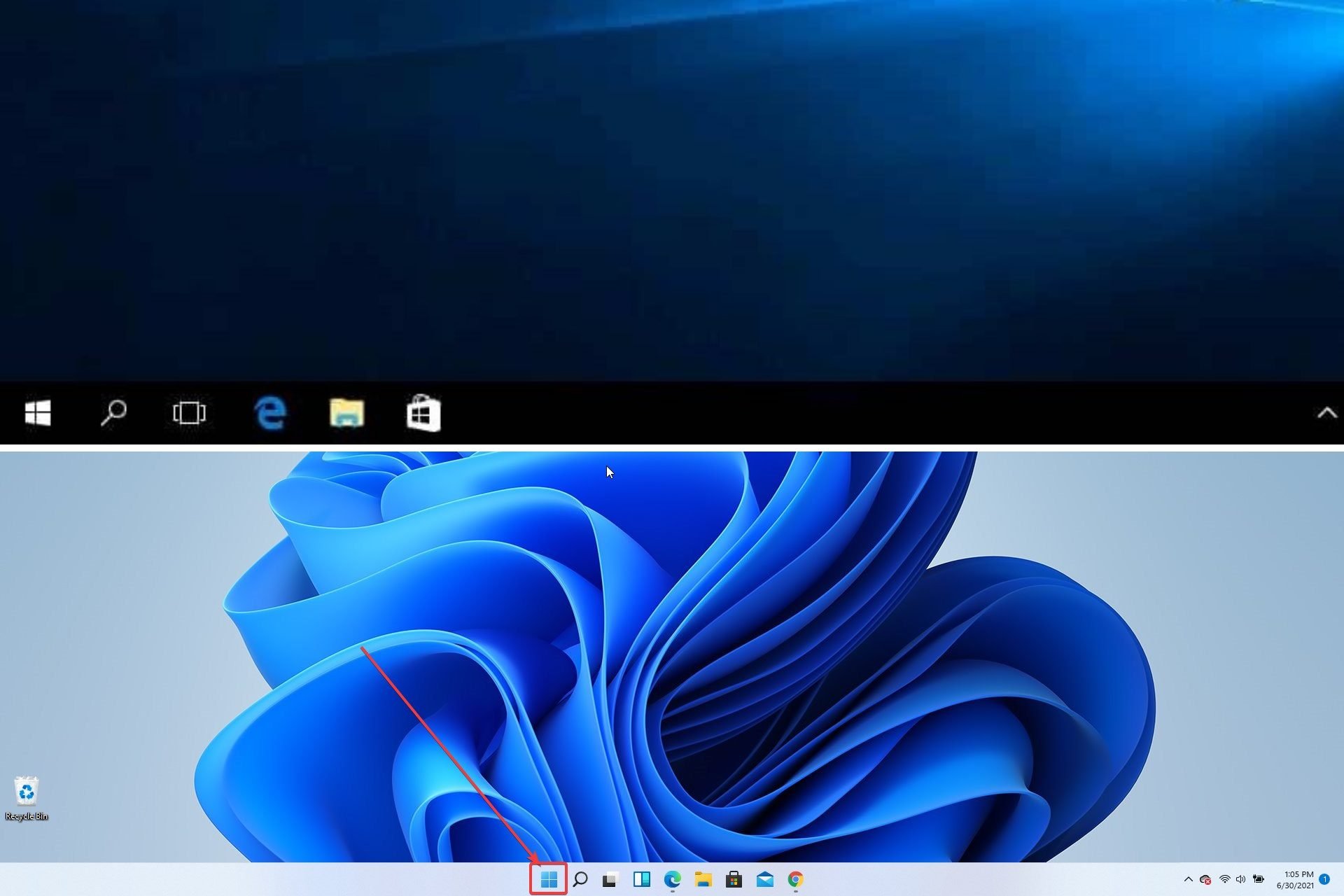
Finally, Windows 11 OS was launched officially yesterday and Windows Insiders finally got their hands on Windows 11, so join me for the first look at Windows 11 build 22000.51 Unfortunately, many users reported getting a "PC can’t run Windows 11" message that prevented them from installing Windows 11, but I have managed to install and try out the latest build on. So what does Windows 11 build 22000.51 offer to its users? Join us for this first look while we examine all the new features. But first, let’s take a look at some unexpected elements found interesting in Windows 11: 1. The Start button in a central position (Pics attached) 2. The Refresh button is gone 3. File Explorer still looks like in Windows 10 4. Folder thumbnail previews are gone
|
| Education › Re: How To Maximize Computer Battery Life by Yinksdavid(op): 1:29pm On Oct 06, 2021 |
| Education › Re: How To Maximize Computer Battery Life by Yinksdavid(op): 4:57pm On Oct 03, 2021 |
SentbyGod:Amen. Thx |
| Education › How To Restore Mac To The Earlier Date by Yinksdavid(op): 4:55pm On Oct 03, 2021 |
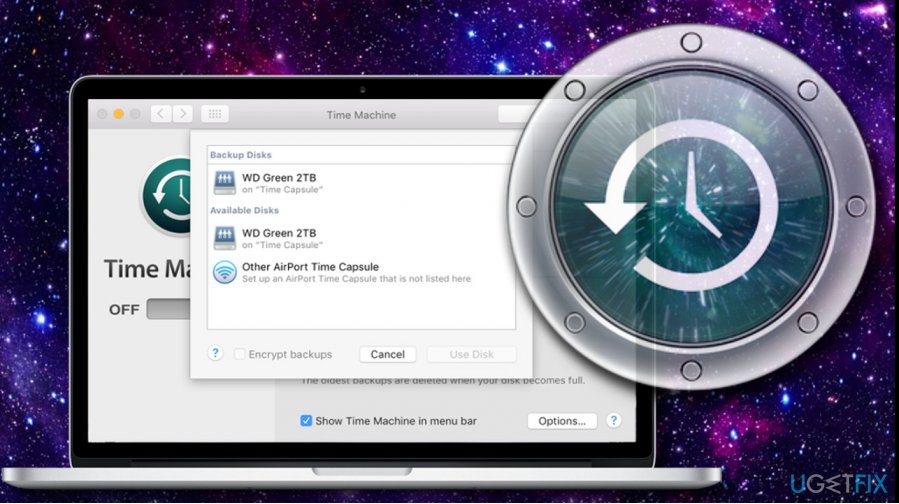
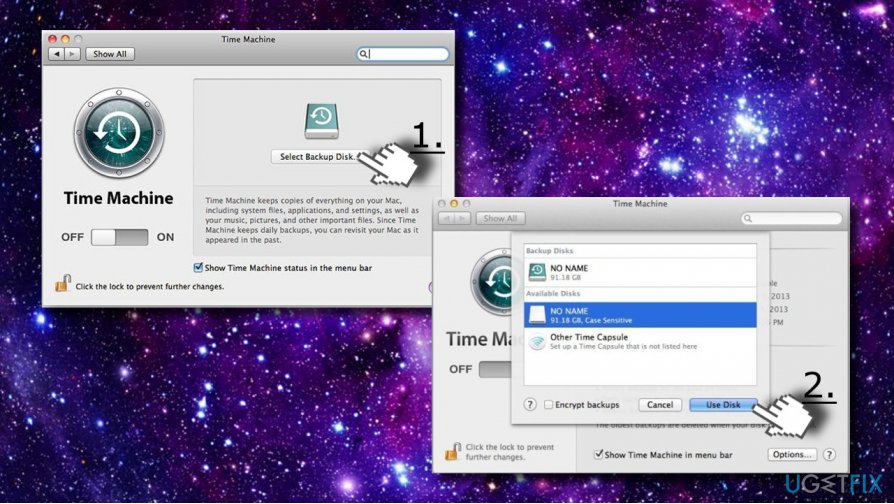
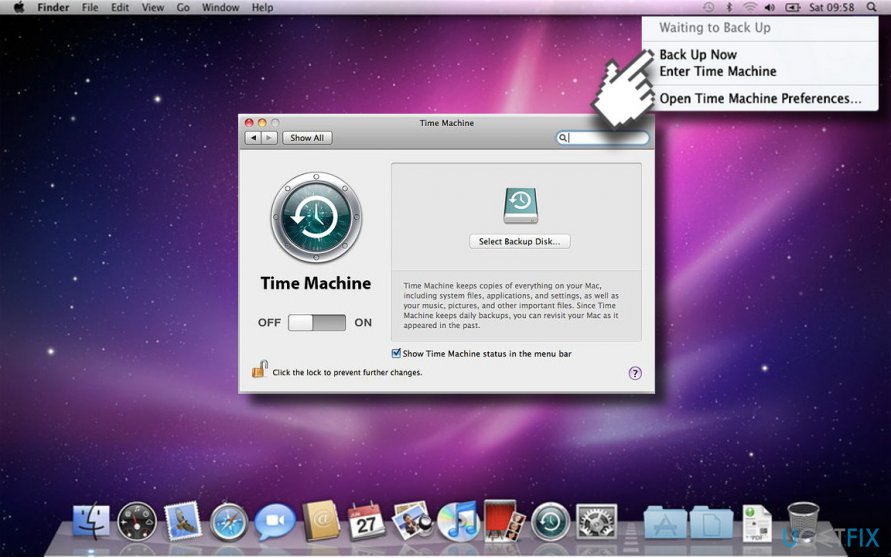
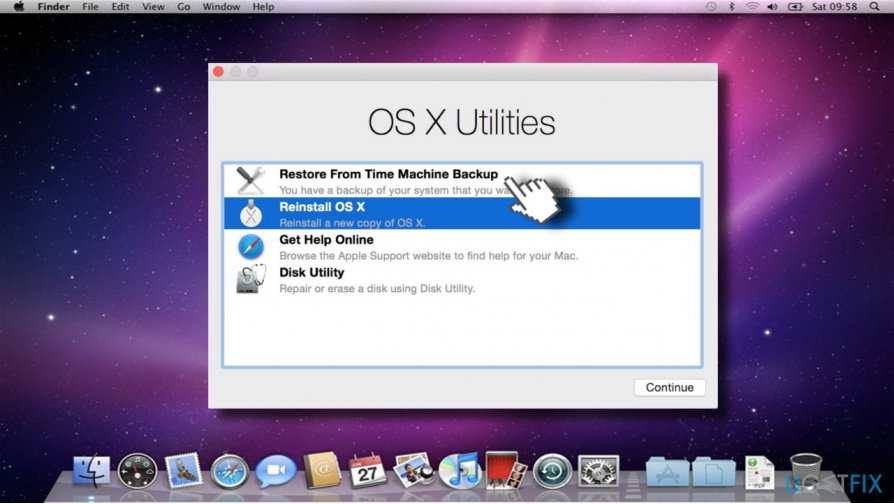
Restoring macOS to an earlier date might be important for various reasons because users encounter problems with their devices like system slowdowns and other issues. Restoring the system can resolve various issues and system restore is a popular solution used to reverse particular changes. Installed faulty software or incorrectly altered settings. Just like Windows, macOS can also be restored to a previous state. Everyday tasks, such as software downloading, update installation, settings changes, etc. influence Mac’s performance and, usually, decrease it's speed gradually. While such issues can be easily fixed with the proper macOS cleaning process, sometimes restoring the system is the only choice users have left. macOS has a built-in System Restore feature, which is an equivalent to Windows System Restore Point.[1] The feature is extremely useful if Mac gets slow, starts freezing or suspicious system errors[2] start emerging. It's not difficult to restore your Mac to the previous date, as the system has a built-in back-up feature known as Time Machine. To restore the system, you'll have to set up the Time Machine. If you haven't set it up yet, unfortunately, you won't be able to reset your Mac to the previous date because the system does not have a copy of its previous state. https://ugetfix.com/wp-content/uploads/articles/askit/set-up-time-machine2_en.jpg How to Restore macOS to the Previous Date Time Machine backup is one of the greatest methods to restore your macOS to an earlier state. If you used this feature to create backups it is easy to restore files. This is one of the greatest solutions, when it comes to macOS devices because many third-party options are designed to restore files on Windows OS and there are little to none features for this operating system. Set up Time Capsule to restore macOS to an earlier date Time Machine on Macs is a great tool that allows creating backups of your files. To set up Time Capsule,[3] you'll have to use an external driver, which has free space that would be sufficient for all data from your internal drive. First of all, connect an external hard drive, which is connected to a USB, Thunderbolt port or FireWire. The external hard drive connected to the USB port of an AirPort Extreme base station on your network also fits. Once you connect an external hard drive to your Mac device, you may receive a confirmation window saying: “Do you want to use the drive to back up with the Time Machine?” Select Use a Backup Disk to proceed. In case you want some extra security, you can select “Encrypt backup Disk” by which you will put a password on the created backups. Sometimes, the connected hard drive doesn’t trigger a confirmation window. In this case, you should perform the following steps: 1. Select Apple menu –> System Preferences –> Time Machine. 2. Select Backup Disk option. https://ugetfix.com/wp-content/uploads/articles/askit/create-backup_en.jpg 3. Select an external hard drive that you attempt using (listed above) and click the Use Disk option. 4. To ensure the security of your data, click Add or Remove Backup Disk Back up data using Time Machine Once Time Capsule is set up, it starts creating backups for the past 24 hours and daily backups for the previous month automatically. In case you want to create backups right now, you have to select Back Up Now on the Time Machine menu. Then, select which disk you want to fully back up your Mac to continue this process. Keep in mind that the backup process might take a while, so be patient. https://ugetfix.com/wp-content/uploads/articles/askit/back-up-now-1_en.jpg Restore Mac to the earlier data this way by restoring the macOS As soon as you enable Time Capsule and create backups with Time Machine, you can use the option to restore the system to the previous date. For this purpose, you have to launch OS X Recovery Tool: 1. When you boot up your system or restart it, click Command key + R simultaneously to open OS X Recovery Tool. 2. Select Restore from Time Machine Backup. https://ugetfix.com/wp-content/uploads/articles/askit/restore-from-time-machine-backup_en.jpg 3. If you have created more than one backup, select the one that has been created before your Mac errors occurred or before it got slow. 4. Finally, wait for the system to restore. This may take a while. NOTE: If you don’t have a Time Capsule and can’t create backups, then the only solution to restore your Mac to the previous state is to reinstall it. |
| Education › How To Maximize Computer Battery Life by Yinksdavid(op): 4:01pm On Oct 03, 2021 |
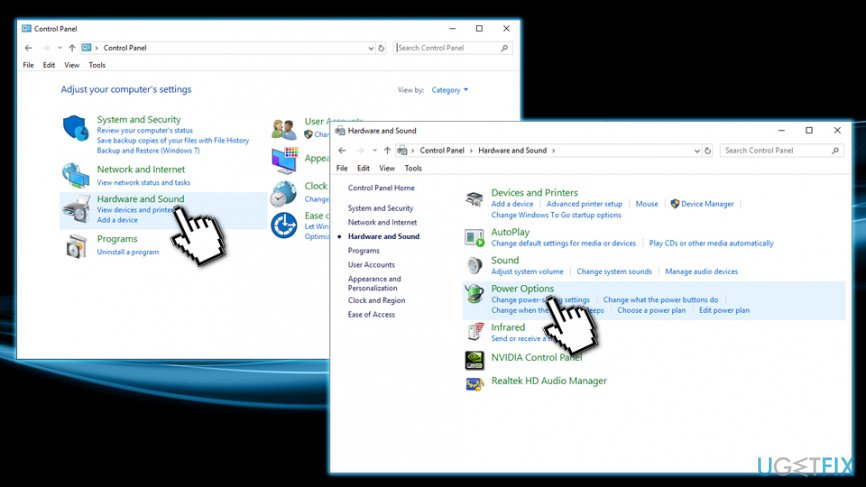
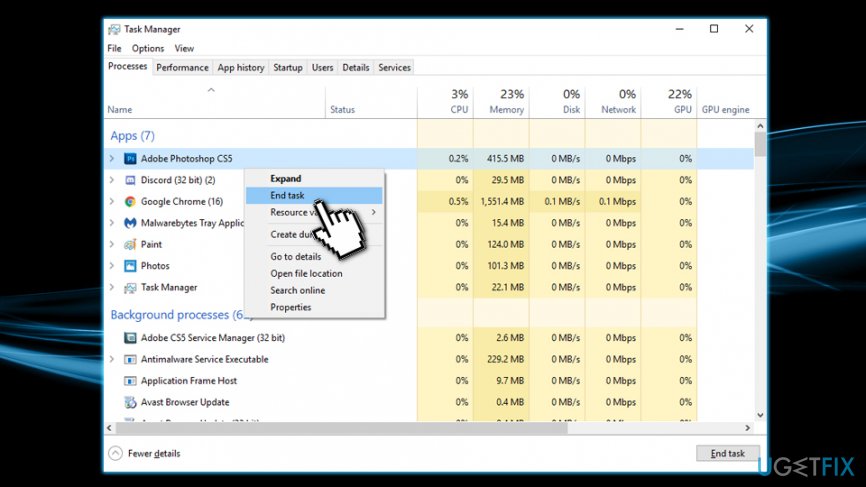
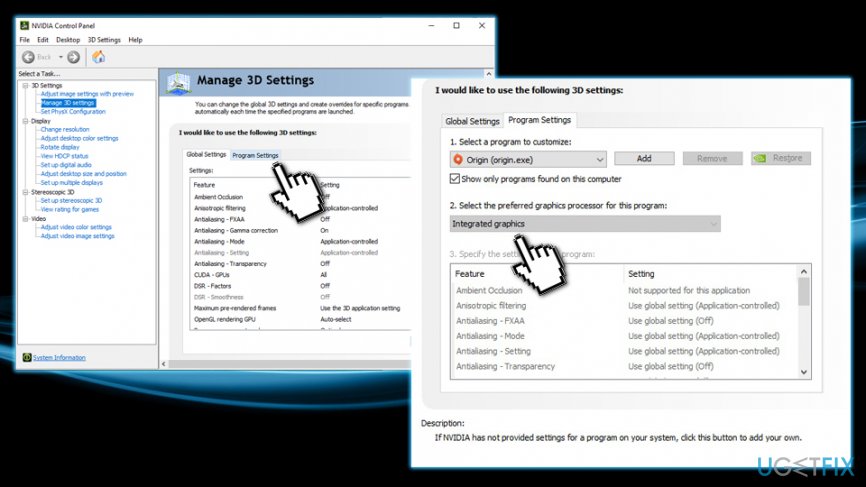
Laptops were among first portable devices that allowed users to take their work and, later, entertainment together with them to cafes, public transport, beaches, universities, and any other places they desire. Currently, we also have mobile phones, tablets, and similar devices to accompany laptops. For all these gadgets to function, a battery is required, and, while first machines did not last that long without the need of being charged again, the battery life was extended drastically.[1] Users can go days without charging their laptops, thanks to improvements made not only for the battery itself but also power-efficient computer components. As evident, the battery life highly depends on its quality, age and ways it was taken care of over time. Plug-in your laptop into a socket when available When you have an accessible power adapter, plug in your laptop in order to keep it fully charged. Of course, for that, you have to have an AC adapter with you all the time, i.e., at home, at the office, at school or any other place. Therefore, we highly recommend you to have at least one extra AC adapter. NOTE: the widespread opinion that keeping a laptop plugged into AC power when the battery is fully charged gradually makes the batteries life span shorter. It's a myth.[2] Lithium batteries that are used for modern laptops stop using power as soon as the battery is fully charged. Therefore, if you keep an AC adapter charged, you reduce the risk of laptop dying at that crucial moment. https://ugetfix.com/wp-content/uploads/articles/askit/how-to-maximize-computer-battery-keep-it-plugged-in_en.jpg Adjust screen power settings If you want to lengthen your batteries run time, then, first of all, try to consider what are the primary power consumers. Of course, one of the leading power killers is the screen, or actually, it's brightness. Therefore, make sure that you set screen brightness to the minimum or at least average when trying to save at deadly needed minutes of your laptop run time. This can be done by following these steps: 1. Go to Control Panel 2. Click on Hardware and Sounds and then Power Options 3. Go to Change Plan Settings and pick Power saver option https://ugetfix.com/wp-content/uploads/articles/askit/how-to-maximize-computer-battery-life-adjust-power-options_en.jpg In addition, think of the power that you waste when the laptop is not in use. As we have clarified the main power consumer – modern displays with Led backlights, another solution for making your battery run longer is to turn the saver mode on. In other words, change your settings so that when you are not using your laptop the screen would 'go asleep.' For that, go to Change Plan Settings again and then select a timeout of 1 to 3 minutes under the Put the computer to sleep. Turn off unused apps and other processes The next step is to turn off hardware, apps, and processes that are not crucial. The easiest way to reduce power consumption is to turn off unnecessary stuff. Since every component consumes a larger or smaller amount of power, make sure that you always keep running the most crucial programs, apps and processes only. Obviously, the biggest power hogs are hardware, such as Wi-Fi and Bluetooth radios, unused optical drivers, graphics processors, and so on. Therefore, make sure that unusable devices that you are about to disable are not in use and terminate them via Device Manager. The same should be done with unnecessary apps and processes. In order to check what unused apps are running in the background and terminate them. In order to end up processes that are stealing your battery juice by you should tap on Ctrl + Alt + Del buttons at once and open Task Manager. https://ugetfix.com/wp-content/uploads/articles/askit/how-to-maximize-computer-battery-shut-down-unused-programs_en.jpg While some of the processes are crucial, the others, especially the ones related to music and video players, cloud storage services, etc. Right click on the running process and select End task. If you always remember these simple tips and mind them, we are pretty sure that you will maximize your laptop's battery life at least a little bit, which is sometimes enough to end an important task. Use integrated graphics for low GPU intensive tasks Some laptops, just like desktop computers, have dedicated graphics cards[3] installed on them. It goes without saying that the latter consumes much more energy than the former one. Therefore, if you need your laptop for simple document editing or even video streaming, integrated GPU can do the job without consuming too much battery. Of course, dedicated graphics card should be used for such activities as video editing or gaming. Laptops usually run Nvidia GeForce graphics, so open NVIDIA Control Panel and then do the following: 1. Go to Manage 3D settings 2. On the right pane, select Program Settings 3. Click GPU intensive apps (such as installed games or picture editing tools like Photoshop) and then pick your graphics card in the second section 4. Make sure every other app is set to Integrated graphics https://ugetfix.com/wp-content/uploads/articles/askit/how-to-maximize-computer-battery-life-use-integrated-graphics_en.jpg |
| Technology Market › Re: How To Restart Windows 10 Without Rebooting by Yinksdavid(op): 6:12pm On Oct 02, 2021 |
I decided to find out about free learning resources available and did some online research which made me discover class central with so many listed courses which are available for free and also offer a free certification via Linkedln. A total of 350+ hours of free online learning resources and you can find the comprehensive lists below via the website. https://www.classcentral.com/report/linkedin-learning-free-learning-paths/ I am not sure how long these courses (and certificates) will be available for free but i advise we utilize the opportunities as soon as possible. |
| Computers › Re: Benefits Of Using A Valid/genuine Activation Keys For Your Windows 10 OS by Yinksdavid(op): 6:11pm On Oct 02, 2021 |
I decided to find out about free learning resources available and did some online research which made me discover class central with so many listed courses which are available for free and also offer a free certification via Linkedln. A total of 350+ hours of free online learning resources and you can find the comprehensive lists below via the website. https://www.classcentral.com/report/linkedin-learning-free-learning-paths/ I am not sure how long these courses (and certificates) will be available for free but i advise we utilize the opportunities as soon as possible. |
| Computers › Re: How To Reinstall Audio Drivers On Windows 10? by Yinksdavid(op): 6:09pm On Oct 02, 2021*. Modified: 7:43pm On Nov 03, 2021 |
BOLA625:Good Evening. Do you mean how to turn on the HDMI Port on your laptop? If that is the case, then follow the below steps 1.Turn off the external TV, monitor or projector. 2. Insert one end of the HDMI cable into the "HDMI" port on the side of your computer. 3. Plug the other side of the cable into the "HDMI IN" port on your TV or monitor. 4. Right-click the "Volume" icon on the Windows taskbar, select "Sounds" and choose the "Playback" tab. Click the "Digital Output Device (HDMI)" option and click "Apply" to turn on the audio and video functions for the HDMI port. Ctrl + N New chat Ctrl + Shift + N Create new group chat Tab Cycle focus/highlighted element Shift + Tab Emoji button Ctrl + F Search Ctrl + Shift + [ Previous chat Ctrl + Shift + ] Next chat Ctrl + E Archive chat Ctrl + Shift + M Mute chat Ctrl + P Open your profile Ctrl + = Increase font size Ctrl + - Decrease font size Ctrl + 0 Default font size *Message* Bold text _Message_ Italic text ~Message~ Strikethrough text ```Message``` Monospaced text :Text Search emojis relating to text Ctrl + A Highlight your message Ctrl + C Copy to clipboard Ctrl + V Paste from clipboard Esc Cancel action Alt + F4 Close WhatsApp 1 Like |
| Computers › Re: Ways To Reduce How Much Data Your Windows 10 PC Uses by Yinksdavid(op): 11:08am On Oct 02, 2021 |
I decided to find out about free learning resources available and did some online research which made me discover class central with so many listed courses which are available for free and also offer a free certification via Linkedln. A total of 350+ hours of free online learning resources and you can find the comprehensive lists below via the website. https://www.classcentral.com/report/linkedin-learning-free-learning-paths/ I am not sure how long these courses (and certificates) will be available for free but i advise we utilize the opportunities as soon as possible. |
| Computers › Re: Why You Need To Activate Windows 10 On Your Computer by Yinksdavid(m): 11:07am On Oct 02, 2021 |
I decided to find out about free learning resources available and did some online research which made me discover class central with so many listed courses which are available for free and also offer a free certification via Linkedln. A total of 350+ hours of free online learning resources and you can find the comprehensive lists below via the website. https://www.classcentral.com/report/linkedin-learning-free-learning-paths/ I am not sure how long these courses (and certificates) will be available for free but i advise we utilize the opportunities as soon as possible. |
| Computers › Re: How To Protect Your Privacy On Public Wifi Networks? by Yinksdavid(op): 11:06am On Oct 02, 2021 |
I decided to find out about free learning resources available and did some online research which made me discover class central with so many listed courses which are available for free and also offer a free certification via Linkedln. A total of 350+ hours of free online learning resources and you can find the comprehensive lists below via the website. https://www.classcentral.com/report/linkedin-learning-free-learning-paths/ I am not sure how long these courses (and certificates) will be available for free but i advise we utilize the opportunities as soon as possible. |
| Programming › Re: I Want To Learn Programming. Which Language Should I Start With? by Yinksdavid(m): 10:21am On Oct 02, 2021 |
I decided to find out about free learning resources available and did some online research which made me discover class central with so many listed courses which are available for free and also offer a free certification via Linkedln. A total of 350+ hours of free online learning resources and you can find the comprehensive lists below via the website. https://www.classcentral.com/report/linkedin-learning-free-learning-paths/ I am not sure how long these courses (and certificates) will be available for free but i advise we utilize the opportunities as soon as possible. |
| Education › 350+ Hours Of Free Linkedin Learning Courses With Free Certification by Yinksdavid(op): 10:10am On Oct 02, 2021 |
I decided to find out if there are more free learning resources available. I did some online research and discovered class central which listed so many courses which are available for free and also offer a free certificate via Linkedln. A total of 350+ hours of free online learning resources. You can find the comprehensive lists below via the website. https://www.classcentral.com/report/linkedin-learning-free-learning-paths/ I am not sure how long these courses (and certificates) will be available for free but i advise we utilize the opportunities as soon as possible. |
| Computers › How To Reinstall Audio Drivers On Windows 10? by Yinksdavid(op): 10:01am On Oct 02, 2021 |
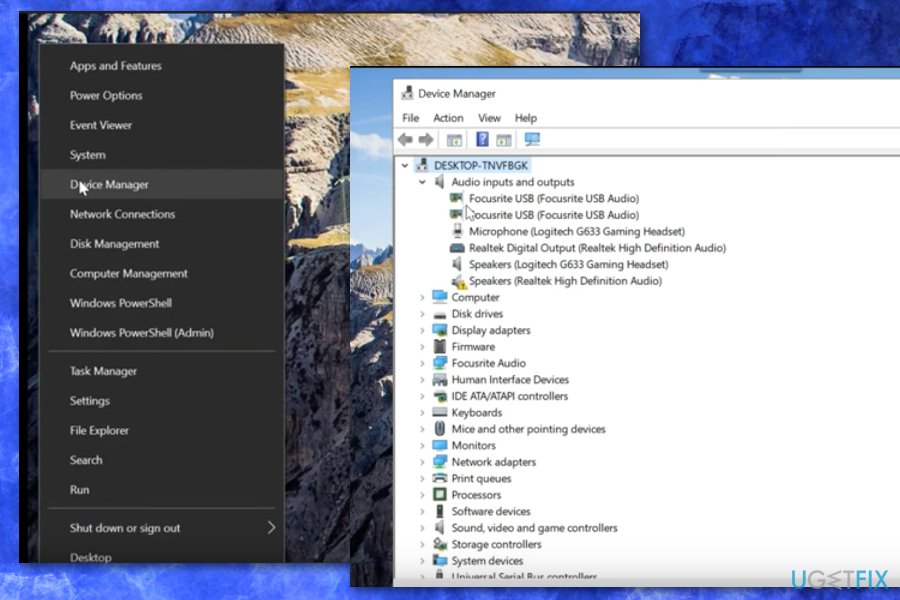
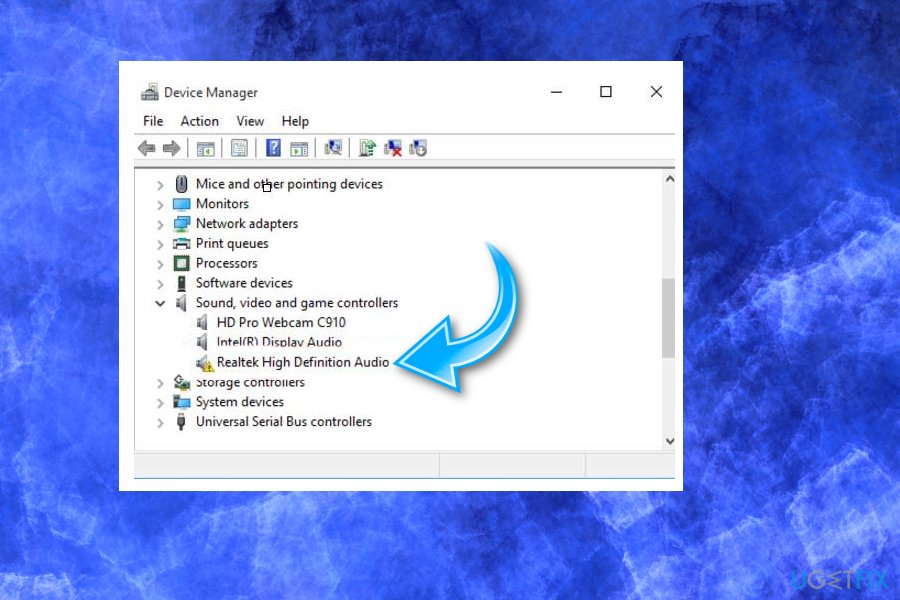
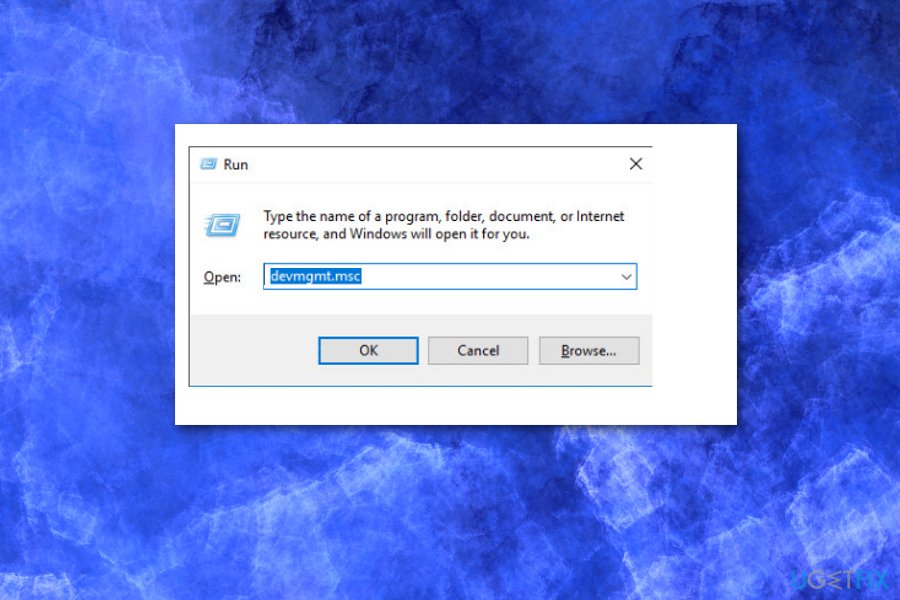
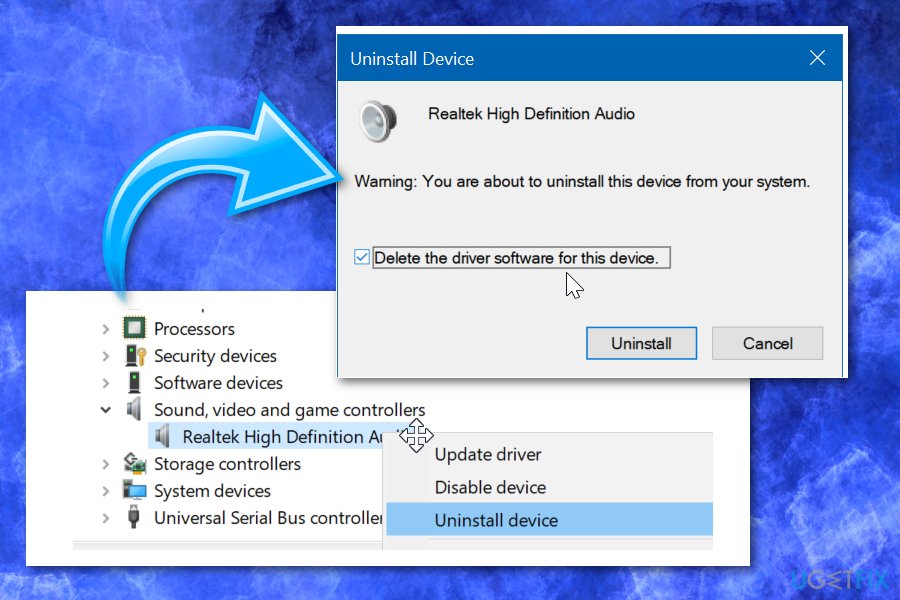
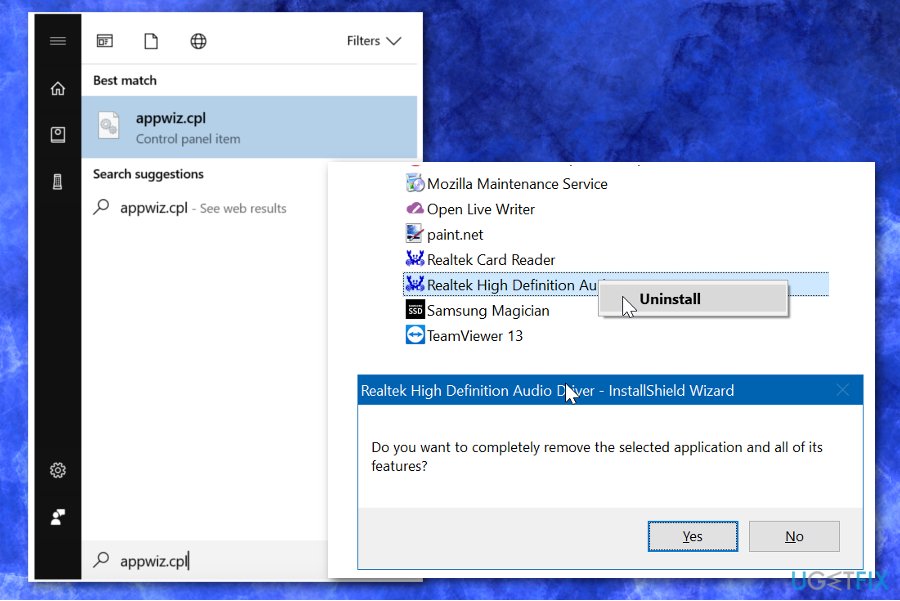
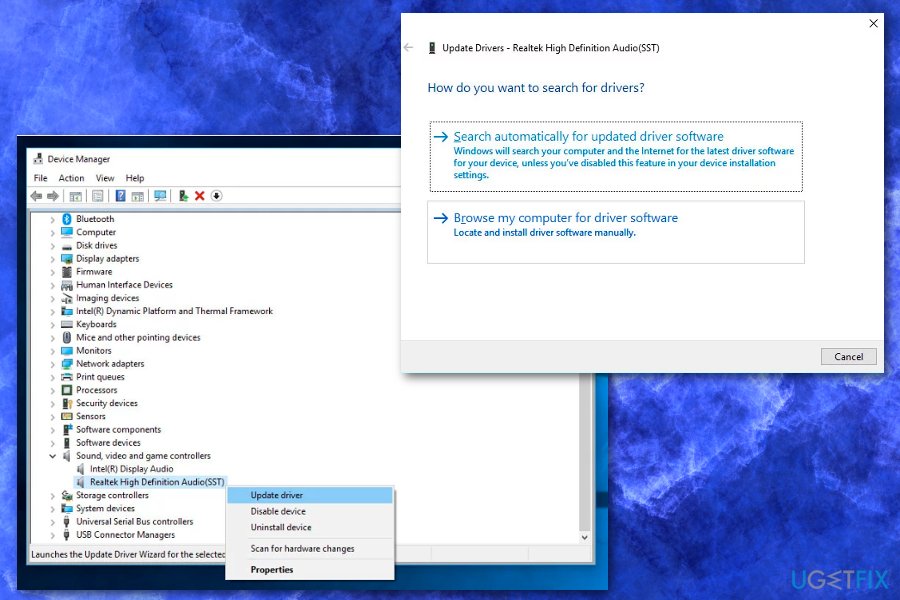
If you have sound issues and not sure what to do. Maybe it is a driver problem since everything is okay in other places and do not know how to check them and how to reinstall or update them. How can I reinstall my audio drivers on windows 10? Realtek High Definition (HD) Audio Driver stands for the sound driver for Windows operating system. It provides high-quality DTS, Dolby, and Surround Sound. Because of its useful features, it has been dubbed as the most used sound drivers on the market. Unfortunately, many people have complained about Realtek's HD Audio driver issues on Windows 10, which appeared after downloading the latest version of this OS. In fact, there are numerous problems related to Windows 10 Creators' Update, including the loss of important data kept on the system before downloading the recommended update. Due to this, a need arises to reinstall Audio Drivers on Windows 10, as users sometimes are unable to hear anything at all. Numerous users have complained about broken drivers and the audio system not working even after getting updates, so reinstalling Audio Drivers often is the solution. Sometimes Windows 10 delivers a message “No Audio Device is installed.” The symptoms of the malfunctioning Realtek High Definition (HD) Audio Driver are obvious – there is no sound while you use your computer, sounds are interrupted, they play in an unusual way, no HDMI sound, the PC freezes or restarts when trying to play the sound and similar. Also, the device may return an error message[2] when trying to play the sound, for example: WAV sound playback error detected; CD audio device is in use by another application; MIDI output error detected; Your audio hardware can’t play the current file. Usually, the no sound issue occurs on Windows 10 OS if the Audio driver is damaged, corrupted, or removed during the install/update of Windows 10, so there is no other fix but to reinstall Audio Drivers or deal with the faulty OS update. Methods to reinstall audio drivers on Windows 10 Diagnose the problem to fix Audio Drivers issue If you are not sure if the culprit of the problem is the audio driver, you can check that by following these steps: 1. Right-click on Windows key and select Device Manager https://ugetfix.com/wp-content/uploads/articles/askit/win-10-driver-audio-device-manager_en.jpg 2. OR press Windows key + R, type devmgmt.msc, and press Enter 3. Expand the Sound, video and game controllers 4. Find the Realtek High Definition Audio. If it’s marked with a yellow exclamation mark, it means that the culprit of the current sound problems on the system is the Realtek’s audio driver. https://ugetfix.com/wp-content/uploads/articles/askit/win-10-driver-audio-device-manager-sound-1_en.jpg Reinstall Realtek High Definition Audio Driver 1. Press Windows key + R to open Run dialog. 2. Type devmgmt.msc and press Enter/OK https://ugetfix.com/wp-content/uploads/articles/askit/win-10-driver-audio-run-1_en.jpg 3. OR right-click on Windows key and select Device Manager 4. Expand the Sound, video and game controllers 5. Right-click on the Realtek High Definition Audio Driver and select Uninstall https://ugetfix.com/wp-content/uploads/articles/askit/win-10-driver-audio-uninstall-1_en.jpg 6. If you are asked for a confirmation, mark the box next to Delete the driver software for this device and press OK 7. Reboot your PC 8. After that, open Device Manager as explained in the steps 1-3 9. Expand the Sound, video and game controllers again 10. Right-click on the Realtek High Definition Audio Driver and click Scan for hardware changes If the system fails to detect the missing driver and install its latest version automatically, you’ll have to navigate to the official Realtek website and download the latest version of the Audio Driver corresponding with you Windows 10 type (32 or 64 bit). Reinstall audio driver from Control Panel 1. Type Appwiz.cpl in the Start or taskbar search field and then press Enter key to open Programs and Features window. https://ugetfix.com/wp-content/uploads/articles/askit/win-10-driver-audio-appwiz-uninstall_en.jpg 2. Find audio driver entry and Right-click on the audio driver and then choose Uninstall option. 3. Choose Yes to continue. 4. Reboot your device when the driver is removed. 5. Get the latest version of the audio driver and install it on your PC. Fix the issue with the incorrect Intel audio driver According to the Microsoft, the issue appears because of the incorrect audio driver included to the update. If previously-given methods didn't help, try following these steps on your Windows OS: 1. Go to Device manager and open Sound, video an game controllers section; 2. Look for Realtek device (yellow triangle with “?” sign) and select it; 3. While in the View menu, select Devices by connection; 4. Check the parent device; 5. Right-click the controller device and select Properties; 6. When in the new window, click the Driver tab and check your driver's version; 7. If your driver version is 9.21.0.3755, you have the driver that is incorrect. 8. Click Uninstall Device and allow changes; 9. Reboot the device and check if the audio works. Update the Audio driver in Device Manager Various users have shared this method as helpful in online support forums. Updating the driver can help to restore the audio on your Windows 10 device. 1. Locate to Device manager. 2. Expand the Sound, video and game controllers section. 3. Look for the device with SST as a part of the name. Righ-click and select Update Driver. 4. When the new window appears select Browse my computer for driver software. 5. Click Next. https://ugetfix.com/wp-content/uploads/articles/askit/win-10-driver-issue-sound-update_en.jpg 6. Select High Definition Audio and then Next. 7. Your audio driver should now work perfectly. 1 Like |
| Computers › Re: Post Your Computer (PC) Troubles Here. by Yinksdavid(m): 3:32pm On Oct 01, 2021 |
Morris101686:I already shared an article for that on Nairaland but you can use the link below to assist you achieve your goal. Downgrading to a lesser OS version is not needed except you really want the particular OS version. Also there is no longer support or updates for Windows 7 so its not advisable to go back to it. https://www.windowscentral.com/how-stop-updates-installing-automatically-windows-10 1 Like |
| Computers › How To Protect Your Privacy On Public Wifi Networks? by Yinksdavid(op): 10:57am On Sep 29, 2021 |
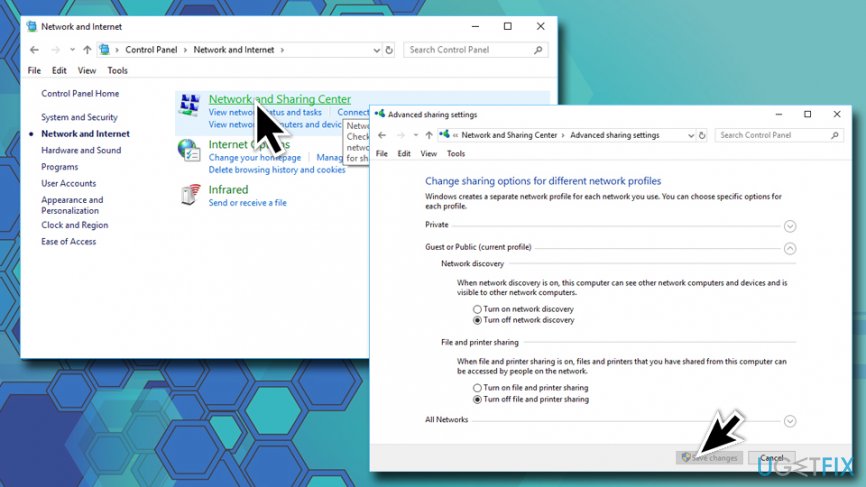
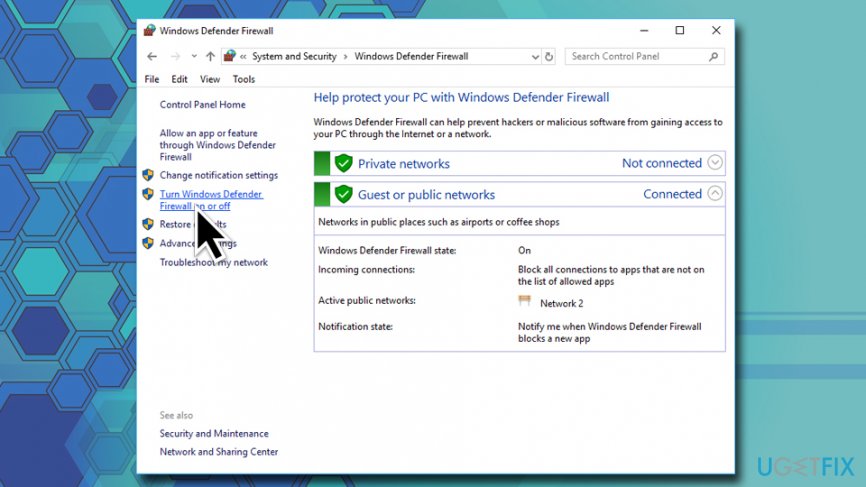
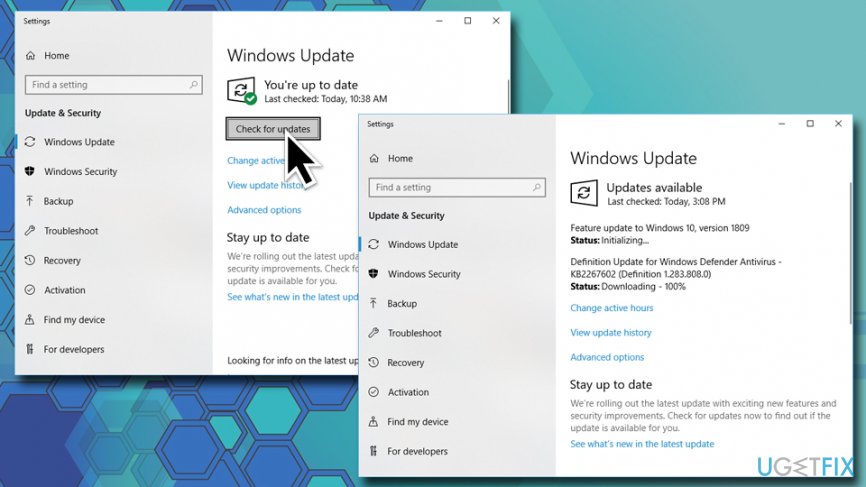
I just recently watched a movie called "Snowden" and it really changed my view on online privacy. Though we are not talking about movies but just to give a brief of it, the movie was about a united states intelligence top contractor "Edward Snowden" who decided to leak his country's classified information thereby becoming a traitor to some, a hero to others and a fugitive from the law. I will also share an experience a friend of mine had few weeks back. He was actually lodged at hotel for sometime and he called me on a particular day that he got an email notification of someone trying to log into one of his email accounts and also a social media account so he suspected a particular lady that stayed overnight with him but he was also sure the lady never had access to his phone or Laptop so it was confusing to him. Via the information he provided i was able to get the source(ISP) of where the attempted hack came from which was Galaxy Backbone and with further investigation from the friend, it was realized that it was the ISP for the Hotel he was staying at and he was connected to their Wifi on his phone where he used both accounts that was almost hacked. WiFi network is definitely amazing, as it allows us to connect to the internet without the need of using any cables, which makes portable browsing effortless. We merely connect our mobile phone, personal computer, laptop, tablet, and similar devices to WiFi using a router that is tied to a specific location. While private connections are used for home or office networks, public ones are dominant in Hotels, cafes, restaurants, bars, train stations, hair salons and stores. When you access the website, including online banking, social network or email, while connected to the public WiFi network, the login information goes through the router and can be, therefore, stolen. Obviously, nobody would like their personal data to be disclosed in such a way, so this is a guide that will help you protect your privacy on public WiFi networks. Below you will find several tips that can help you with your online safety while using public WiFi. Alternatively, you can stop using public connections altogether, which is also not an optimal choice. Tip 1. Use a secure sites only It’s not advisable to perform important operations, such as money transactions or bank balance checking while connected to the public Wi-Fi. Hackers are eager to receive credit card details, so don’t give them a chance to scam you. To prevent this from happening, use a specialized secure web browser (Google Chrome, Mozilla Firefox, Opera) and make sure to visit a secure website (marked with a padlock icon at the left side of the URL address). Besides, make sure that the website’s name starts with the https:// because S stands for secure socket layer. https://ugetfix.com/wp-content/uploads/articles/askit/protect-your-privacy-on-public-wifi-network-use-secure-https-connection_en.jpg Tip 2. Turn Off Public Network sharing Network sharing is a handy service as it allows resource sharing with the printer, public folders, etc. However, it’s advisable to use network sharing only when connected to work or home network. To turn off public network sharing, perform these steps: Type in Control Panel into the search box and hit Enter Go to Network and Internet > Network and Sharing center and click Change Advanced Sharing Settings Select Public profile and turn off File Sharing, Network Discovery, and Public Folder Sharing https://ugetfix.com/wp-content/uploads/articles/askit/protect-your-privacy-on-public-wifi-networks-turn-off-public-network-sharing_en.jpg Tip 3. Enable Firewall Before connecting to the public WiFi, make sure that the Windows Firewall is enabled. Type in Firewall into the search box and press Enter Click on the Turn Windows Firewall on or off If Windows Firewall is disabled, make sure to enable it https://ugetfix.com/wp-content/uploads/articles/askit/protect-your-privacy-on-public-wifi-network-turn-windows-firewall-on_en.jpg Tip 4. Use a Virtual Private Network In other words, use a private browsing or a so-called incognito mode. Private browsing mode prevents the current browsing activity from being remembered in the browsing history. On top of that, it may hide the real-time browsing information from hackers. To protect your IP fully use a VPN[4] hiding software as an addition. Tip 5. Make sure to use a professional anti-virus Windows 10 OS has an inbuilt antivirus, Windows Defender. It features a high virus detection and prevention rate and is considered to be sufficient for protecting the system. If you are using another Windows version, select a reliable anti-virus, which is tested by security experts and has an updated virus database. Tip 6. Install all available Windows Updates An outdated operating system is more vulnerable, especially if it lacks crucial security updates that Microsoft releases regularly. Therefore, if you presume that in the near future you will have to use a public Wi-Fi network, especially for some important activities to perform, make sure to install all available updates using Windows Update service: Type in Update into the search box Select Check for Updates and then click on Check for Updates Windows will download and install the new updates automatically Do not forget to restart your machine https://ugetfix.com/wp-content/uploads/articles/askit/protect-your-privacy-on-public-wifi-network-download-windows-updates_en.jpg Tip 7. Do not get tricked by intriguing pop-ups You must have heard about potentially dangerous or malicious pop-ups that may lead to malware infection or personal information leakage. Be careful with the following notifications: Prize giveaways; Online surveys; Fake error messages or BSOD; Offers to use a “secured” web browser or toolbar; Security warnings that contain a telephone number (tech-support-scam); Online virus scanners. I hope that using these tips, you will be able to protect your privacy on public WiFi networks much better. 2 Likes 2 Shares |
| Technology Market › Re: 10 Excel Tips You Need To Keep Your Job by Yinksdavid(op): 9:30am On Sep 28, 2021 |
Do you want your OS environment and apps to respond quicker and run faster? Do you want to always get the newest security updates, patches to restrict easy access of viruses, malwares, spywares affecting your OS environment? Do you want to get critical updates to improve all app functions on your environment Do you want to have personalization settings unblocked? Do you want to have free support from MS Agent? Kindly check if your Windows OS is activated and if not, ensure you get a valid activation/license key as this will save you the stress of resolving issues on your system by paying technicians all the time for OS related issues. Genuine and Legitimate Activation/License retail keys directly from Microsoft available at a very low cost. kindly reach out via my signature for more details. Exchange Server 2016 (Standard and Enterprise Edition) Exchange Server 2019 (Standard and Enterprise Edition) Office 2013 (Professional, Standard and Ultimate version) Office 2016 (Professional, Standard and Ultimate version) Office 2019 (Professional, Standard and Ultimate version) Office 365 - Project Professional 2019 - Office Home and Business 2019 - Visio Professional 2019 - Office Professional Plus 2019 Office Home and Business 2016 for Mac Office Home and Business 2019 for Mac Office Professional Plus 2016 Office Professional Plus 2019 SharePoint Server 2016 (Standard and Enterprise) SharePoint Server 2019 (Standard and Enterprise) Visual Studio Enterprise 2017 Visual Studio Enterprise 2019 Visual Studio 2017 for Mac Visual Studio 2019 for Mac Windows 10 Pro Plus Windows 10 Enterprise Windows 10 Pron N Windows 10 Education Windows Server 2016 (Datacenter, Remote Desktop Services user connection(50) and Standard) Windows Server 2019 (Datacenter, Remote Desktop Services user connection(50) and Standard) |
| Computers › Re: Why You Need To Activate Windows 10 On Your Computer by Yinksdavid(m): 9:29am On Sep 28, 2021 |
Do you want your OS environment and apps to respond quicker and run faster? Do you want to always get the newest security updates, patches to restrict easy access of viruses, malwares, spywares affecting your OS environment? Do you want to get critical updates to improve all app functions on your environment Do you want to have personalization settings unblocked? Do you want to have free support from MS Agent? Kindly check if your Windows OS is activated and if not, ensure you get a valid activation/license key as this will save you the stress of resolving issues on your system by paying technicians all the time for OS related issues. Genuine and Legitimate Activation/License retail keys directly from Microsoft available at a very low cost. kindly reach out via my signature for more details. Exchange Server 2016 (Standard and Enterprise Edition) Exchange Server 2019 (Standard and Enterprise Edition) Office 2013 (Professional, Standard and Ultimate version) Office 2016 (Professional, Standard and Ultimate version) Office 2019 (Professional, Standard and Ultimate version) Office 365 - Project Professional 2019 - Office Home and Business 2019 - Visio Professional 2019 - Office Professional Plus 2019 Office Home and Business 2016 for Mac Office Home and Business 2019 for Mac Office Professional Plus 2016 Office Professional Plus 2019 SharePoint Server 2016 (Standard and Enterprise) SharePoint Server 2019 (Standard and Enterprise) Visual Studio Enterprise 2017 Visual Studio Enterprise 2019 Visual Studio 2017 for Mac Visual Studio 2019 for Mac Windows 10 Pro Plus Windows 10 Enterprise Windows 10 Pron N Windows 10 Education Windows Server 2016 (Datacenter, Remote Desktop Services user connection(50) and Standard) Windows Server 2019 (Datacenter, Remote Desktop Services user connection(50) and Standard) |
| Technology Market › Re: How To Restart Windows 10 Without Rebooting by Yinksdavid(op): 9:28am On Sep 28, 2021 |
Do you want your OS environment and apps to respond quicker and run faster? Do you want to always get the newest security updates, patches to restrict easy access of viruses, malwares, spywares affecting your OS environment? Do you want to get critical updates to improve all app functions on your environment Do you want to have personalization settings unblocked? Do you want to have free support from MS Agent? Kindly check if your Windows OS is activated and if not, ensure you get a valid activation/license key as this will save you the stress of resolving issues on your system by paying technicians all the time for OS related issues. Genuine and Legitimate Activation/License retail keys directly from Microsoft available at a very low cost. kindly reach out via my signature for more details. Exchange Server 2016 (Standard and Enterprise Edition) Exchange Server 2019 (Standard and Enterprise Edition) Office 2013 (Professional, Standard and Ultimate version) Office 2016 (Professional, Standard and Ultimate version) Office 2019 (Professional, Standard and Ultimate version) Office 365 - Project Professional 2019 - Office Home and Business 2019 - Visio Professional 2019 - Office Professional Plus 2019 Office Home and Business 2016 for Mac Office Home and Business 2019 for Mac Office Professional Plus 2016 Office Professional Plus 2019 SharePoint Server 2016 (Standard and Enterprise) SharePoint Server 2019 (Standard and Enterprise) Visual Studio Enterprise 2017 Visual Studio Enterprise 2019 Visual Studio 2017 for Mac Visual Studio 2019 for Mac Windows 10 Pro Plus Windows 10 Enterprise Windows 10 Pron N Windows 10 Education Windows Server 2016 (Datacenter, Remote Desktop Services user connection(50) and Standard) Windows Server 2019 (Datacenter, Remote Desktop Services user connection(50) and Standard). |
| Computers › Re: Ways To Reduce How Much Data Your Windows 10 PC Uses by Yinksdavid(op): 8:28am On Sep 28, 2021 |
CertyAgroAllied:You are welcome. 1 Like |
| Computers › Re: Ways To Reduce How Much Data Your Windows 10 PC Uses by Yinksdavid(op): 8:27am On Sep 28, 2021 |
Trust22:Good Morning. Please reach out via whatsapp on 08150383883. |
| Computers › Re: Post Your Laptop Problems Here And Get Solution To Fix It Yourself by Yinksdavid(m): 9:58pm On Sep 27, 2021 |
Quoteit:You are welcome and its nice to know the issue was fixed. I have not worked on the keyboard lighting issue before but i was able to get this online but from the reviews, it didn't work for everyone that had similar issues but its fine to give a try 1. Go to System Preferences>Keyboard 2. Uncheck "Use F1, F2, etc... keys as standard function keys" 3. Uncheck "Automatically illuminate keyboard in low light" 3. Try F5/F6 keys again |
| Computers › Re: Post Your Laptop Problems Here And Get Solution To Fix It Yourself by Yinksdavid(m): 9:51pm On Sep 27, 2021 |
Quoteit:My internet is dragging so i can't view the image but first of all, what is the make of your laptop. |
| Computers › Re: Ways To Reduce How Much Data Your Windows 10 PC Uses by Yinksdavid(op): 9:46pm On Sep 27, 2021 |
Sime900:Thanks for the compliment. Actually the steps shared in this article applies to other OS versions (Windows 7 and OS  though you need to bear in mind that Windows 7 is no longer supported by Microsoft hence now new updates are available for the version. though you need to bear in mind that Windows 7 is no longer supported by Microsoft hence now new updates are available for the version.The only difference here is the steps you implement for each of the method shared. Also note that the numbers of apps you have installed on your work station contributes massively to the amount of data used if you are connected to the internet because all these apps updates on the background so even when browsing on your work station, data is also being likely used in the background. If you can implement some or most of the method shared in the article then be rest assured you data will last much longer. |
| Computers › Re: Ways To Reduce How Much Data Your Windows 10 PC Uses by Yinksdavid(op): 7:31am On Sep 26, 2021 |
nosaklint:You are welcome. |
| Computers › Re: Ways To Reduce How Much Data Your Windows 10 PC Uses by Yinksdavid(op): 7:31am On Sep 26, 2021 |
uchaymart:You are welcome Bro. |
| Computers › Re: Ways To Reduce How Much Data Your Windows 10 PC Uses by Yinksdavid(op): 7:30am On Sep 26, 2021 |
Rhectz:You are welcome. |
| Education › Top 10 Powerpoint Tips And Hacks You Need To Know by Yinksdavid(op): 7:29am On Sep 26, 2021 |
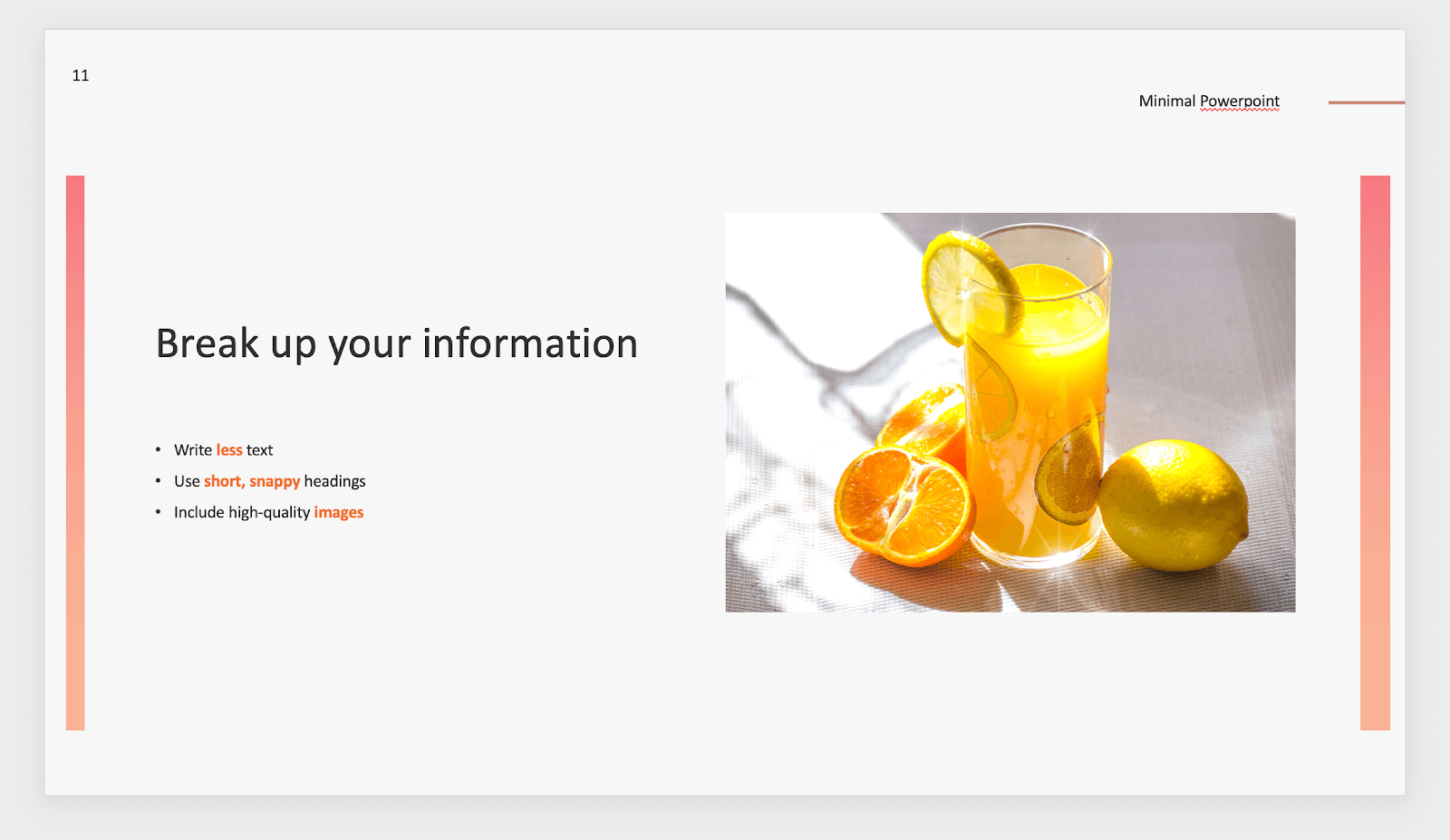
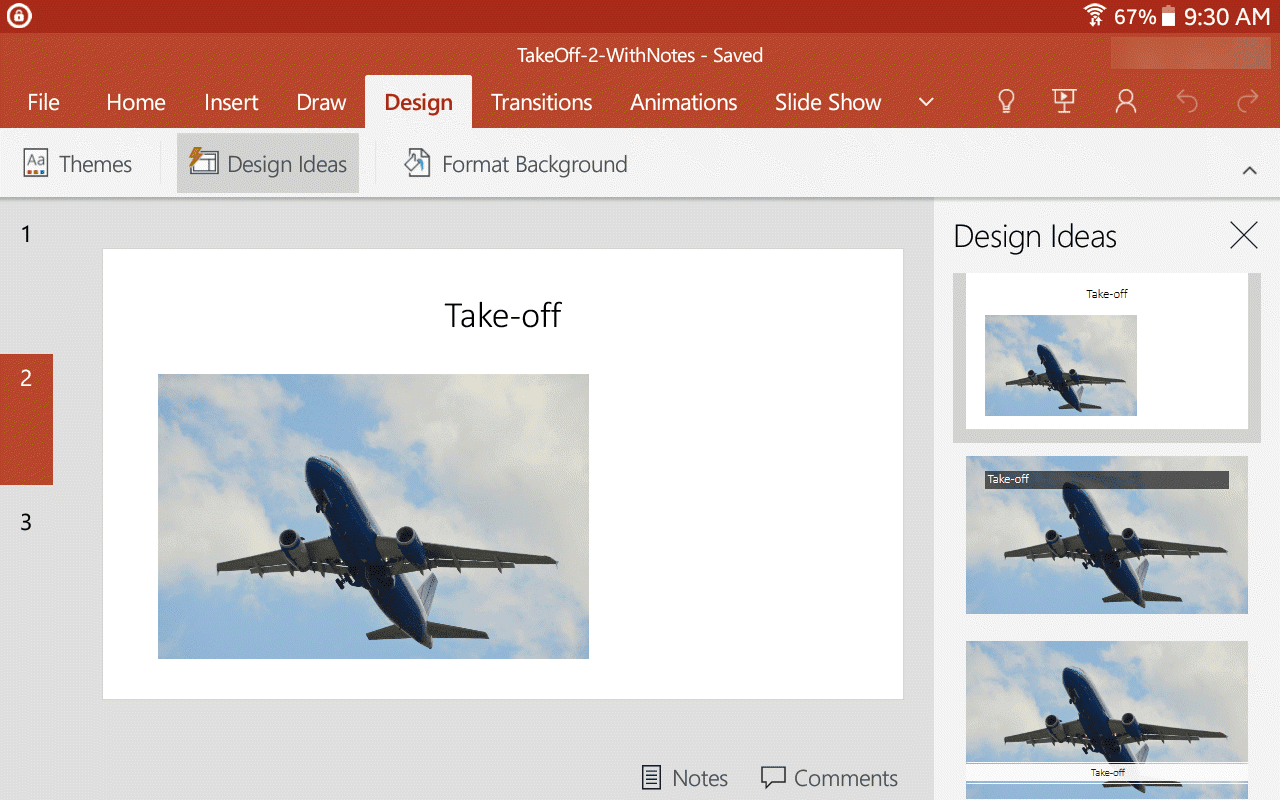
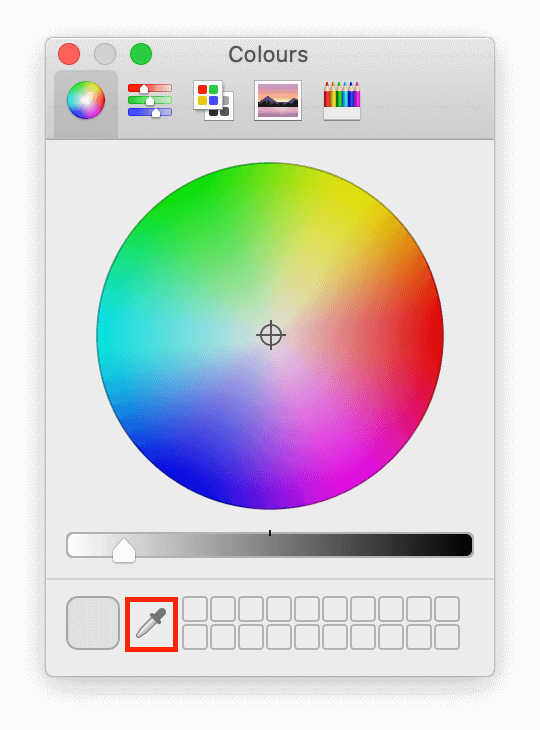
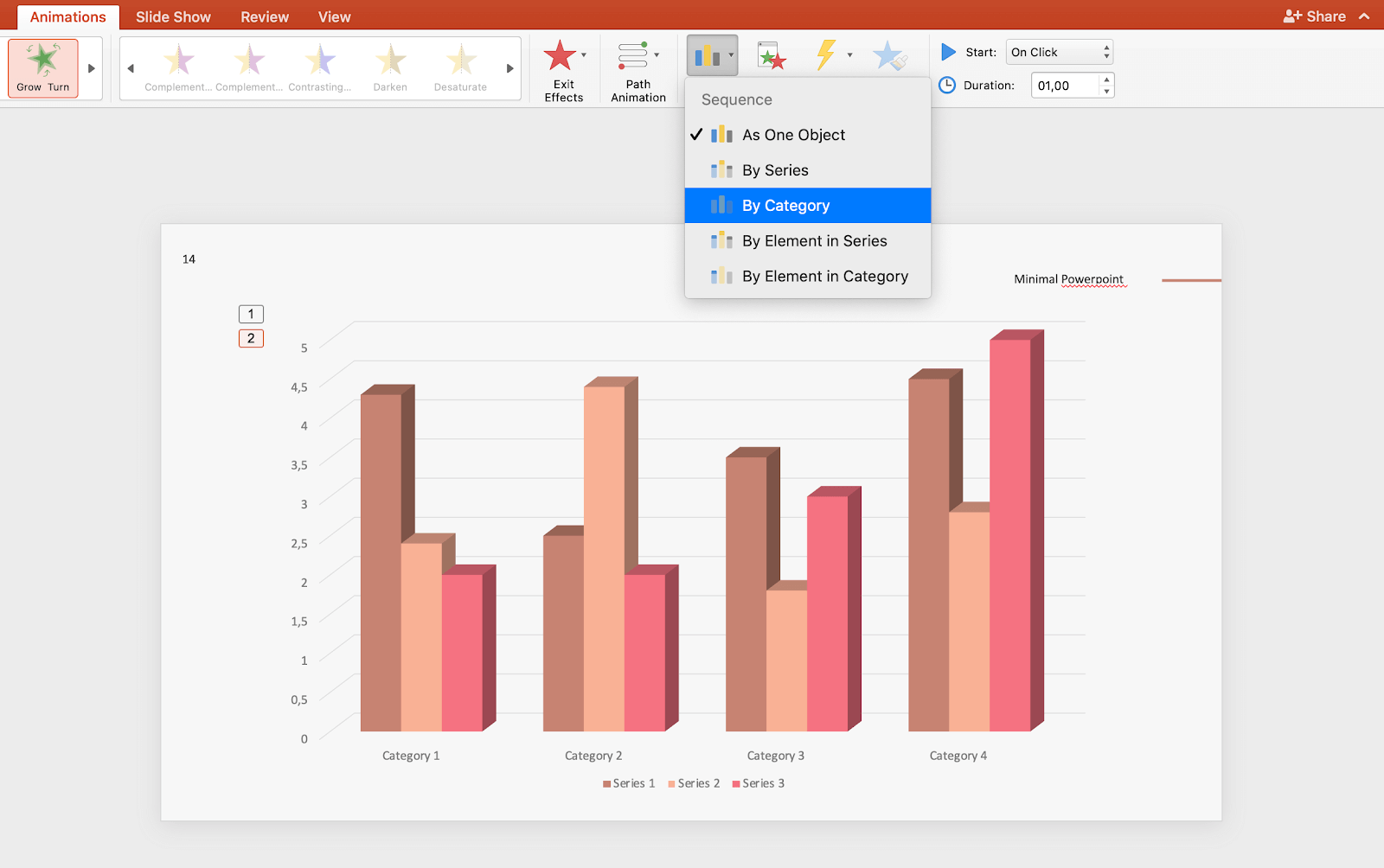
When making a presentation, it's important to leave a lasting impact on your audience. No one likes to sit through an unorganized, boring presentation during a class or meeting. However, putting together a great presentation might be hard if you don't know how to get started. I will like to share some tips and tricks about how to create great presentations in PowerPoint. Whether you’re a newbie to PowerPoint presentation or a Pro, there’s a takeaway tip for you. After reading this article, you'll be able to deliver professional and memorable presentations to your audience. Before we dive into the PowerPoint Tips and Hacks, let's learn some cardinal rules about PowerPoint presentation. Key PowerPoint Presentation and design Rules A. Keep each slide to just one TAKEAWAY. Avoid the temptation of “throwing the baby with a basin.” Like a drip, let your audience yearn to know what’s next. B. Less is always MORE. So, keep your desk as simple as possible. Minimize flashy, complex, and distractive slides. Also, avoid clutter. C. CLEAN, yet simple formatting will make your work look “Cool.” Use bullet points and consistent color themes. D. High-QUALITY graphics instead of words. Pictures matter, they create long-lasting impressions, if you can stick to this. Now that you understand the rules, why not learn the tricks and tips? 1. Plan Your Content First https://api.softwarekeep.com/media/nimbus/helpcenter/ppt.png Do you remember the old adage by Franklin, “ if you fail to plan, you’re planning to fail.” We can't stress this enough. PowerPoint is a visual medium, therefore, before you get distracted with the visuals, pen down what you want to say and which order before you even open the app. As a pro tip, use brainstorming tools like storyboards, flowcharts, and mind maps to sketch your content flow. With this in mind, you’re destined to make an appealing copy. 2. Reduce the text in your presentation https://api.softwarekeep.com/media/nimbus/helpcenter/ppt1.png When making your slides, remember the famous phrase "less is more". Simplicity is superior when you're making a presentation. You should always try to highlight only key points with text. Fill in the gaps verbally while presenting or by attaching images and graphs. Cluttered slides make it hard for your audience to focus on and absorb information. What makes your slides digestible is the way you space out information. Don't be afraid to utilize white space, you don't have to fill out every nook and cranny on your page. 3. Get high-quality images https://api.softwarekeep.com/media/nimbus/helpcenter/ppt2_1_.png It’s important that the images you include in your presentation are of good quality. Most of the time, your slides will be shown in large as you present. The flaws in low-quality images become impossible to miss in this scenario. There are a few websites I personally use when looking for images in high-quality. If you need something for free with no credit required, I recommend Pexels. You can find some serious gems in their user-generated selection of images. 4. Work with templates https://api.softwarekeep.com/media/nimbus/helpcenter/ppt3.png Templates are available in PowerPoint for free. They're basically presentations already designed and filled with elements for you. All you have to do is add your own information and images, then hit the save button. These templates can save you a lot of time, however, they also deduct points for creativity. You can find great free templates on Slidesgo. Keep in mind that templates are available to everyone. It's possible that the template you've used will be recognized by your audience. 5. Use the Design Ideas tool https://api.softwarekeep.com/media/nimbus/helpcenter/ppt4.png If you'd rather not opt for templates but need a quick way to design your slides, try the Design Ideas tool. First, you need to put some elements on your slides such as text and images. After doing so, you can use the tool to get unique designs generated by PowerPoint. All design suggestions are randomly generated. The possibility of coming across the same suggestion is low. This makes your slides original, which is especially good if you’re presenting a common topic. 6. Make use of grids and guides https://api.softwarekeep.com/media/nimbus/helpcenter/ppt5.png An easy way to make your slides more organized is by using the grid and guidelines in PowerPoint. When these features are turned on, your elements will automatically snap to where you want them to be. Enable grids and guidelines by going to the View tab and ticking whichever options you want visible. Don't worry, these guides won't be visible on your finished presentation. They're only present while editing. Your elements will snap to grids and guidelines, making pixel-perfect adjustments. 7. Download custom fonts https://api.softwarekeep.com/media/nimbus/helpcenter/ppt6.gif Using the appropriate types of fonts can boost the looks of your presentation. Sure, default fonts that are already installed on every computer work. Custom fonts take things a step further design-wise. A good font catches the attention of your audience in the right way. Bold, powerful fonts work well for headers and subheadings. Readable fonts work best for the main contents of each slide. You can play around with the look of each font, too. Download handwritten fonts to give your presentation a more playful vibe. Work with sans-serif fonts to achieve a clean, modern feel. Use serif fonts if you want your slides to appeal more professional and classy. I personally recommend downloading fonts from Google Fonts. It’s free and contains varieties of each font displayed. 8. Use the eyedropper tool https://api.softwarekeep.com/media/nimbus/helpcenter/ppt7.png Another design tip involves the eyedropper tool. You should always stick to a small color palette when working on your presentation. Using the eyedropper tool allows you to make elements the same color. This applies to text and even shapes. Simply select the element you want to color and use the eyedropper tool. You'll be able to click on any part of the screen to select a color. This is a quick way to make things match on your slides. 9. Animate your charts https://api.softwarekeep.com/media/nimbus/helpcenter/ppt8.png Present your data in a more exciting way by animating your charts. Implementing this simple thing in your presentations will engage your audience more. As you speak, data will animate onto your slide instead of appearing all at once. Animate charts by clicking on the chart you want to animate and switching to the Animation tab. Here, select the animation you want to use, then expand Effect Options. You can choose between various options. Animate the entire chart at once, or only animating sections of it at a time. 10. Rehearse Your Presentation Confidence is everything when it comes to doing a presentation. TIME is an ESSENTIAL resource, right? If your slide presentation cannot fit within the allocated time, then you’ve FAILED. To avoid this, ensure you rehearse your presentation and check if they will fit within the allocated time. |
| Education › Re: 10 Udemy Paid Courses For Free - 22 September 2021 by Yinksdavid(op): 6:40am On Sep 26, 2021 |
Do you want your OS environment and apps to respond quicker and run faster? Do you want to always get the newest security updates, patches to restrict easy access of viruses, malwares, spywares affecting your OS environment? Do you want to get critical updates to improve all app functions on your environment? Do you want to have personalization settings unblocked? Do you want to have free support from MS Agent? Kindly check if your Windows OS is activated and if not, ensure you get a valid activation/license key as this will save you the stress of resolving issues on your system by paying technicians all the time for OS related issues. Genuine and Legitimate Activation/License retail keys directly from Microsoft available at a very low cost. kindly reach out via my signature for more details. Exchange Server 2016 (Standard and Enterprise Edition) Exchange Server 2019 (Standard and Enterprise Edition) Office 2016 Professional Office 2019 Professional Office 365 - Project Professional 2019 - Office Home and Business 2019 - Visio Professional 2019 - Office Professional Plus 2019 Office Home and Business 2016 for Mac Office Home and Business 2019 for Mac Office Professional Plus 2016 Office Professional Plus 2019 SharePoint Server 2016 (Standard and Enterprise) SharePoint Server 2019 (Standard and Enterprise) Visual Studio Enterprise 2017 Visual Studio Enterprise 2019 Visual Studio 2017 for Mac Visual Studio 2019 for Mac Windows 10 Pro Plus Windows 10 Enterprise Windows 10 Pron N Windows 10 Education Windows Server 2016 (Datacenter, Remote Desktop Services user connection(50) and Standard) Windows Server 2019 (Datacenter, Remote Desktop Services user connection(50) and Standard). |
| Computers › Re: Ways To Reduce How Much Data Your Windows 10 PC Uses by Yinksdavid(op): 6:14am On Sep 26, 2021 |
Do you want your OS environment and apps to respond quicker and run faster? Do you want to always get the newest security updates, patches to restrict easy access of viruses, malwares, spywares affecting your OS environment? Do you want to get critical updates to improve all app functions on your environment? Do you want to have personalization settings unblocked? Do you want to have free support from MS Agent? Kindly check if your Windows OS is activated and if not, ensure you get a valid activation/license key as this will save you the stress of resolving issues on your system by paying technicians all the time for OS related issues. Genuine and Legitimate Activation/License retail keys directly from Microsoft available at a very low cost. kindly reach out via my signature for more details. Exchange Server 2016 (Standard and Enterprise Edition) Exchange Server 2019 (Standard and Enterprise Edition) Office 2016 Professional Office 2019 Professional Office 365 - Project Professional 2019 - Office Home and Business 2019 - Visio Professional 2019 - Office Professional Plus 2019 Office Home and Business 2016 for Mac Office Home and Business 2019 for Mac Office Professional Plus 2016 Office Professional Plus 2019 SharePoint Server 2016 (Standard and Enterprise) SharePoint Server 2019 (Standard and Enterprise) Visual Studio Enterprise 2017 Visual Studio Enterprise 2019 Visual Studio 2017 for Mac Visual Studio 2019 for Mac Windows 10 Pro Plus Windows 10 Enterprise Windows 10 Pron N Windows 10 Education Windows Server 2016 (Datacenter, Remote Desktop Services user connection(50) and Standard) Windows Server 2019 (Datacenter, Remote Desktop Services user connection(50) and Standard). 1 Like |