Yinksdavid's Posts
Nairaland Forum › Yinksdavid's Profile › Yinksdavid's Posts
1 2 3 4 5 6 7 8 9 10 11 12 13 (of 19 pages)
 Programming › Re: I Want To Learn Programming. Which Language Should I Start With? by Yinksdavid(m): 3:47pm On Oct 18, 2021 Programming › Re: I Want To Learn Programming. Which Language Should I Start With? by Yinksdavid(m): 3:47pm On Oct 18, 2021 |
eqqie:I am sending it now. |
| Jobs/Vacancies › Re: Suggest A Good Business That #300k Can Start. by Yinksdavid(m): 3:18pm On Oct 18, 2021 |
taiwofawole:Very Nice. I will reach out to you and we can work something out in the nearest future as I am currently occupied with a couple of tasks. 1 Like |
| Computers › Banned By Anti Bot Or Whatever by Yinksdavid(op): 2:38pm On Oct 18, 2021 |
Good Afternoon Guys, In as much as I tried sharing multiples "How to Resolve" basic IT issues and also advice and provide IT related information, I have been regularly frustrated by the Moderators on here and for the past one week, basic things i have written on has been banned. In the early stages of sharing articles here, i sent an email to the moderators to inform them about my goal which was just to enlighten people here as i view this platform as a community but i never received a response even if its an acknowledgement which actually shows why we would always be backward(3rd world country). I can't understand why you will be a moderator on a platform would ignore responding to participant's'/ members issue. I understand Moderators here could be a pro bono effort(volunteering) but the core responsibilities is also to respond to queries and concerns of your users. I had to draft this message due to the attached image where a member @uchaymart shared how helpful the articles has been to him. Nevertheless, I will keep trying to share articles on basic IT stuffs until i have the time to get my own platform(website) where users can visit and check for these infos 1 Like 1 Share
|
| Jobs/Vacancies › Re: Suggest A Good Business That #300k Can Start. by Yinksdavid(m): 6:26pm On Oct 17, 2021 |
Unigrad:POS Business is not bad especially at areas which is a new site for Estates. I live at an Estate in Ajah and even though there are multiple POS stations scattered around, you are assured of 3-5k profit per day 1 Like |
| Programming › Re: I Want To Learn Programming. Which Language Should I Start With? by Yinksdavid(m): 12:47pm On Oct 14, 2021 |
Do you want your OS environment and apps to respond quicker and run faster? Do you want to always get the newest security updates, patches to restrict easy access of viruses, malwares, spywares affecting your OS environment? Do you want to get critical updates to improve all app functions on your environment? Do you want to have personalization settings unblocked? Do you want to have free support from MS Agent? Kindly check if your Windows OS is activated and if not, ensure you get a valid activation/license key as this will save you the stress of resolving issues on your system by paying technicians all the time for OS related issues. Genuine and Legitimate Activation/License retail keys directly from Microsoft available at a very low cost. kindly reach out via my signature for more details. Office 2013 (Professional, Standard and Ultimate version) Office 2016 (Professional, Standard and Ultimate version) Office 2019 (Professional, Standard and Ultimate version) Office 2021 (Professional, Standard and Ultimate version) Office 365 - Project Professional 2019 - Office Home and Business 2019 - Visio Professional 2019 - Office Professional Plus 2019 Office Home and Business 2016 for Mac Office Home and Business 2019 for Mac Office Professional Plus 2019 Office Professional Plus 2021 SharePoint Server 2016 (Standard and Enterprise) SharePoint Server 2019 (Standard and Enterprise) Visual Studio Enterprise 2017 Visual Studio Enterprise 2019 Visual Studio 2017 for Mac Visual Studio 2019 for Mac Windows 10 Pro Plus Windows 10 Enterprise Windows 10 Pron N Windows 10 Education Windows 11 |
| Crime › Re: Pastor Rapes A Minor, Attempts To Use Her Virgina Blood For Ritual (Video) by Yinksdavid(m): 6:56pm On Oct 13, 2021 |
Do you want your OS environment and apps to respond quicker and run faster? Do you want to always get the newest security updates, patches to restrict easy access of viruses, malwares, spywares affecting your OS environment? Do you want to get critical updates to improve all app functions on your environment? Do you want to have personalization settings unblocked? Do you want to have free support from MS Agent? Kindly check if your Windows OS is activated and if not, ensure you get a valid activation/license key as this will save you the stress of resolving issues on your system by paying technicians all the time for OS related issues. Genuine and Legitimate Activation/License retail keys directly from Microsoft available at a very low cost. kindly reach out via my signature for more details. Office 2013 (Professional, Standard and Ultimate version) Office 2016 (Professional, Standard and Ultimate version) Office 2019 (Professional, Standard and Ultimate version) Office 2021 (Professional, Standard and Ultimate version) Office 365 - Project Professional 2019 - Office Home and Business 2019 - Visio Professional 2019 - Office Professional Plus 2019 Office Home and Business 2016 for Mac Office Home and Business 2019 for Mac Office Professional Plus 2019 Office Professional Plus 2021 SharePoint Server 2016 (Standard and Enterprise) SharePoint Server 2019 (Standard and Enterprise) Visual Studio Enterprise 2017 Visual Studio Enterprise 2019 Visual Studio 2017 for Mac Visual Studio 2019 for Mac Windows 10 Pro Plus Windows 10 Enterprise Windows 10 Pron N Windows 10 Education Windows 11 |
| Family › Re: My Wife Arrested Me For Slapping Her, We Have Lost Wife Materials - Man by Yinksdavid(m): 6:50pm On Oct 13, 2021*. Modified: 12:47pm On Oct 14, 2021 |
Do you want your OS environment and apps to respond quicker and run faster? Do you want to always get the newest security updates, patches to restrict easy access of viruses, malwares, spywares affecting your OS environment? Do you want to get critical updates to improve all app functions on your environment? Do you want to have personalization settings unblocked? Do you want to have free support from MS Agent? Kindly check if your Windows OS is activated and if not, ensure you get a valid activation/license key as this will save you the stress of resolving issues on your system by paying technicians all the time for OS related issues. Genuine and Legitimate Activation/License retail keys directly from Microsoft available at a very low cost. kindly reach out via my signature for more details. Office 2013 (Professional, Standard and Ultimate version) Office 2016 (Professional, Standard and Ultimate version) Office 2019 (Professional, Standard and Ultimate version) Office 2021 (Professional, Standard and Ultimate version) Office 365 - Project Professional 2019 - Office Home and Business 2019 - Visio Professional 2019 - Office Professional Plus 2019 Office Home and Business 2016 for Mac Office Home and Business 2019 for Mac Office Professional Plus 2019 Office Professional Plus 2021 SharePoint Server 2016 (Standard and Enterprise) SharePoint Server 2019 (Standard and Enterprise) Visual Studio Enterprise 2017 Visual Studio Enterprise 2019 Visual Studio 2017 for Mac Visual Studio 2019 for Mac Windows 10 Pro Plus Windows 10 Enterprise Windows 10 Pron N Windows 10 Education Windows 11 |
| Technology Market › Re: How To Create Desktop Shortcuts For Web Pages Using Chrome by Yinksdavid(op): 5:10pm On Oct 12, 2021 |
For all the learners out there : Free week at Pluralsight Thanking Pluralsight for the Free week of access to so much learning materials. https://www.pluralsight.com/offer/2021/q4-free-week? |
| Education › Re: How To Unlock Windows 10's Secret Modes by Yinksdavid(op): 5:09pm On Oct 12, 2021 |
For all the learners out there : Free week at Pluralsight Thanking Pluralsight for the Free week of access to so much learning materials. https://www.pluralsight.com/offer/2021/q4-free-week? |
| Education › Re: 10 Udemy Paid Courses For Free - 22 September 2021 by Yinksdavid(op): 4:38pm On Oct 12, 2021 |
For all the learners out there : Free week at Pluralsight Thanking Pluralsight for the Free week. https://www.pluralsight.com/offer/2021/q4-free-week? |
| Computers › Re: Ways To Reduce How Much Data Your Windows 10 PC Uses by Yinksdavid(op): 4:36pm On Oct 12, 2021 |
For all the learners out there : Free week at Pluralsight Thanking Pluralsight for the Free week. https://www.pluralsight.com/offer/2021/q4-free-week? |
| Technology Market › Re: 10 Excel Tips You Need To Keep Your Job by Yinksdavid(op): 4:34pm On Oct 12, 2021 |
For all the learners out there : Free week at Pluralsight Thanking Pluralsight for the Free week. https://www.pluralsight.com/offer/2021/q4-free-week? |
| Education › Re: 7 Ways To Protect Yourself From Phishing by Yinksdavid(op): 4:28pm On Oct 12, 2021 |
For all the learners out there : Free week at Pluralsight Thanking Pluralsight for the Free week. https://www.pluralsight.com/offer/2021/q4-free-week? |
| Education › Re: How To Recover Deleted Files In Windows 10 – Free by Yinksdavid(op): 4:24pm On Oct 12, 2021 |
For all the learners out there : Free week at Pluralsight Thanking Pluralsight for the Free week. https://www.pluralsight.com/offer/2021/q4-free-week? |
| Education › Re: How To Recover Deleted Files In Windows 10 – Free by Yinksdavid(op): 4:24pm On Oct 12, 2021 |
Tomamort:Good Afternoon Bro, Nice to know you were able to learn from the article. |
| Education › How To Increase Google Storage Space For Free by Yinksdavid(op): 10:07am On Oct 12, 2021 |
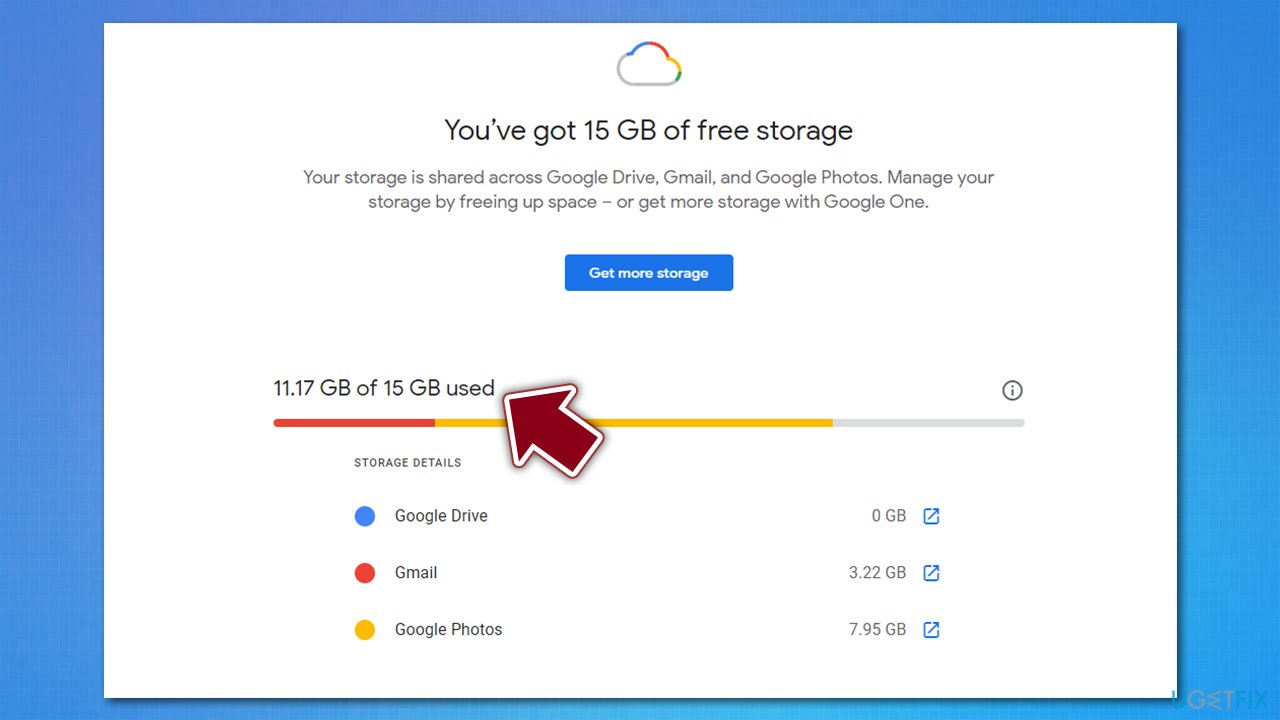
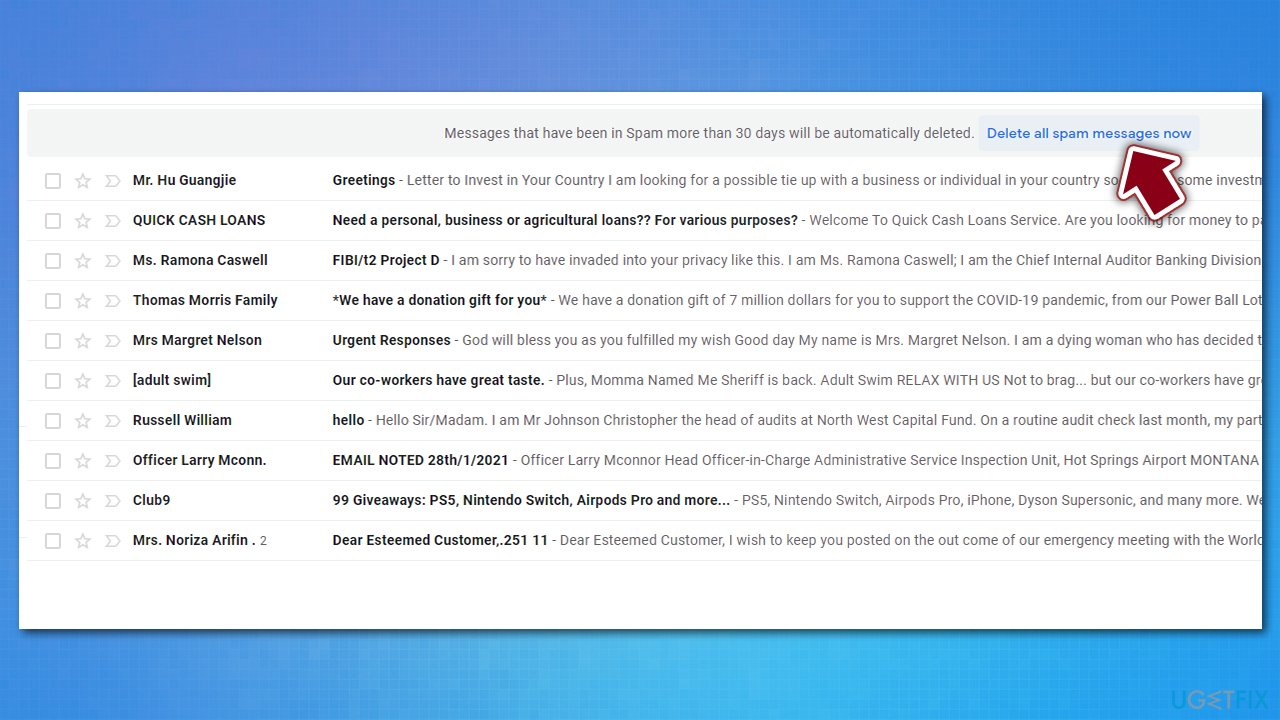
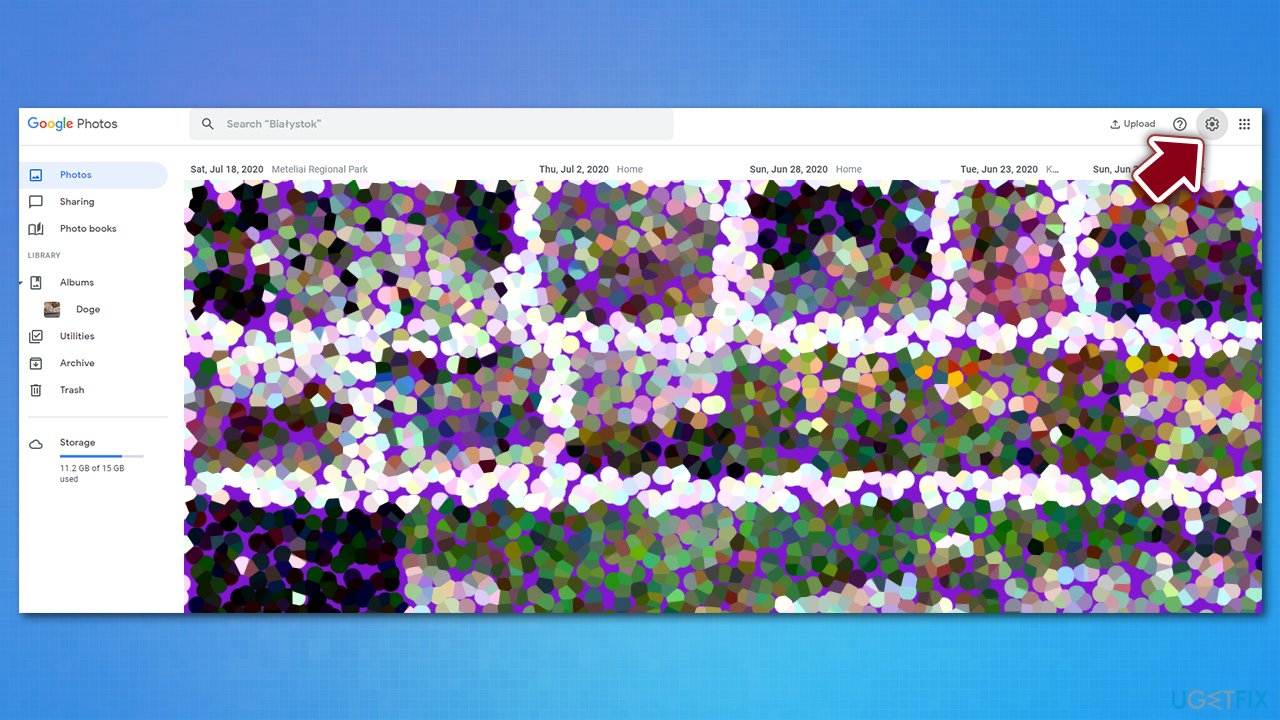
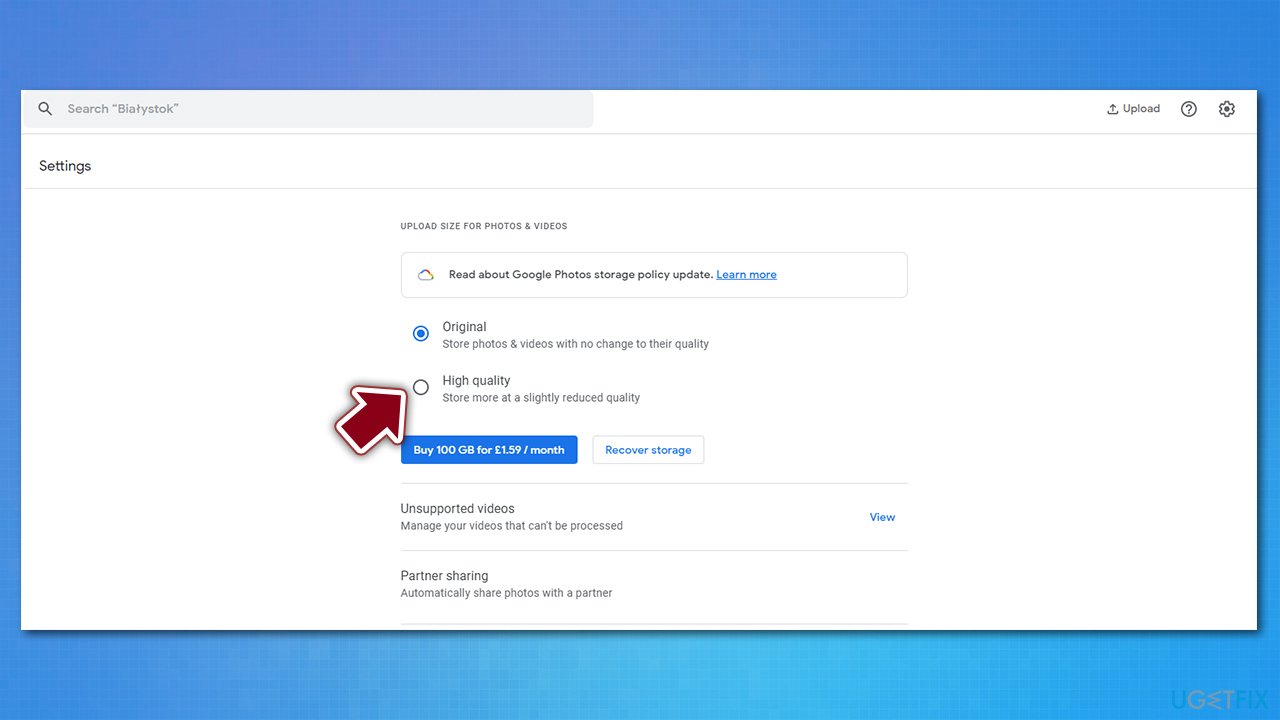
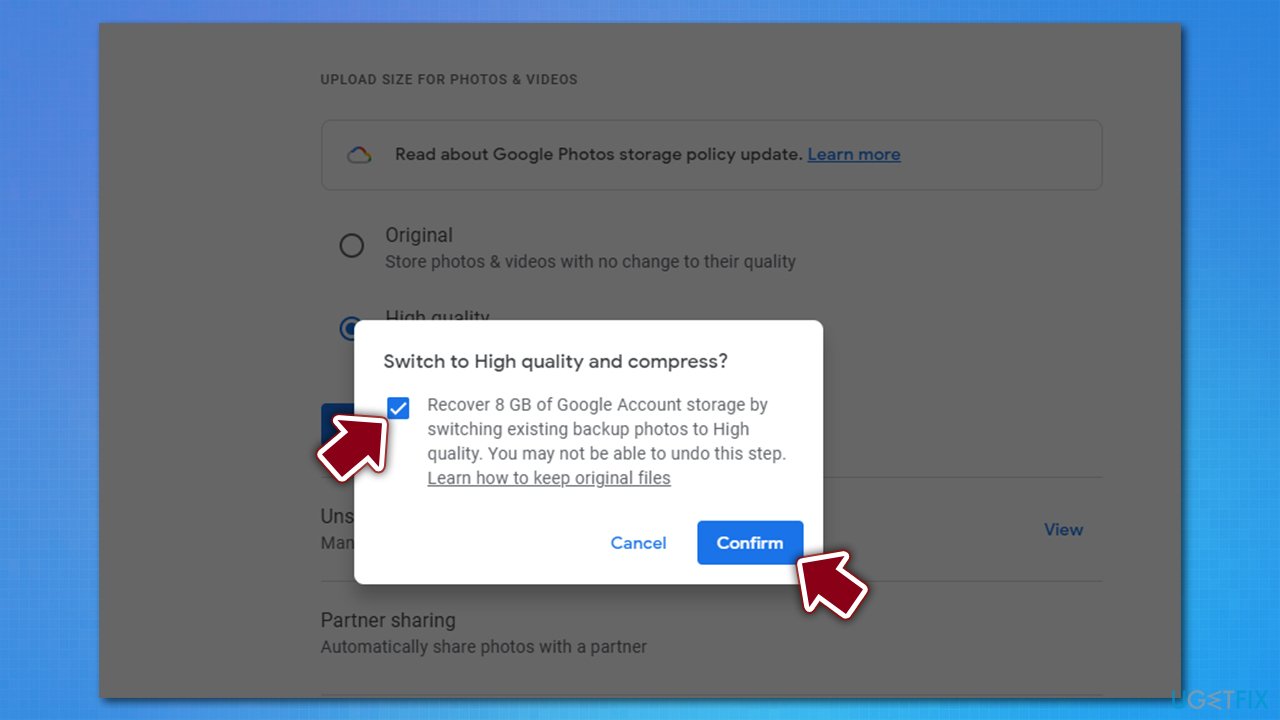
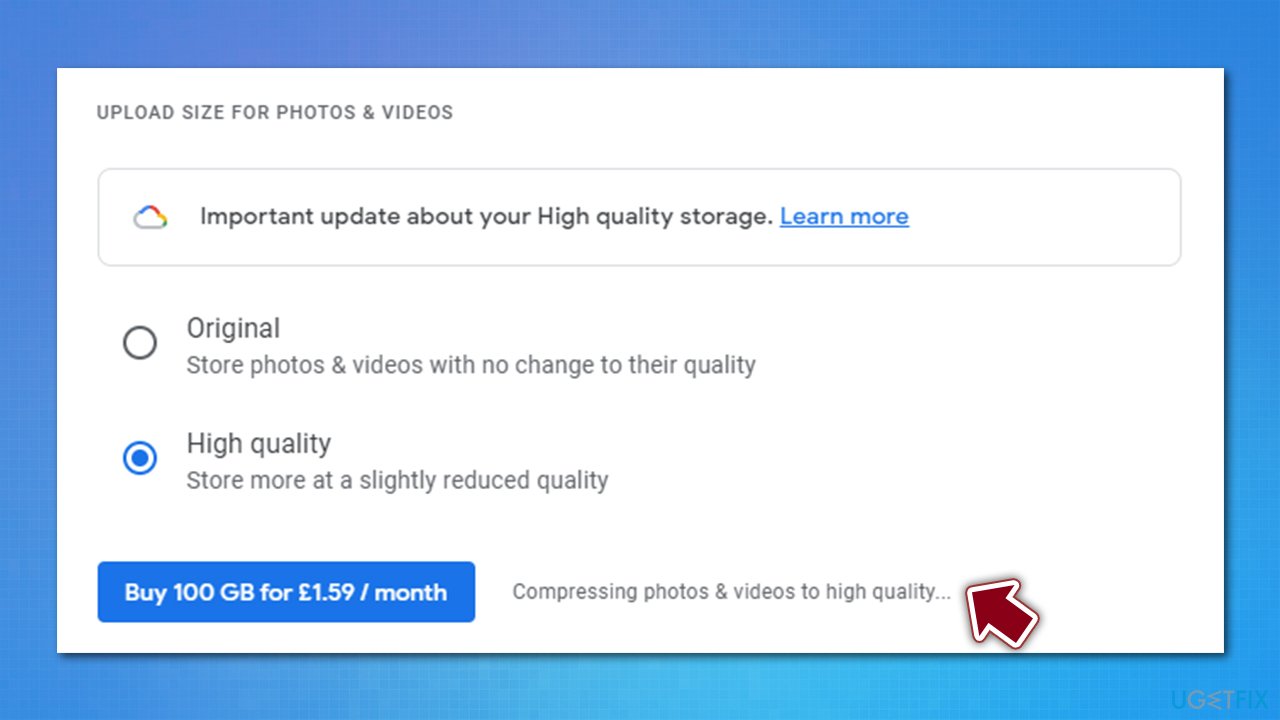
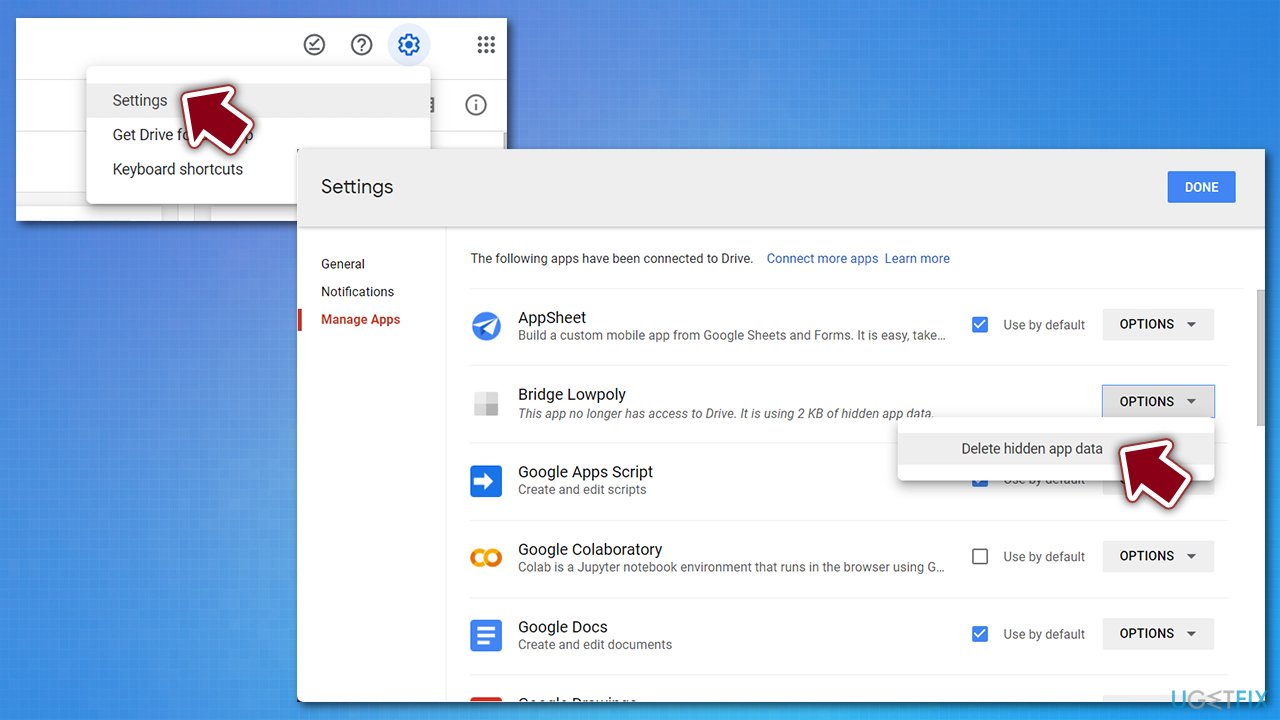
Google Drive is one of the solutions to backup your files, be it your photos, important work documents, or personal projects you have been working on for a while. Creating backups is essential when trying to avoid data loss due to failing hardware, accidental removal, or a ransomware attack – security researchers have been asking users to backup their data for years now. Indeed, Google storage provides 15 GB of data to be stored on remote servers for free. While initially, it may seem like a lot, it is important to remember that file sizes are nowhere near as small as they used to be, especially when it comes to videos or photos. The quality of those is constantly improving, with people watching videos in 4K or 8K. Thus, it is not unusual to run out of space on Google Drive. Of course, you can always buy some more storage space – plans are relatively cheap. However, there is a way to increase your Google storage space without paying anything. In order to do that for free, you will have to perform several steps to clean temporarily and useless files that are clogging your drive. Below you will find all the instructions necessary to do that. Step 1. Check how much storage you have Google connects all user accounts, which can then be accessed across all devices, including PCs, laptops, tablets, or phones. All you have to do is use the app within your phone/tablet in order to use backup services or access your hard drive via the official website. However, knowing how much exactly space you got let might not be that apparent. There are several ways to do that – you can either check it by accessing your Drive portal or by visiting the Google One portal. https://ugetfix.com/wp-content/uploads/articles/askit/how-to-increase-google-storage-space-for-free-check-storage-left_en.jpg Step 2. Clean your Gmail account 1. Open your Spam folder 2. You should see several Spam emails list 3. At the top of the list, click on Delete all spam messages now 4. Confirm the action. https://ugetfix.com/wp-content/uploads/articles/askit/how-to-increase-google-storage-space-for-free-delete-spam-emails_en.jpg Next, you should delete emails with large attachments: 1. Open your email account 2. Type in the following below in your Gmail search bar (note: you can replace 5 with any other number – it represents the file size in megabytes): has:attachment larger:5M 3. Mark emails you no longer need or pick Select all at the top 4. Click on the trash can icon. [img]https://ugetfix.com/wp-content/uploads/articles/askit/how-to-increase-google-storage-space-for-free-delete-large attachments_en.jpg[/img] Step 3. Change your photos storage settings Initially, Google said that it would only backup photos in original quality. Any modern phone is shipped with cameras with a high resolution being used as a default setting. While it might be needed in general, users can now reduce the size of the photo that is being backed up. Here is now: 1. Go to your Google Photos page 2. Click on cogwheel icon at the top-right and pick Settings https://ugetfix.com/wp-content/uploads/articles/askit/how-to-increase-google-storage-space-for-free-go-to-photos-settings_en.jpg 3. Here, pick High Quality option https://ugetfix.com/wp-content/uploads/articles/askit/how-to-increase-google-storage-space-for-free-swap-to-high-quality_en.jpg 4. Now you will be asked whether you want to compress the existing photos, which would increase Google storage space significantly. If you want to do that, tick this option and then click Confirm https://ugetfix.com/wp-content/uploads/articles/askit/how-to-increase-google-storage-space-for-free-swap-to-high-quality2_en.jpg 5. This process might take some time – Google will inform you with the Compressing photos & videos to high quality… notification that the process is being carried out. https://ugetfix.com/wp-content/uploads/articles/askit/how-to-increase-google-storage-space-for-free-swap-to-high-quality-compressing_en.jpg Step 4. Delete hidden app files and other data on your Google Drive This might not be that apparent, but Google keeps hidden app data within your Google Drive account. If those files are not cleaned for a longer period, the data can accumulate and take up precious space. Therefore, it is worth clearing the app files from time to time: 1. Open your Google Drive 2. Click on cogwheel icon at the top-right and pick Settings 3. Go to Manage Apps section 4. Under each app, click Options and select Delete hidden app data. https://ugetfix.com/wp-content/uploads/articles/askit/how-to-increase-google-storage-space-for-free-delete-hidden-app-data_en.jpg |
| Computers › How To Fix Computer Freezing Problems by Yinksdavid(op): 8:58am On Oct 12, 2021 |
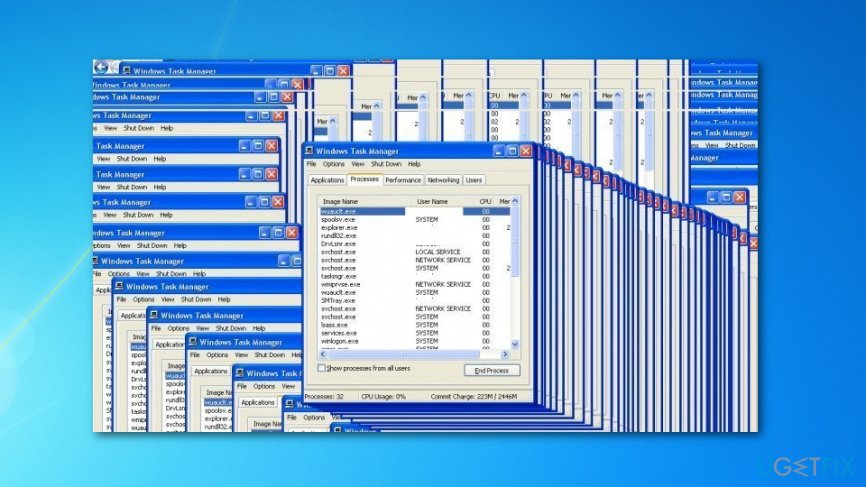
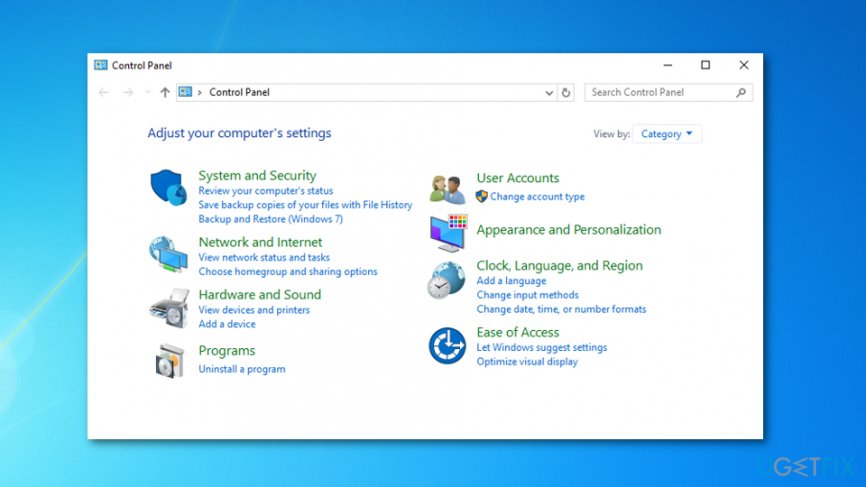
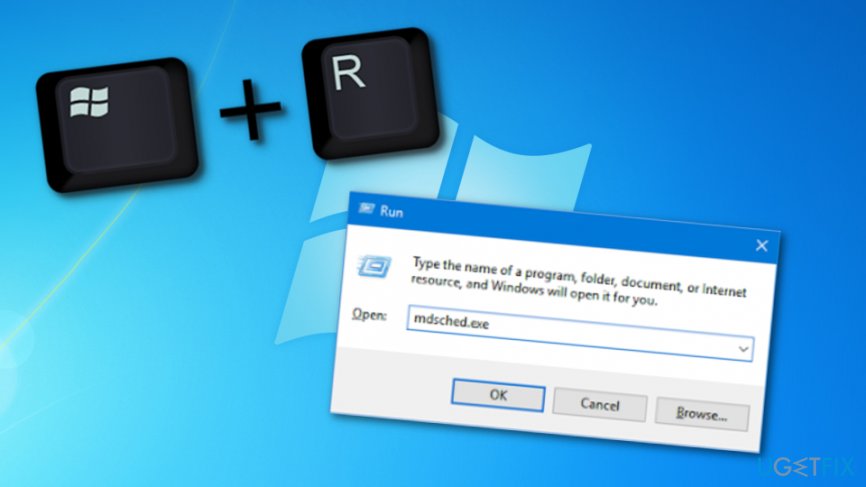
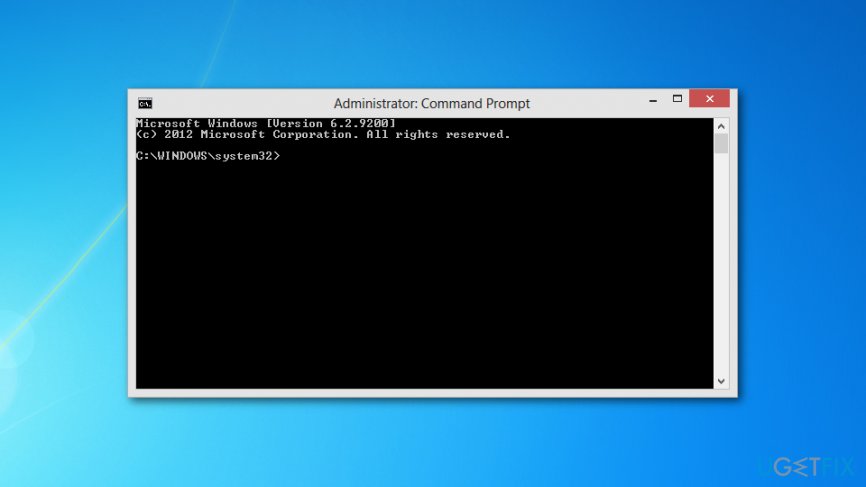
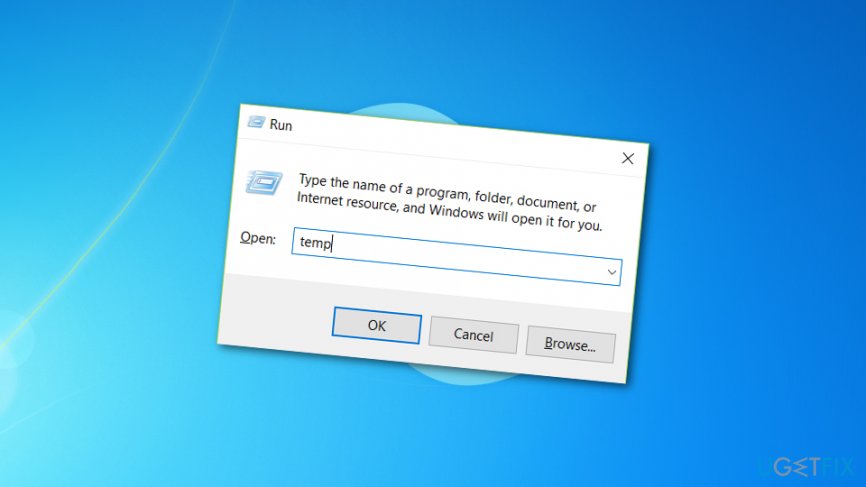
There is nothing more annoying than having your work interrupted by your computer freezing unexpectedly which leaves you dreading it will not unfreeze and you will have to restart it and lose your unsaved work. Sadly, this type of problem triggers a big variety of users and can happen at any time while performing any type of activities. Users often speculate how did these freezes start and where are they coming from. We can say that a big variety of things can force the computer to struggle. For example, a lot of programs running at one time, lack of disk and computer space, lots of cache[1] in the system, outdated registry entries,[2] suspicious processes running in the background, etc. However, you should not worry, there are several ways to make sure that your computer would not freeze and jeopardize your data any longer. Continue with the following step-by-step instructions and choose the most suitable method for you. Additionally, you can also use automatical computer software to get rid of your problems. https://ugetfix.com/wp-content/uploads/articles/askit/computer-freezing-problem_en.jpg How to fix computer freezing problems? First and foremost, you should get rid of all potential threats such as worms, spyware, and other computer viruses that might be lurking on your machine. These unwanted guests might also be the way why your computer is operating slowly and freezing as they are likely to overuse various system resources and increase the CPU[3] usage level. You should perform a full system scan in order to find out if some dangerous threats are planted on your computer. We suggest using a tool such as [rev id-“Reimage”]. Nevertheless, this software is capable of optimizing the entire computer system, eliminating all outdated registry entries and cache that might also appear to be very helpful. Method 1. Remove all unnecessary apps This method is very simple but might appear to be very useful as maybe some additional software is the reason why you are facing computer freezes. Follow the below-given guide and make sure to eliminate every suspicious component. 1. Open Start Menu and find Control Panel; https://ugetfix.com/wp-content/uploads/articles/askit/use-control-panel-to-fix-error_en.jpg 2. Locate programs that your no longer need and press Change/ Remove in order to uninstall the program; 3. Follow each step of the uninstall wizard and carry on with the process. Method 2. Defragment your hard disk Another option is to defragment your hard disk. Weekly defragmentation will ensure the best performance and effective work. You can defragment your disk by following these instructions: 1. Open Disk Defragmenter. Go to Start> type Disk Defragmenter in search field. 2. Under Current status, and choose the disk your want to defragment. 3. In order to check whether the disk needs to be defragmented, click Analyze disk. If you need a password confirmation, please type it in. Check Last Runcolumn. If the number is above 10%, defragmentation is needed. 4. Select Defragment disk. Provide a password, if needed. Method 3. Check the memory space If you have thoughts that computer freezes are related to memory problems, continue with these steps: 1. Press the Windows key and R button together. 2. When a run box appears, type in mdsched.exe and hit Enter https://ugetfix.com/wp-content/uploads/articles/askit/error-fixing-5_en.jpg Restart your computer system. Method 4. Run System File Checker via cmd 1. Go to the Windows search zone and type “cmd”. 2. Once the Command Prompt app appears, right-click on it and choose to Run as Administrator. 3. Type in this command: sfc /scannow and press the Enter key. 4. After the scan is performed, write Exit and hit Enter. https://ugetfix.com/wp-content/uploads/articles/askit/fixing-3_en.jpg Method 5. Delete all temp files 1. Press and hold Windows key + R together. 2. Once the white box shows, type in “temp” 3. Press OK. 4. Once all .temp files appear, select them all. 5. Hit the Del or Delete button. https://ugetfix.com/wp-content/uploads/articles/askit/fix-7_en.jpg Method 6. Launch System Restore 1. Go to the Windows search zone and type in “restore”. 2. Select the option that says “Create a restore point”. 3. After that, click System Restore–>Next. 4. Choose the most recent time when your PC was operating normally and hit Next. 5. After that, click Finish–>Yes. 6. Wait until the process is finished and check if the problem has been solved. https://ugetfix.com/wp-content/uploads/articles/askit/fixing-step_en.jpg |
| Education › Protect Yourself From Phishing by Yinksdavid(op): 3:17pm On Oct 11, 2021*. Modified: 4:27pm On Oct 12, 2021 |
For all the learners out there : Free week at Pluralsight Thanking Pluralsight for the Free week. https://www.pluralsight.com/offer/2021/q4-free-week? |
| Education › 7 Ways To Protect Yourself From Phishing by Yinksdavid(op): 2:08pm On Oct 11, 2021 |
Phishing attacks are scams designed to gain access to your system by fraudulently obtaining your log-in credentials, steal your identity, or get you to send money to criminals. Innocently responding to an email, clicking on a link, or downloading an image file hiding malware can lead to leaked confidential information, infected networks, financial demands, corrupted data, or worse. Here is how to avoid becoming a phishing victim 1. Inspect the sender’s email address closely. Look for small changes signaling a fake identity. 2. Be wary of emails that utilize a generic greeting, asking you to act urgently. 3. Look for verifiable sender contact information. If in doubt, do not reply. Start a new email to respond. 4. Use the phone to convey private information. Never send sensitive information via email. 5. Avoid clicking on unexpected links. Go to the official website and log in instead. 6. Avoid opening email attachments from unknown senders or even friends who do not normally send you attachments. 7. Install a phishing filter for your email client. Use the spam filter on your email account. |
| Computers › Re: Windows 11 Features And Everything You Need To Know Part 1 by Yinksdavid(op): 5:10pm On Oct 06, 2021 |
uchaymart:It is risky Bro but for knowledge purposes, i can share the link for the steps to achieve it.
|
| Computers › Re: Windows 11 Features And Everything You Need To Know Part 1 by Yinksdavid(op): 4:48pm On Oct 06, 2021 |
uchaymart:Evening Bro. Oh sorry it does not meet the requirment although i have an article that reveals bypassing TPM and been able to install/ upgrade to Win 11. I can check and send to you if you don't mind? |
| Computers › Windows 11 Features And Everything You Need To Know Part 2 by Yinksdavid(op): 4:43pm On Oct 06, 2021 |
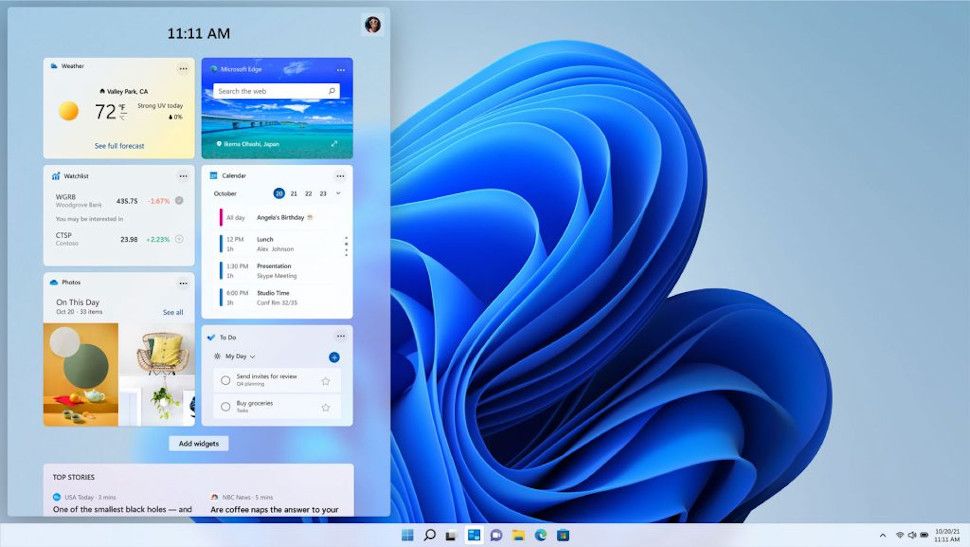
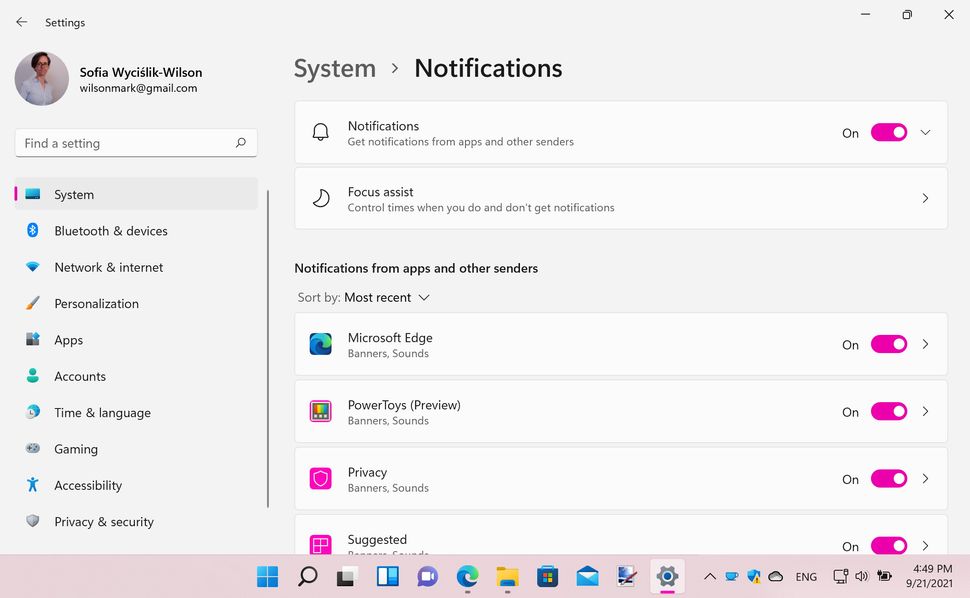
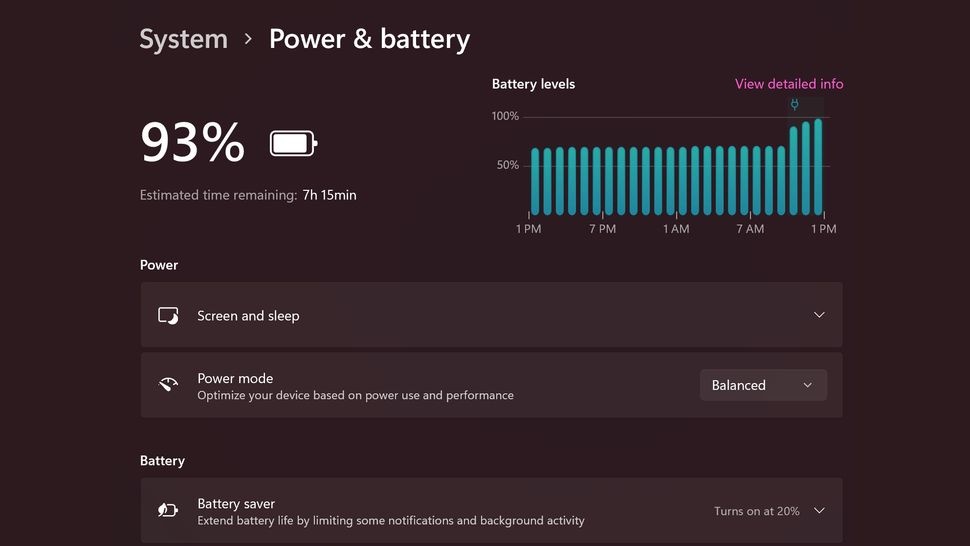
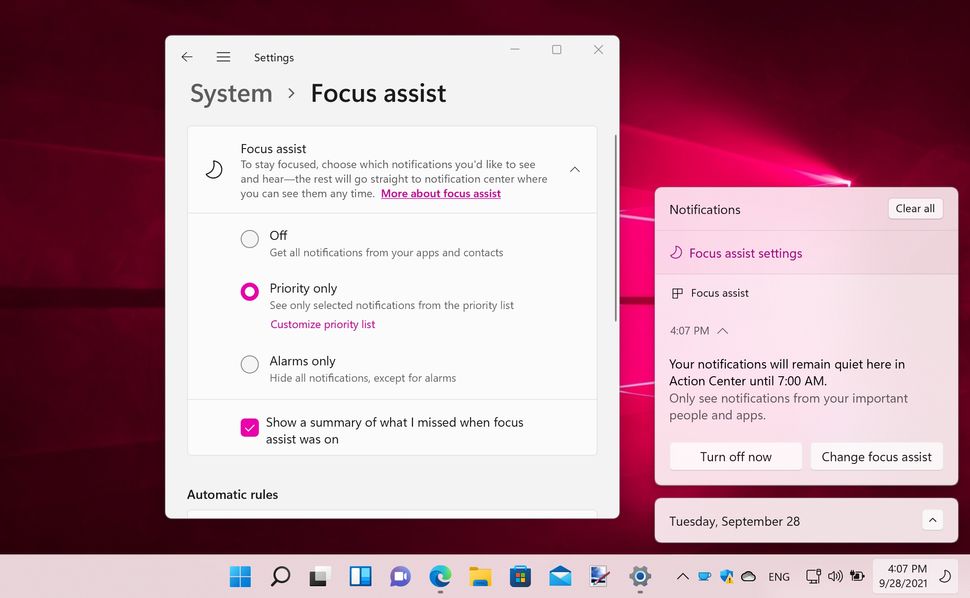
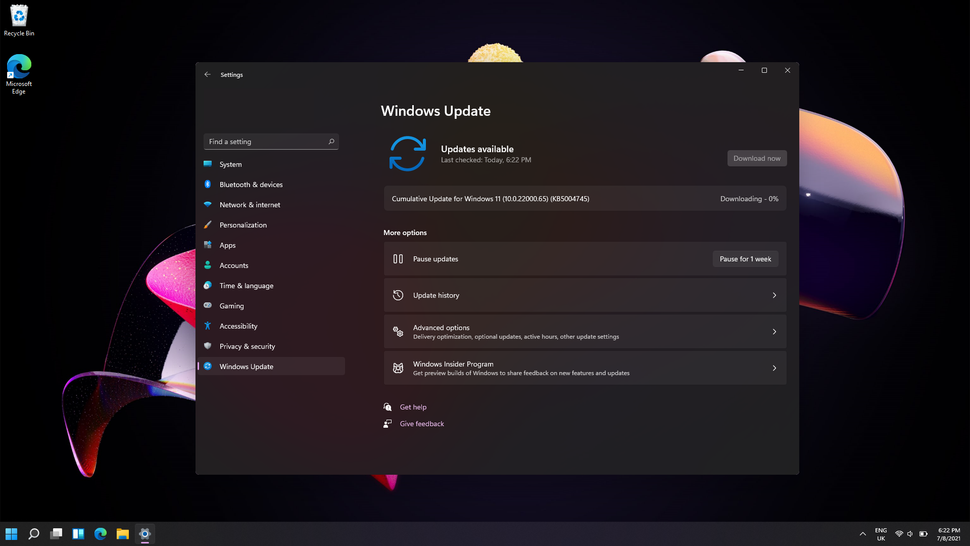
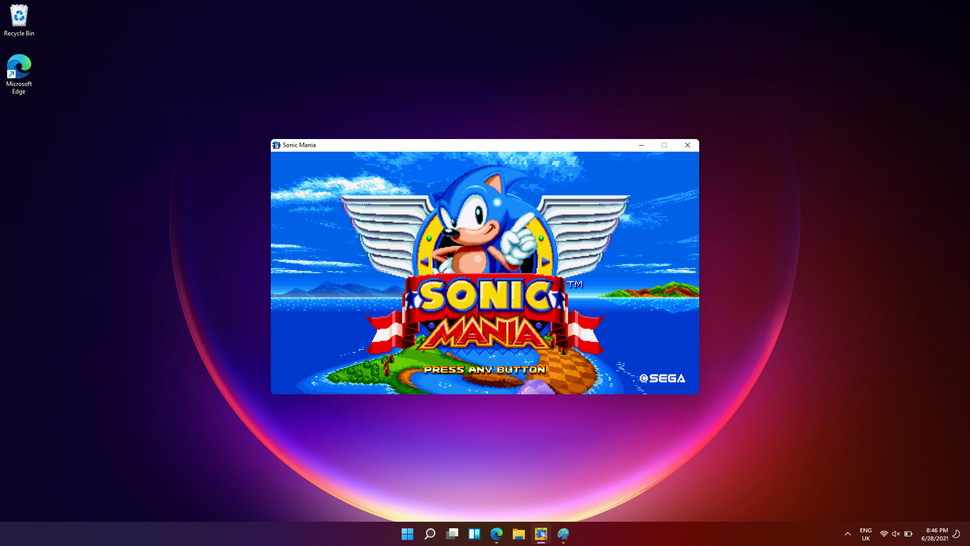
A new look for Windows 11 Fluent Design is the new name for the look of Windows 11. Across the board everything looks more modern and fresh, with rounded windows and apps such as Snipping Tool seeing huge improvements in years. One of the biggest changes users will notice is that the Start menu has been moved to the center of the screen – and it's now "cloud powered", so it dynamically changes depending on the time of day, and the content you're working with. If you're using the Insider Build, there's already ways of customizing the taskbar and the start menu, including moving the icons back to the left. Light Mode and Dark Mode are here too, with a unified design across the operating system, with colorful wallpapers to choose from as well. https://cdn.mos.cms.futurecdn.net/YveYK6wYHsvJugwBuGQtsN-970-80.png Windows Widgets are back in Windows 11, accessible via the dock, with Microsoft touting AI-powered dynamic features that enable widgets, as with the Start menu, to change depending on the apps you're using and the time of day. On the touchscreen, you can slide from the left on the desktop to have widgets appear. Many apps are being redesigned for Windows 11, such as the Photos, Snipping Tool and Paint apps, bringing them in line with the Fluent Design language. https://cdn.mos.cms.futurecdn.net/AHFqfVPUr9ywBYKtsEjFs3-970-80.jpg Gaming on Windows 11 Gaming will be a much bigger focus in Windows 11, with the sluggish and frustrating-to-use Windows 10 Xbox app replaced by a new Game Pass app that enables you to buy, manage and remove games, making it easier for you to access and download games, from Doom Eternal to – soon – Halo Infinite. HDR will also be supported on compatible machines, offering improved lighting and contrast for gaming and viewing media. Direct Storage is also here, with the main game assets able to be downloaded and installed, enabling you to play your games even faster than before. https://cdn.mos.cms.futurecdn.net/h8vmzMRixUuQqdHhGsJKXA-970-80.png Improved Wi-Fi in Windows 11 It looks like Windows 11 could come with a decent upgrade to your device's Wi-Fi capabilities, as Qualcomm announced it has worked with Microsoft, along with other laptop makers and even Valve, to bring Wi-Fi Dual Station with Qualcomm 4-stream DBS technology to compatible machines. We explain more about how this will boost Wi-Fi in Windows 11, but it looks like it will be particularly useful for gamers, as it will use multiple Wi-Fi bands at once to help reduce latency. This could be a killer feature for Windows 11. https://cdn.mos.cms.futurecdn.net/KZMrozx7RQQq5F2nbhK2iZ-970-80.jpg Windows 11 Touch improvements Tablet mode has been one of Windows' weaker points ever since Windows 8, and the new tablet features that Microsoft showed off for Windows 11 could be key to the operating system's fortunes, especially with future Surface products in the pipeline from Microsoft – to have a new, numbered operating system for its upcoming tablets could be a big selling point for new users. At the event, Microsoft touted bigger touch targets and easier ways to move windows around, and better rotate optimizations, for example in how windows are rearranged, so you don't lose track of the applications you were using. Gestures used with the trackpad of the Surface models are also coming to the touchscreen, bringing in some familiarity here. Haptics is also coming to Windows 11 when you use a stylus for better feedback when drawing or sketching. The touch keyboard has also been redesigned, with a smaller keyboard just for your thumb, and emojis ready to be used. Microsoft says dictation will also be improved, alongside voice commands, with 'delete that' options and more. Add a personalized touch to Windows 11 Microsoft has certainly given Windows 11 a more modern look than what we saw in Windows 10, but there's always the risk that it might not be to your taste. No need to worry though, as it takes very little time and effort – and, pleasingly, no money! – to inject some personality into Windows 11, customizing the look of the operating system in various ways to make it your own. Perhaps the easiest way to completely change the look of Windows 11 is to apply a new theme, and there are a good handful of options already available for you to try out, but if the ones that come with the OS don't suit you, you can download more from the Microsoft Store. There are also familiar customizations such as setting a personal desktop background as either a static image or a slideshow, and you can tweak system color options – including dark mode. You can even make adjustments to the taskbar if you like, so your finalized Windows 11 doesn't need to look anything like the out-of-box version of the OS. https://cdn.mos.cms.futurecdn.net/zb8LL8hu5EbNEaMnrmKjAJ-970-80.png Microsoft claims Windows 11 is a "new era for the PC" It's worth remembering that Windows 11 is the first major upgrade to the software platform since the launch of Windows 10 back in July 2015, and so marks a crucial point for Microsoft. Heralding its new offering as "an exciting milestone in the history of Windows", Panos Panay, Microsoft's Chief Product Officer for Windows and Devices noted that, "a new era for the PC begins today". In a company blog post, Panay added that "there's never been a better time to buy a PC", and that, "whether it’s to work, create, connect, learn or play, the PC will continue to play a relevant and lasting role in our lives. No other ecosystem has the breadth and scale that the Windows ecosystem does to meet the needs of people whether they’re creators, developers, students and educators, business and gamers at every price point and in every form factor." https://cdn.mos.cms.futurecdn.net/MBbnjnM92ULnPyMDMXGGaQ-970-80.jpg Should you install Windows 11? As the saying goes, good things come to those who wait. While it may be tempting to give Windows 11 a try straight away, we recommend holding on a few days, or even a couple weeks, before you grab the new operating system. Why? After all, our Windows 11 review is pretty glowing, and it brings plenty of new features that many people will be keen to try out. However, every major operating system launch comes with its fair share of issues, as mentioned above, so getting the very best experience might require letting other people do the early testing for you. Microsoft will be working hard to identify and fix problems as they occur, which is why it’s a good idea to hold fire for a few days or weeks. Let other people encounter those problems first, then in a few weeks, download Windows 11 safe in the knowledge that most problems will be fixed. This is especially important if you were planning to install it onto a PC that you use daily, such as for work or study. If it’s working fine with Windows 10, it’s best to hold off for the moment. Otherwise, you may find that Windows 11 has messed a few things up, and you’re stuck with a PC that’s not working correctly. How to spot fake Windows 11 downloads Windows 11 is out now, and it's relatively easy to download and install it, but this does mean that you should be vigilant about where you download Windows 11 from, as there are fake downloads out there that could catch you out. To make sure you're only installing the official release, only download Windows 11 from Microsoft itself. How to manage notifications in Windows 11 You almost certainly have a selection of apps installed on your computer, and many of these use notifications to let you know about things. A news app can alert you to the latest headlines, an email app will let you know when you have new mail, and your chat app will inform you of new messages that need your attention. Thankfully, you can set all this up in Windows 11 with relative ease, or turn them off completely if you don't like the interruption. If you're happy with the current Windows 10 experience (in which notifications are displayed in the lower right-hand corner of the screen, just above the clock in the Taskbar) then great news – you won't have to do any configuration as this is the default for Microsoft's latest OS. Fort everything else though, there are plenty of ways for you to adjust your notifications in Windows 11 to best suit your needs. https://cdn.mos.cms.futurecdn.net/uvqKBqgmc6ZxUazfdgLtJ-970-80.jpg How to manage power options in Windows 11 Microsoft has always given Windows users a good deal of control over how their computer uses power, and this is something that continues with Windows 11. While managing power consumption may be something that you most readily associate with laptops and a desire to maximize battery life, power options can also play an important role for desktop users. Desktop user may not have to worry about how long a battery is going to last, but Windows 11's power option remains important. Thankfully, Windows 11 has made it easier than ever to keep track of power consumption, Sleep Mode and detecting what apps are draining your device's battery life. https://cdn.mos.cms.futurecdn.net/d7rSKu2qkQmV7YNcM7EwdT-970-80.jpg How to us Focus Assist in Windows 11 Do you ever get distracted when you should be doing something important? Your computer is supposed to be a tool to help you get things done. This might mean getting on with work, playing games, watching movies, writing emails, or just browsing the web, but there are all manner of distractions that can pull you away from what you're trying to do. If you're sick of being pestered by notifications when you're trying to do something else, you could benefit from Windows 11's Focus assist feature. This is a simple but powerful function of Windows 11 that enables you to configure rules that determine when notifications about new emails, messages and so on are muted. There are many customization options that let you do things like set a schedule, create priority lists and you can even optimize for different monitors if you use multiple displays. https://cdn.mos.cms.futurecdn.net/nUCSAroEwCFu4L6oTzKfM-970-80.jpeg How to use virtual desktops in Windows 11 Windows 11 offers excellent support for virtual desktops, which allow you to use several desktops, and switch between them easily. This allows you to keep organised by having separate desktops for work and pleasure, for example. It's a great way to have some of the productivity benefits of multiple monitors, but with a single screen, so check out our guide on how to use virtual desktops in Windows 11 for an in-depth look into this feature. https://cdn.mos.cms.futurecdn.net/wobJYGLDonkbpMDwN3cU6o-970-80.png |
| Computers › Windows 11 Features And Everything You Need To Know Part 1 by Yinksdavid(op): 3:55pm On Oct 06, 2021 |
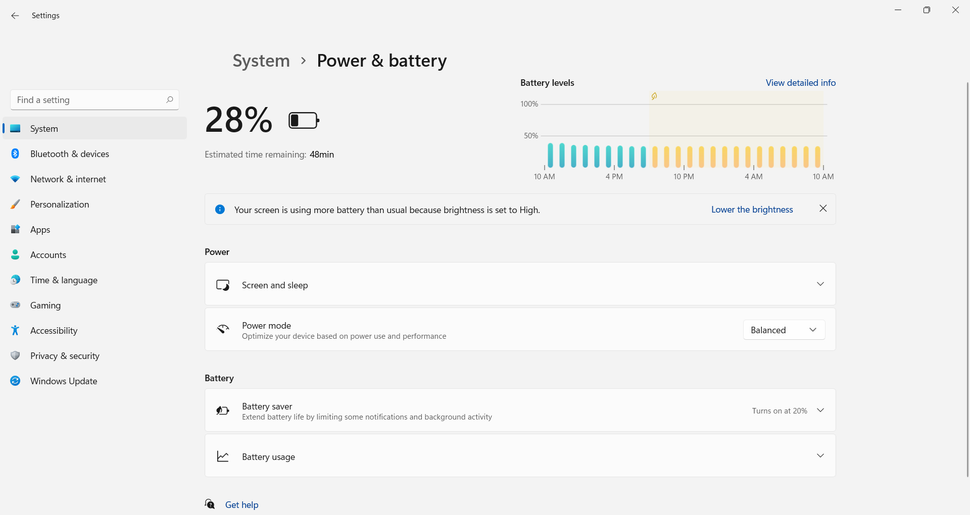
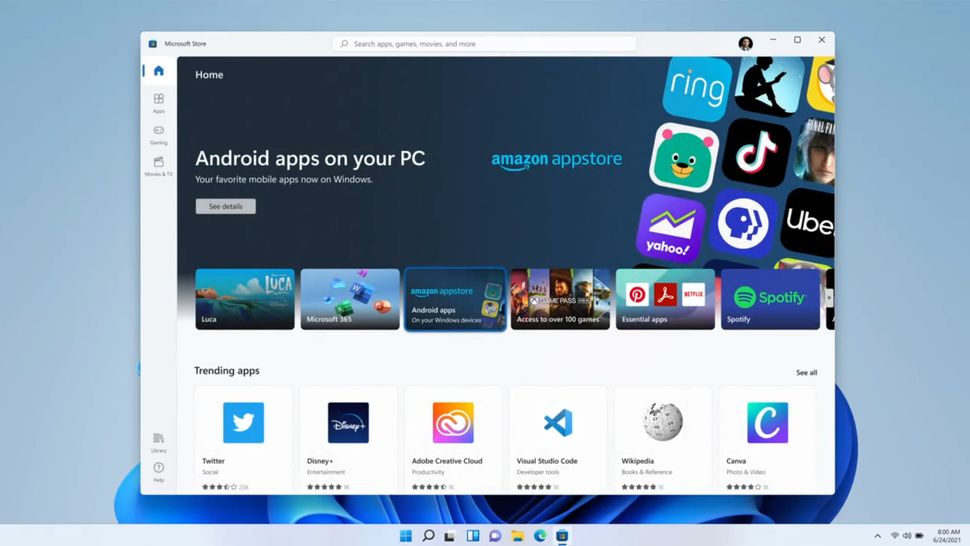
https://cdn.mos.cms.futurecdn.net/kKykJuKtUCANquFzFoq4yj-970-80.jpg Windows 11 is now available to download, and people around the world are currently installing it on their PCs. The much-talked-about successor to the popular Windows 10 operating system has a history of surprising us, as Microsoft had previously claimed that Windows 10 would be the final version of Windows, but now it's here and it brings in a wealth of benefits. If you'd like to try it out, I have a guide on how to download and install Windows 11(Will also share on Nairaland within 24 hrs). As with any operating system launch, there are some issues, so make sure you check out my how to fix common Windows 11 problems guide if you encounter any. Microsoft's latest OS showcases the Fluent design language and more. And, from what I have seen during my initial testing and readings on Windows 11 review, it delivers not only an updated design but also better ways to find and download apps. If you’re currently using a genuine licensed Windows 10, you’ll be happy to know that you'll be eligible for a free upgrade to Windows 11, provided that your laptop or PC meets the strict minimum system requirements that Microsoft has put into place in the name of future security. Just bear in mind that there's still some confusion as to what these system requirements are due to a component called TPM (Trusted Platform Module). Right now, it looks like Microsoft isn't going to budge on its requirement that your device is equipped with a TPM 2.0 in order to run a fully supported version of the new OS. Now that Windows 11 has been released, let’s take a quick look at what the new operating system has on offer, from its updated features to the benefits it has for users over Windows 10. Windows 11: Cut to the chase What is it? Windows 11 is the successor to Windows 10 When is it out? October 5 How much does it cost? Free (if you already have a valid licensed Windows 10) Windows 11 release date Microsoft launched Windows 11 on October 5 as a free upgrade for Licensed users and Microsoft will be rolling out the update to eligible devices over the coming months, with users being notified when the update is available for them. However, you can also download Windows 11 right now from the Windows 11 download page. Many laptop and PC makers have also confirmed that many of their new products will come with Windows 11 preinstalled. This includes Microsoft's new Surface Pro 8, Surface Go 3 and Surface Laptop Studio devices, which were launched to coincide with Windows 11's release date. Windows 11 system requirements There's been a lot of discussion as to which devices are eligible for Windows 11. Regardless of the TPM requirement, others are simply wondering if they need to look to upgrade their PC or laptop soon. Microsoft has published the requirements for the update which you view below: Processor: 1 gigahertz (GHz) or faster with at least two cores on a compatible 64-bit processor or SoC RAM: 4GB Storage: 64GB System Firmware: UEFI, Secure Boot capable TPM: Trusted Platform Module 2.0 Graphics Card: DirectX 12 or later with WDDM 2.0 driver Display: 720p, 8-bit per color channel, at least 9-inch diagonal Internet Connection and Microsoft Account: Windows 11 Home requires an active internet connection and a Microsoft Account to complete initial, first-use setup of the operating system, or when switching a device out of Windows 11 Home in S-mode. https://cdn.mos.cms.futurecdn.net/Xnsmx8tGVaxXQJMwMWGJ7L-970-80.jpg How to download Windows 11 I have a handy guide on how to download Windows 11, which gives you all the information you need now that the final version has been released. It's a relatively simple process, as long as your PC meets Windows 11's minimum system requirements. https://cdn.mos.cms.futurecdn.net/purUUY7b4oJjUcnwf5vZoY-970-80.png There's also an option to downgrade to Windows 10 if you are experiencing issues with Windows 11. This is available in the current Insider builds, but you can only do it within 10 days of upgrading your machine, otherwise a clean install has to be done in order to go to Windows 10. How to download Windows 11 ISO for a clean install If you'd like to perform a fresh install of Windows 11, rather than upgrading from Windows 10 (or earlier), then you'll need to download the Windows 11 ISO file. Doing a clean install takes a bit more time, and you'll need to reinstall all of your apps and restore your files if you've backed them up (which you should do before you start), but there are many benefits of doing a clean install of Windows 11. For a start, you'll get a much better performing PC, and if you were encountering any issues with Windows 10, a clean install can help fix some of these. Over the years your PC's hard drive may become filled with unwanted apps and files, so a clean install can get rid of all of that. If that's the way you want to install the operating system, then you can reach out to me for guide on how to download the Windows 11 ISO for more advice. How to upgrade to Windows 11 without TPM 2.0 Some people have found that they are unable to install Windows 11 due to the requirement for PCs to have TPM 2.0 support. This is a relatively little known security feature, but it's caused some people a fair bit of frustration as they've found they've been unable to install Windows 11. However, there is a way to upgrade to Windows 11 without TPM 2.0, but this should only be done by people who are really desperate to run Windows 11 despite not meeting the system requirements. Windows 11 price Windows 11 is a free update for existing Licensed Windows users – you'll need to be online to download, install and activate Home versions, and you'll need to have a Microsoft account when installing it on or upgrading your PC or tablet. Windows 11 will also come pre-installed for free on new PCs and laptops as well, though you should check before you buy to make sure. In some cases, new laptops and PCs may still be sold with Windows 10, and you'll have to upgrade for free yourself. Windows 11 product keys for fresh installs is not yet available for the public till probaly 2022 although I have access to buy and resell to interested clients. So far Microsoft has released the hardware requirements for Windows 11, but there's confusion over TPM (Trusted Platform Module) and whether the company are pushing hard over the minimum threshold for which devices are eligible to be updated to the new version. While we've got a handy explainer for you that goes into TPM, hardware vendors can still offer new machines with Windows 11 that won't need this requirement, albeit with good reason to. https://cdn.mos.cms.futurecdn.net/wCdDVvdcXYWYaGzdpZYpGj-970-80.png Windows 11 features There are improvements across the board in Windows 11, with Microsoft promising that updates will be 40% smaller, and touting Windows 11 as "the most secure release yet". The taskbar is optimized for touch as well as mouse peripherals, and is now renamed the dock. New multitasking features are also on offer thanks to a feature called Snap Layouts, which enables you to arrange multiple windows across the screen, not just side by side, but in columns, sections and more. Windows 11 checker There's now a much-improved health check app found in Settings, where Windows 11 will recommend you to turn down the brightness for example, change the power saving mode of the battery and much more. https://cdn.mos.cms.futurecdn.net/G8cC7Q7PoX5keeRgvw8Nn6-970-80.png Another feature is Snap Groups, where you can go back to previously snapped windows from the dock, so for example you can go to your email app, Edge browser windows or anything else without having to snap them back to the previous view again. There's also improved multi-monitor support, so when you reconnect an external monitor, Windows 11 remembers the previous positions of the windows that were on that monitor. There's even an estimated installation time for Windows Update, so you can see whether you need to hold off from updating your PC until later in the day. Teams is also integrated to the dock, so you can easily join in with meetings and family calls. This looks like the first inkling of Skype disappearing from Windows, especially with the Skype sounds being heard in the demo when a call was incoming. The Microsoft Store is finally seeing a redesign, with better-curated content, and a better options for managing your purchased shows, such as mirroring them to your television. Apps such as Disney+, Adobe Creative Cloud, Pinterest and more are already in this redesigned store for Windows 11, ready to go. WPA, EWP and Win32 apps are now all in the Microsoft Store, ready to go. If a developer has a commerce engine, they can keep 100% of the revenue brought from the Microsoft Store. Android apps are also ready for Windows 11, discoverable from the Microsoft Store, via the Amazon App Store, so you can download TikTok and more, ready to use on your PC or tablet. We suspect that the reason why Amazon are allowing their version of the store instead of Google, may be to do with the .APK filename being replaced from August. https://cdn.mos.cms.futurecdn.net/KKN9BEHcvXs3KwjBaM6vXD-970-80.jpg The new store opens up possibilities for other applications to arrive in Windows 11, even Apple's iMessage, which could follow iTunes and Safari. Windows 11 Home vs Windows 11 Pro Depending on what you currently use your system for, you may need to consider if you will be upgrading to standard Home version of Windows 11, or if you need to bump up to Windows 11 Pro, Microsoft's enterprise version of the operating system. Regardless of what your preference may be, both have the same minimum system requirements so you'll need to meet those standards regardless of what version you side with. There are numerous benefits to Windows 11 Pro, though mostly security related to protect businesses and organizations to keep data safe, with features like Windows Information Protection (abbreviated to WIP). Another difference you'll see between Windows 11 Home and Pro is when you’re setting it up for the first time, as with the Home version you'll need to set it up with an internet connection and a Microsoft account. Windows 11 doesn't have either of these restrictions, which may tempt some non-enterprise users into buying the Pro version of the operating system to avoid using a Microsoft account. Windows 11 Home PCs also can’t be joined to Active Directory, which are often used on business devices to control access to certain applications and resources. You can find a full list of the differences between Windows 11 Home and Windows 11 Pro over on the official Microsoft comparison page. 1 Like |
| Education › Re: Windows 11 Full Review by Yinksdavid(op): 2:50pm On Oct 06, 2021 |
Known issues in Windows 11 Build 22000.51 General: Certain features may be removed when upgrading to Windows 11 from Windows 10 Taskbar: The Taskbar isn’t shown across multiple monitors The preview window may not display the whole window when hovering over the Task View button Settings: Settings app fails to launch after upgrading the device with multiple user accounts to Windows 11 A small set of Settings legacy pages is still available Power mode setting doesn’t appear on Power & batter page Green flash when launching the Settings app for some users When modifying Accessibility settings from Quick Settings, the settings UI might not save the selected setting Start: Some users were unable to enter text when using the Search feature from the Start or the Taskbar. You can fix that by pressing Windows Key + R and closing the Run dialog There’s a known issue that is preventing users from unpinning apps from the Start Menu. This can make the command bar disappear in File Explorer or cause the snap to hide. To fix this, you need to restart your PC. Search: App icons in the Search panel may not load properly When hovering over the Search icon on the Taskbar, the third recent search doesn’t load The search panel might not open after clicking the Search icon on the Taskbar. You can fix this by restarting the Windows Explorer process Recent searches might not get displayed when hovering over the Search icon. You can fix that by restarting your device The search panel might appear black and not display any content below the input field Widgets: System text scaling will scale all widgets and it can result in cropped widgets Opening links from the widgets pane may not invoke apps to the foreground The content inside of widgets may not be properly announced when using Narrator Widgets pane may appear empty. To fix that sign out and sign back in When using Outlook client with Microsoft account, Calendar, and To Do, the changes might not sync to widgets in real-time Widgets can be displayed in the wrong size on external monitors. To fix that, launch Widgets on your actual monitor and then on secondary monitors After adding multiple widgets quickly from the widgets settings, some widgets may not be visible on the board Store: The install button might not work for some apps Rating and reviews aren’t available for certain apps This is the first look of Windows 11 build 22000.51, and so far, it looks pretty promising. The new user interface is a breath of fresh air and a welcome change. This Build has a few issues, but that’s to be expected. Have you tried Windows 11 yet? If you haven’t, I have a great guide on how to download/Upgrade to Windows 11, so be sure not to miss it. |
| Education › Re: Windows 11 Full Review by Yinksdavid(op): 2:47pm On Oct 06, 2021 |
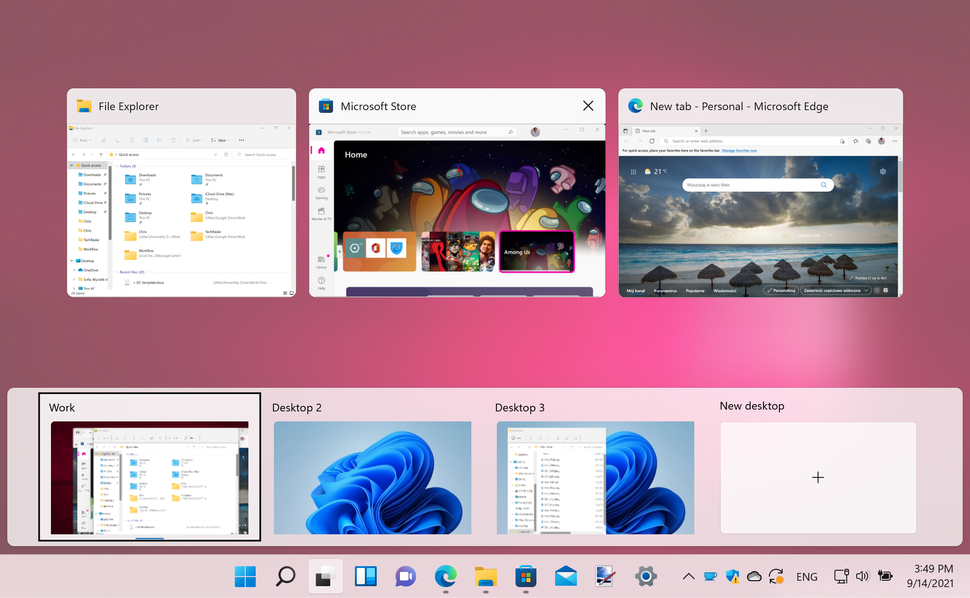
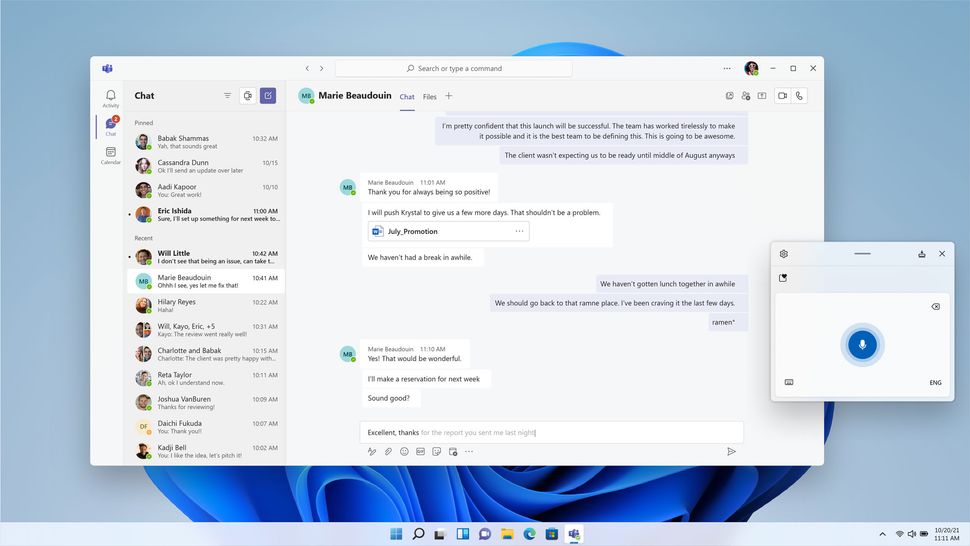
Multitasking improvements 1. Multi-monitor switching Another very important element that surely caught my eye and impressed me, is the multitasking elements Microsoft has brought forward with their new design for Windows 11. Because multi-tasking is a big part of the Windows experience, this element doesn’t only have practical implications, but also improves the overall feel and utilizability of the OS. This feature is also making it fully compatible with both touch-screen and multi-screen devices, including mobile usage. You can also use the Windows key + Tab to switch between the different desktops. This shortcut is used in Windows 10 to show the Timeline option. Of course, you will be able to run and customize as many desktops as you want and even design them for different purposes. For instance, you can have a Work desktop, a Home desktop or a Multimedia desktop. 2. Great new window snapping features Window snapping has been improved as well and now you can choose between six different snap layouts simply by hovering over the maximize button. Snap groups are a new feature in Windows 11, and if you’re snapping applications, you can now quickly go back to the applications that you have snapped without having to reconfigure the layout. To do that, you just need to hover over those apps on the Taskbar and select the snap group to go back to it. This is a simple but powerful feature that will surely make multitasking much more effective. Added to this, snapping will automatically adapt to the number of monitors you’re using. If you’re wondering how this feature will actually apply to everyday use, imagine the following scenario: You are using a multiple-monitor setup at work, and you have used the snapping tool to arrange a set of windows on the second monitor for easier access to information while working on the main screen of your setup. In case you need to disconnect the extra monitor, Windows will automatically adapt to this change and will transfer the layout used on the second monitor to the main monitor without making any changes. As soon as you’re done walking around with your laptop and want to come back to your multi-monitor desk setup, plugging in the second monitor will instantly transfer the same layout to the new monitor, just as it was before the actual disconnection. To enable ease of use even further, the docking process also went through some changes, and now when you undock your laptop, all the windows on your external monitor will be minimized. This way, you will not lose any important data, and you have the capability to return to the same tabs with ease. Input improvements 1. Voice typing Windows 11 Build 22000.51 brings various improvements in terms of input, and there’s a brand new voice typing feature available. The speech-recognition process has been improved dramatically, offering a clearer and more easy-to-understand interface, and at the same time using AI-like capabilities to recognize speech in an exact manner. This element can be extremely handy if you need to transcript a large amount of data and would prefer doing so by reading the document and not typing, while it also works amazingly for people with disabilities. 2. Improved touch gestures Another very good feature that we enjoyed using while testing out the new Windows 11 release, is the improved touch gestures. These new features allow you to easily switch back to the last used app, to your desktop or open the Task View. Everything about this way of control is completely customizable and will offer great customization options for those of you who own a touch device with Windows 11. For an even easier process of switching between monitors, Microsoft has created a new four-finger gesture, allowing users to become proficient in using double or even triple monitors with ease. 3. Great Pen menu The Pen menu is another great feature that lets you pin up to four different applications and access them quickly when using a pen. 4. Dynamic Refresh Rate Another feature that deserves a mention is the Dynamic Refresh Rate, and with it you can automatically boot the refresh rate when scrolling for example, to get a smoother scrolling experience.
|
| Education › Re: Windows 11 Full Review by Yinksdavid(op): 2:35pm On Oct 06, 2021 |
5. Slick context menus The context menus, both from the desktop and inside File Explorer have been revamped so they blend perfectly with the new interface. But, surprisingly so, and as you can observe from the screenshot presented in the 1st image, the Refresh option has completely vanished! Some questions immediately appeared in my mind: Is the Refresh button removed entirely? How are we going to activate the refresh option now? Is there an issue with this build of Windows 11? Fortunately, all these questions were answered quickly, as I curiously tried the options found in the context menu. As it was to be expected, I eventually clicked the Show more options entry(2nd Image attached). And lo and behold, by clicking this option, the Refresh button suddenly appeared in the context menu(3rd image attached), in the same place that it should have been from the start.
|
| Education › Re: Windows 11 Full Review by Yinksdavid(op): 2:22pm On Oct 06, 2021 |
2. Redesigned Action Center The notification center, previously known as Action Center, now looks a lot more professional and comprehensive than the Action Center from Windows 10. You can also open this menu by using the Windows key + N shortcut from your keyboard. The full redesign not only makes it easier to use but the information is presented in a more easily observable way, the colors also helping. Settings are no longer available in the Action Center, and now you can find them in a separate Quick Settings section that you access by clicking the volume/network icon in the Taskbar. Having separate access to the Settings app can prove beneficial in most cases, and because it is contained in the same menu which offers access to Wi-Fi, Bluetooth, and other features seems logical to us. It’s also worth mentioning that if you’re playing any media at the moment you’re accessing the Quick Settings menu, you will also see the media controls. Also, you can open the menu by pressing the Windows key and A shortcut, the one that is opening a similar option in Windows 10. This quick menu also allows you to easily control the Focus assist option which controls the amount of blue light your display produces. This can be extremely efficient, as blue light seriously impacts your brain’s ability to produce melatonin after a long day, thus impacting sleep. In my view (no pun intended), having all these useful settings under an easily accessible menu makes more sense than any other option. 3. Fresh Settings application The Settings app went through some massive changes, and now it comes with a sidebar allowing you to quickly access any section with just a single click, and the design makes it a lot more compact and easy to understand(3rd Image attached). The new layout and the fact that we have a tiny representation of the desktop, while also seeing a quick overview of our Microsoft 365 account, OneDrive settings, and the Windows Update status in one place, makes it considerably easier to gather information at a glance.In Windows 10 we almost always had issues finding the right settings we were searching for, simply because the layout of the menus and the way the options were grouped caused more confusion. 4. Partially revamped File Explorer The old File Explorer, probably one of the most used elements of Windows overall has been redesigned as well, and this is one of the most anticipated design changes. The default icons have been updated with a fresh and new look that matches the new user interface, but, as mentioned at the start of this review, the overall structure has remained the same.
|
| Education › Re: Windows 11 Full Review by Yinksdavid(op): 2:02pm On Oct 06, 2021 |
Let’s have a look at the first version of Windows 11 Redesigned user interface Windows 11 comes with a fresh and sleek user interface that impressed us with great-looking rounded corners for windows as well as new animations, but the surprises don’t end here. Here are more details about what is actually changed from the good old Windows 10 OS: 1. Start Menu and Taskbar The element that drew my attention from the first second is the changes of the Taskbar and the Start Menu which are now centered in Windows 11. Many users might not like this change, but luckily there’s an option to move the taskbar back to the left side. I liked how this element now makes the screen look cleaner and the icons from the taskbar take a centered position. In our view, this change makes perfect sense, as there is a very specific reason for having the icons in the taskbar in the first place – quick access. Unfortunately, the taskbar is now static, and on Windows 11 you can only pin the Taskbar to the bottom of your screen. This means that you can’t move it to any other side, like in previous versions of Windows. The Start Menu has been streamlined, and it now shows pinned applications as well as recommended apps and files, all wrapped up in a seamless and slick design that makes you think of a glass panel with icons lined up on it. I have to admit that the new design of the Start Menu makes Windows seem friendlier and more immersive. We’re glad to see that Microsoft understood that the feel and looks of the different elements contained in their OS impact the entire experience of the user. As you can see from the 2nd image attached , the Pinned section applications are presented at the top with icons that are a lot smaller than the Windows 10 bulky blocks. Now, it makes it easier than ever to have a quick overview and choose the one that you need but there are no more Live Tiles and that’s another aspect that might bother some users. The Recommended section shows the recent documents you opened, and because of this design, we find that the feature finally becomes useful. You can see a maximum of 18 pinned apps (3 rows and 6 columns), but you will be able to pin more because you can always scroll down to jump to different pages. You will also see some dots on the right(3rd Image attached) that you can click to go to another page of apps, just like in the 3rd image. Another interesting feature is the All apps button that you can see in the top-right corner. You can use it to access the list of all installed apps. There is where you will also find the most used or the recently added apps for a quicker access. Another important element of the taskbar is the Search function, allowing you to find specific files on your system, and even perform online searches. If you hover your mouse over the Search icon(4th Image attached), you will see the search box and the apps you’re using at the moment, just like in the 4th image attached. However, if you click on it and open it fully, you will also have the other search options and you can even search the web, just like you were able to do in Windows 10. You will also see the most used apps and at the bottom you will have the recently opened apps. There is also another thing to note down in the Taskbar section. If you look closely at the screenshot below, you will see a little indicator on the apps that are open so to know that they are active.Following the same pattern applied seemingly across the OS, the search button is not slimmer and can be found, as in the past, next to the Start button. Having the Start button so central on the taskbar, next to all the pinned icons makes it even easier for us to access the important applications while offering a more centered and well-designed experience overall.
|


 ,
,